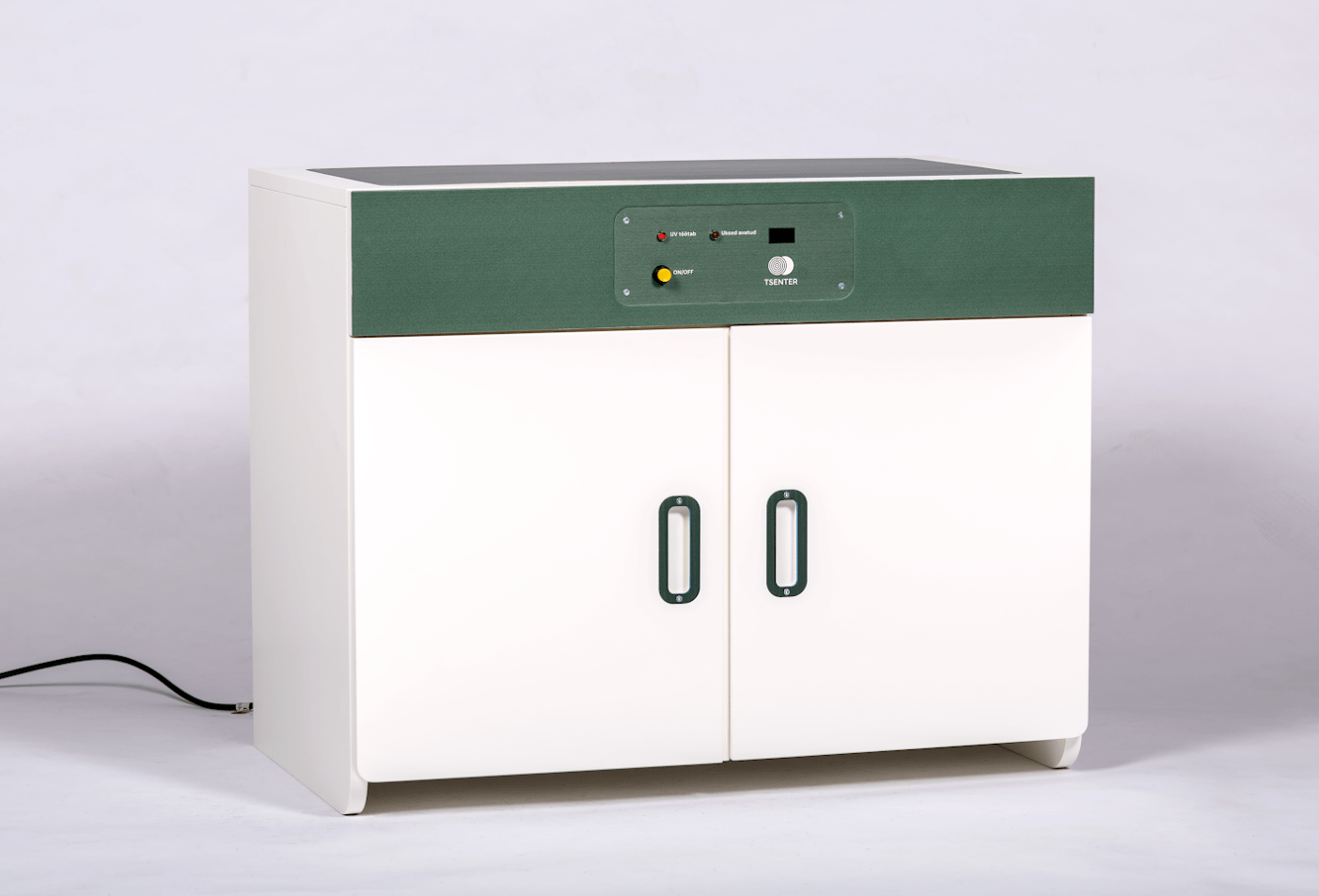
The goal was to build a chamber to test the durability of wooden parts under UV radiation.
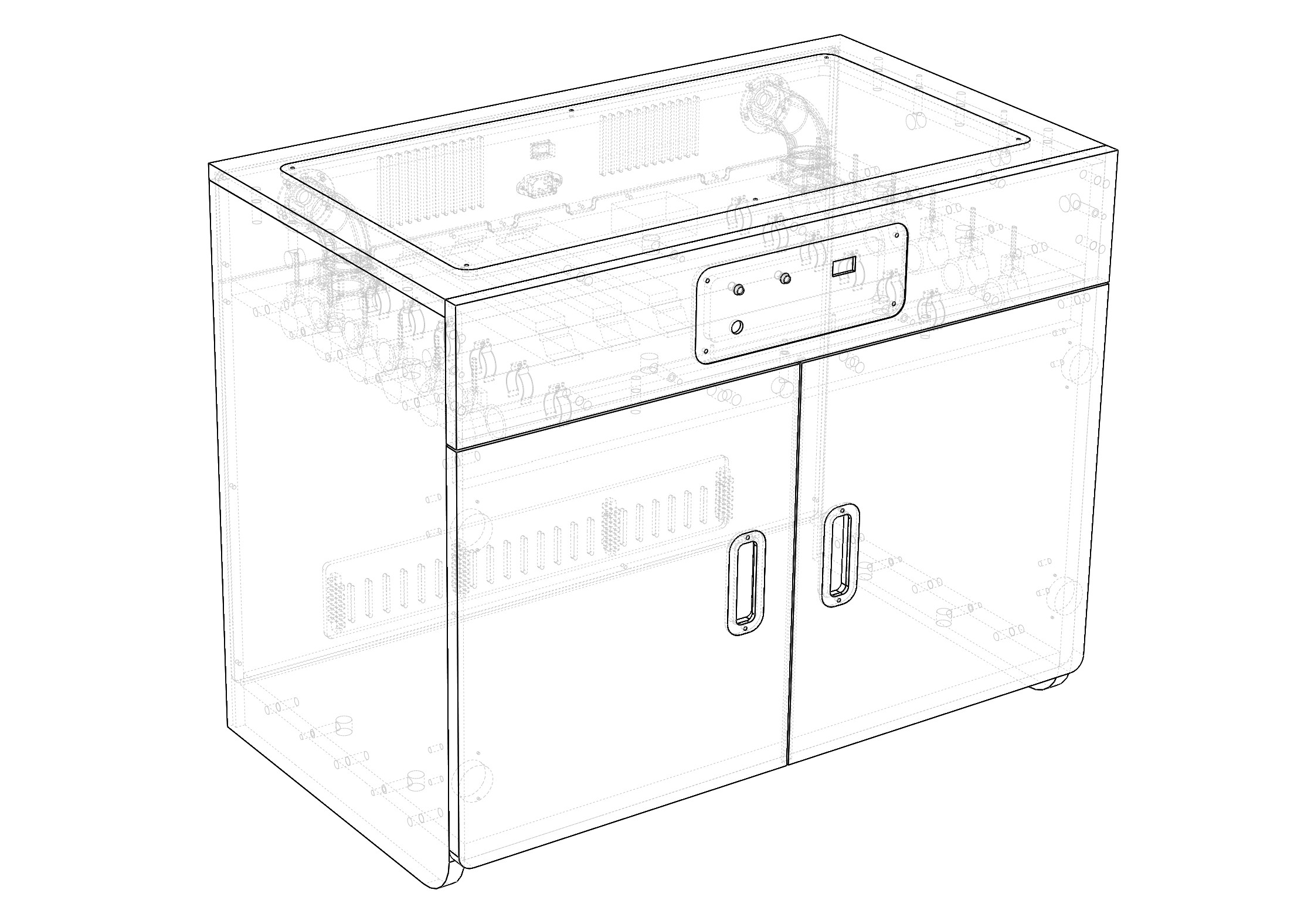
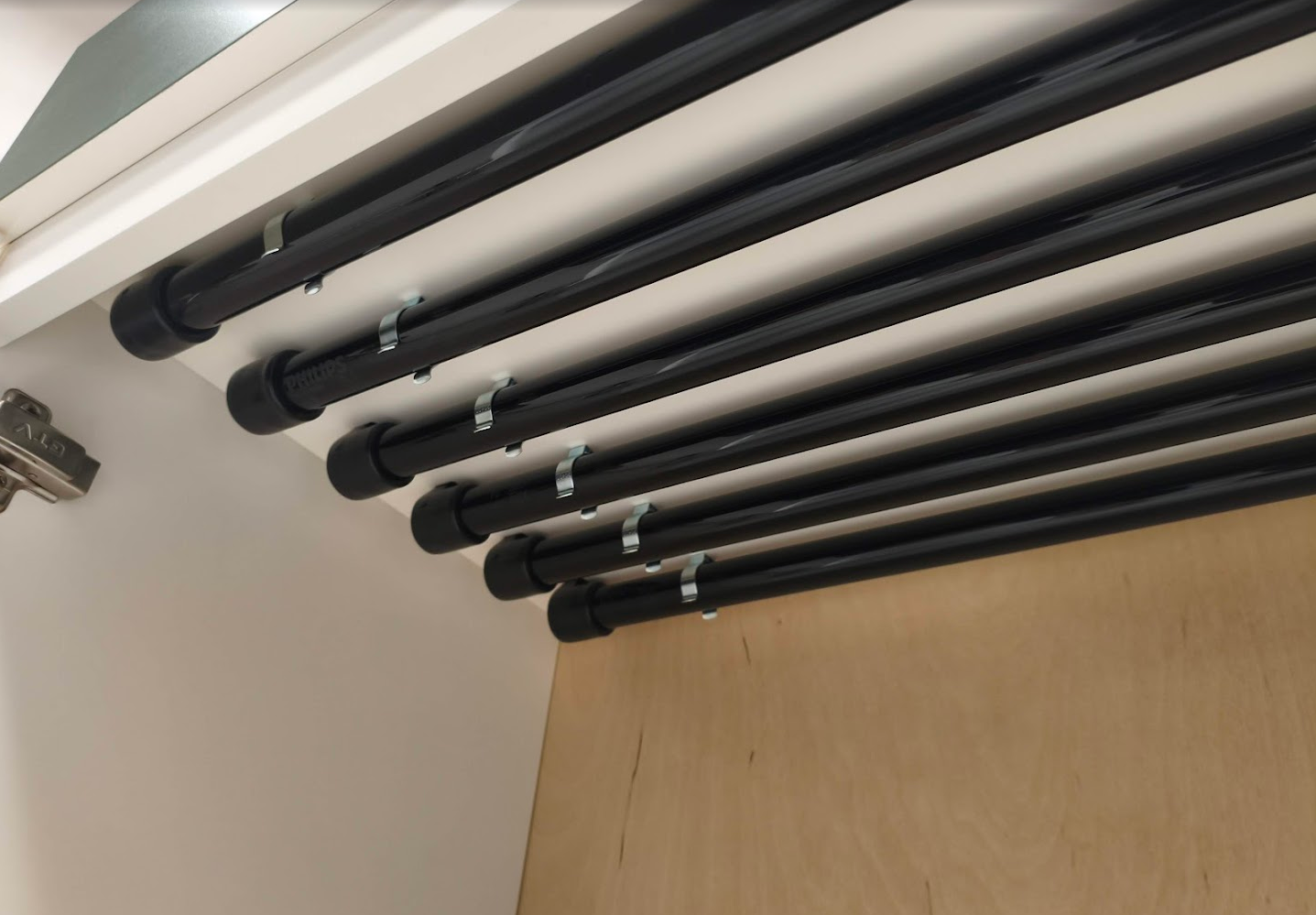
The cabinet contains six UV radiation lamps. The upper part contains all the electronics, control elements and fans.
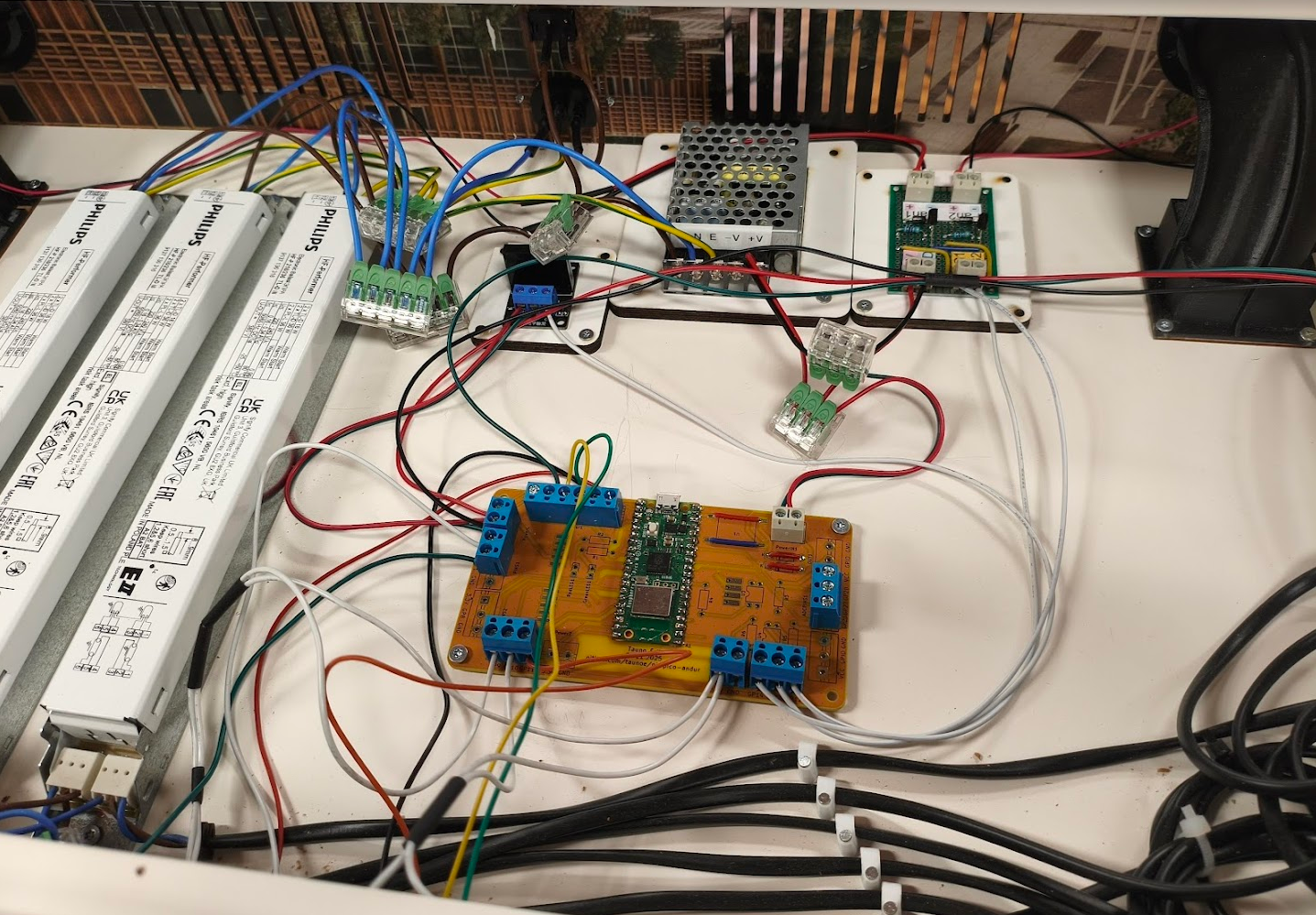
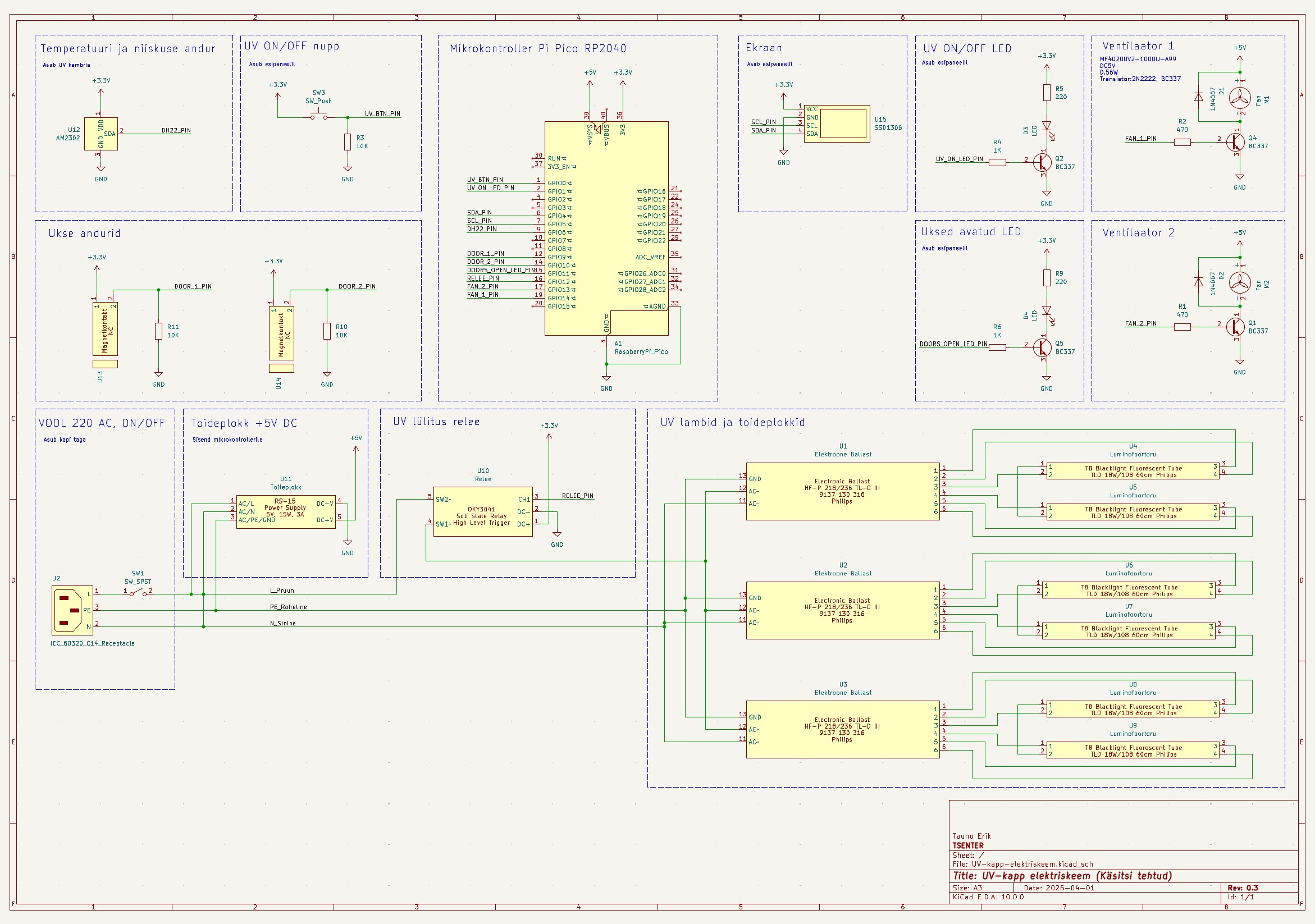
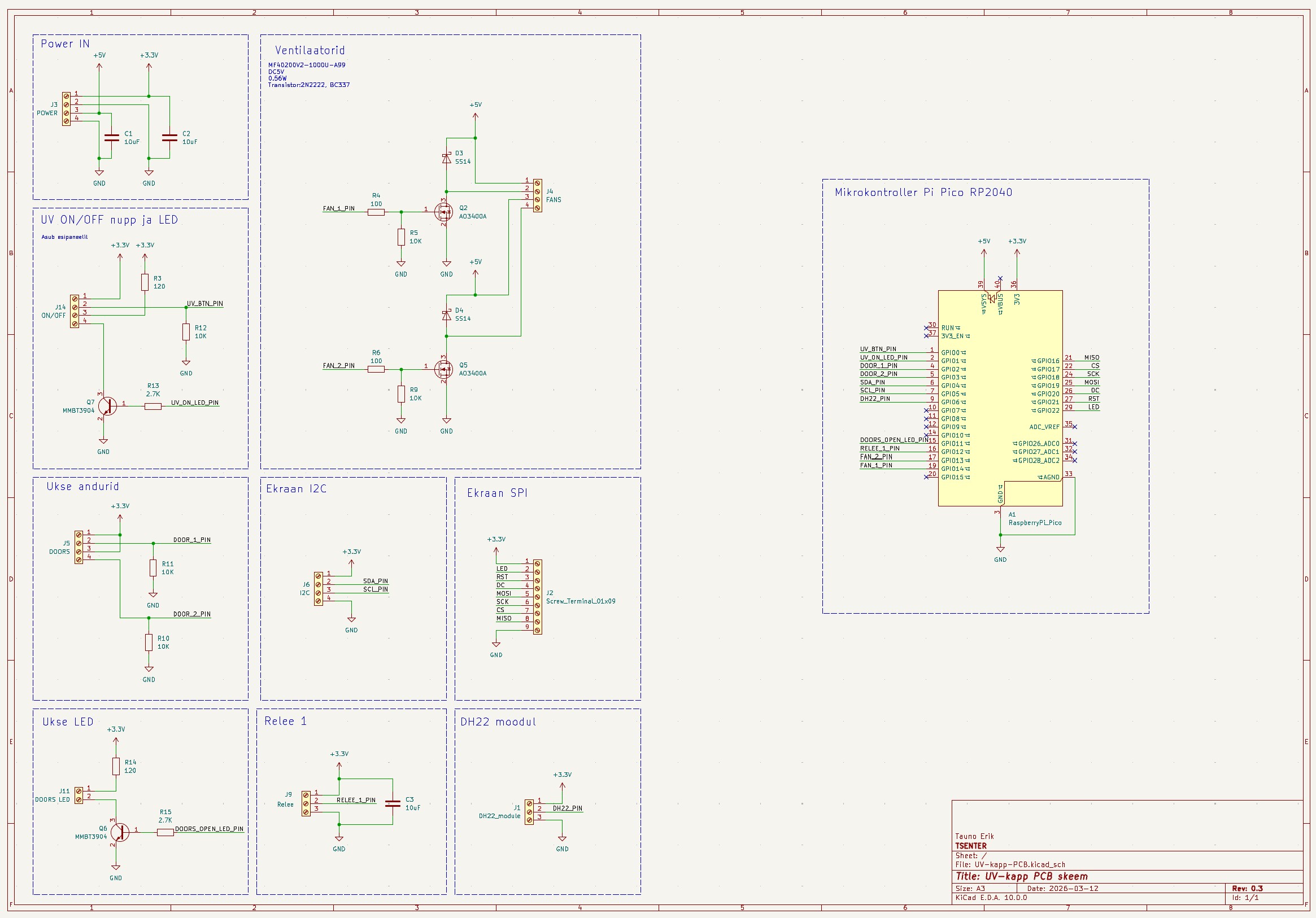
There is one ballast for every two UV lamps. UV lamps operate on 230V alternating current (AC). The second 5V power supply is for the controller. It has a solid-state relay that turns the UV lights on/off using a microcontroller. I use Raspberry Pi Pico 2 W. The plan is to add a web interface in the future. It has a DHT22 temperature and humidity sensor. It is inside the UV chamber. Also, it has a control circuit for the fans (5V). I also added door sensors to automatically turn off the UV light when someone opens the doors.
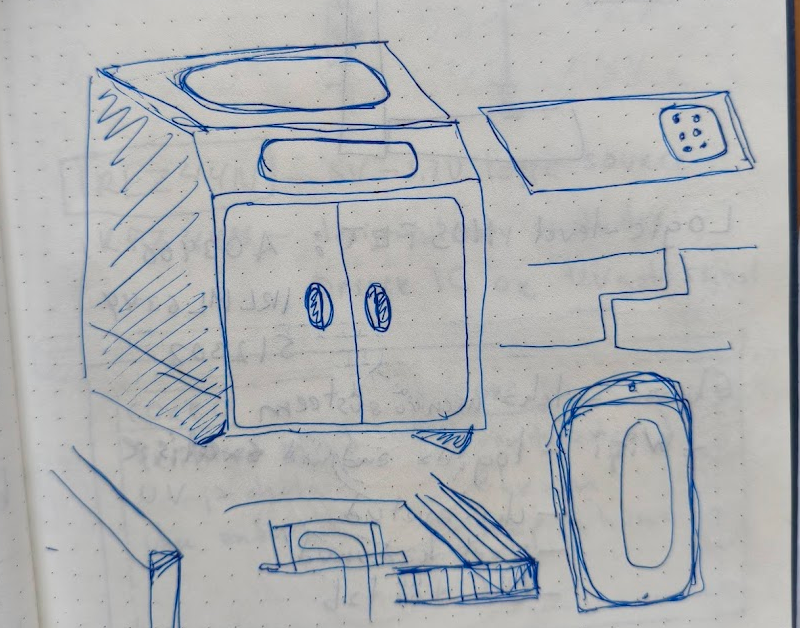
Initial idea of cabinet designCAD drawings
First finished prototype. Made by TSENTER. The material is MDF, painted white. The front panel (and other details) are printed in green.
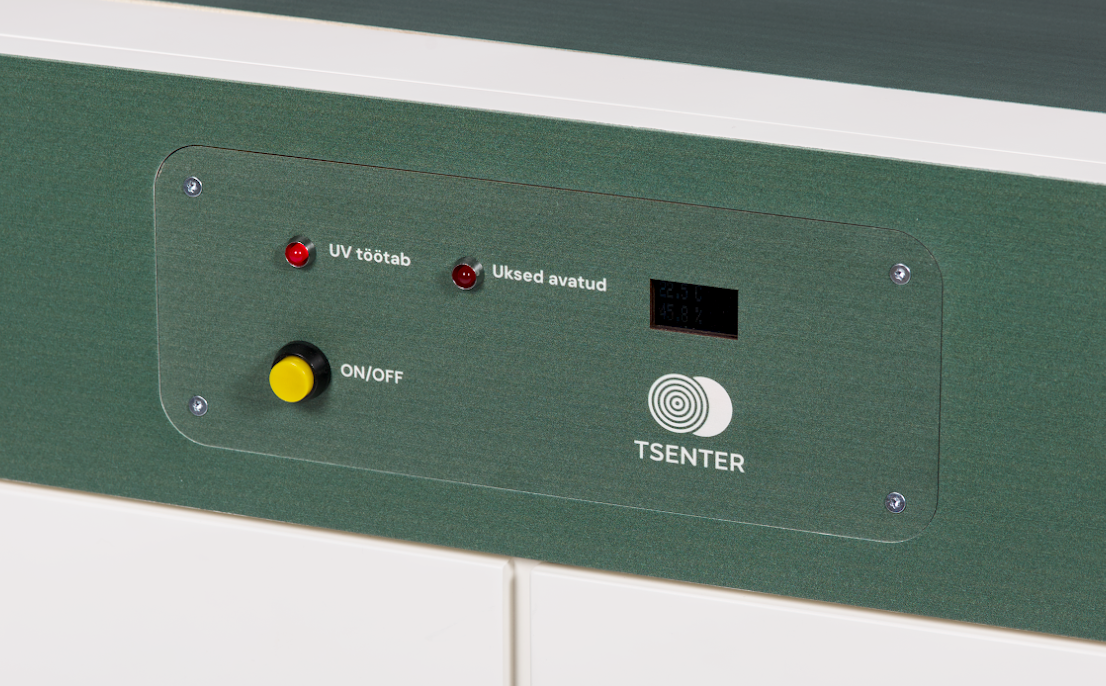
Control panel.
Front panel
Wiring and electronics of the first prototype.
Electronics in the upper partProject schematics
UV lamps in the cabinet.
UV lamps in the cabinet
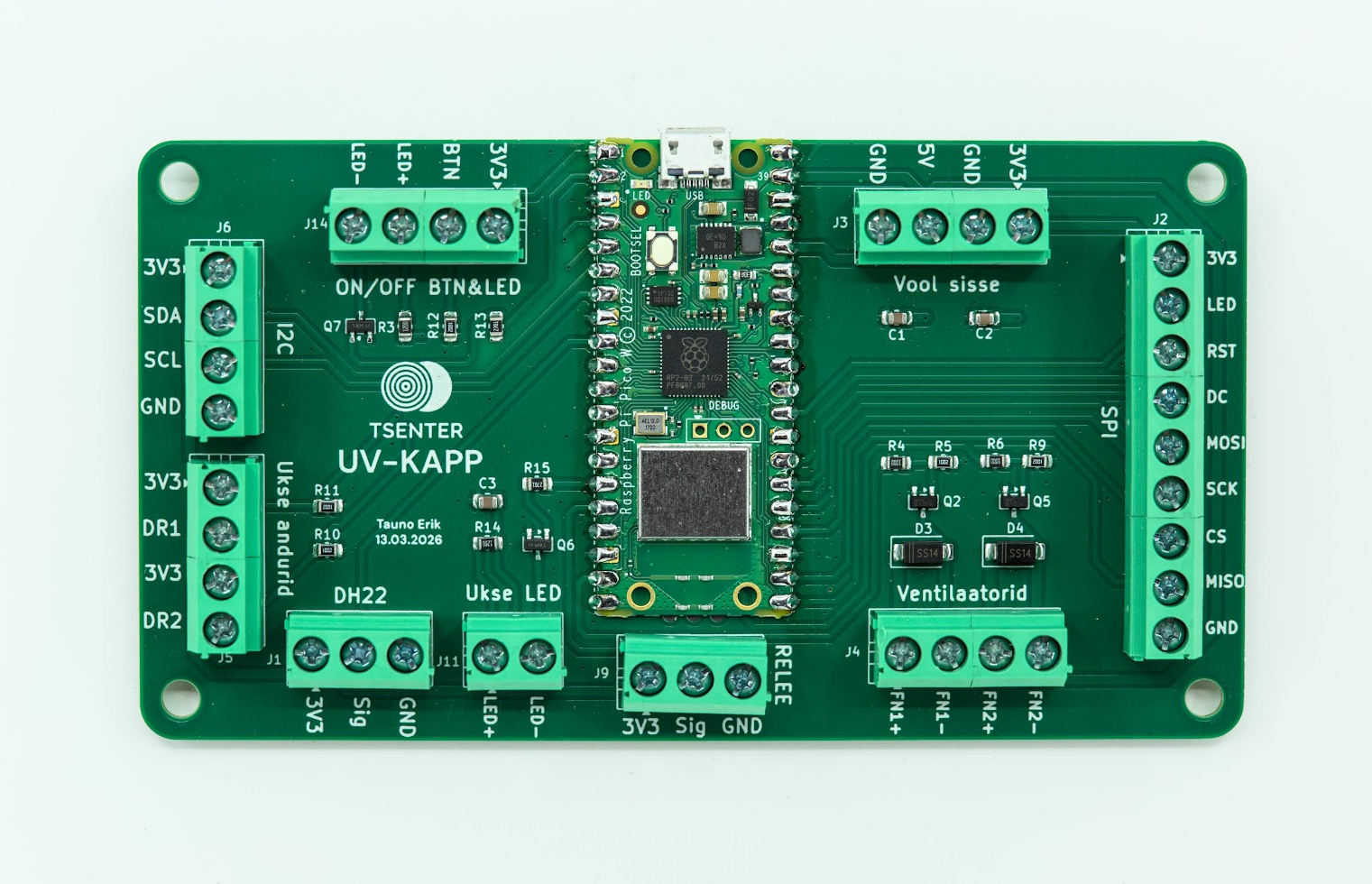
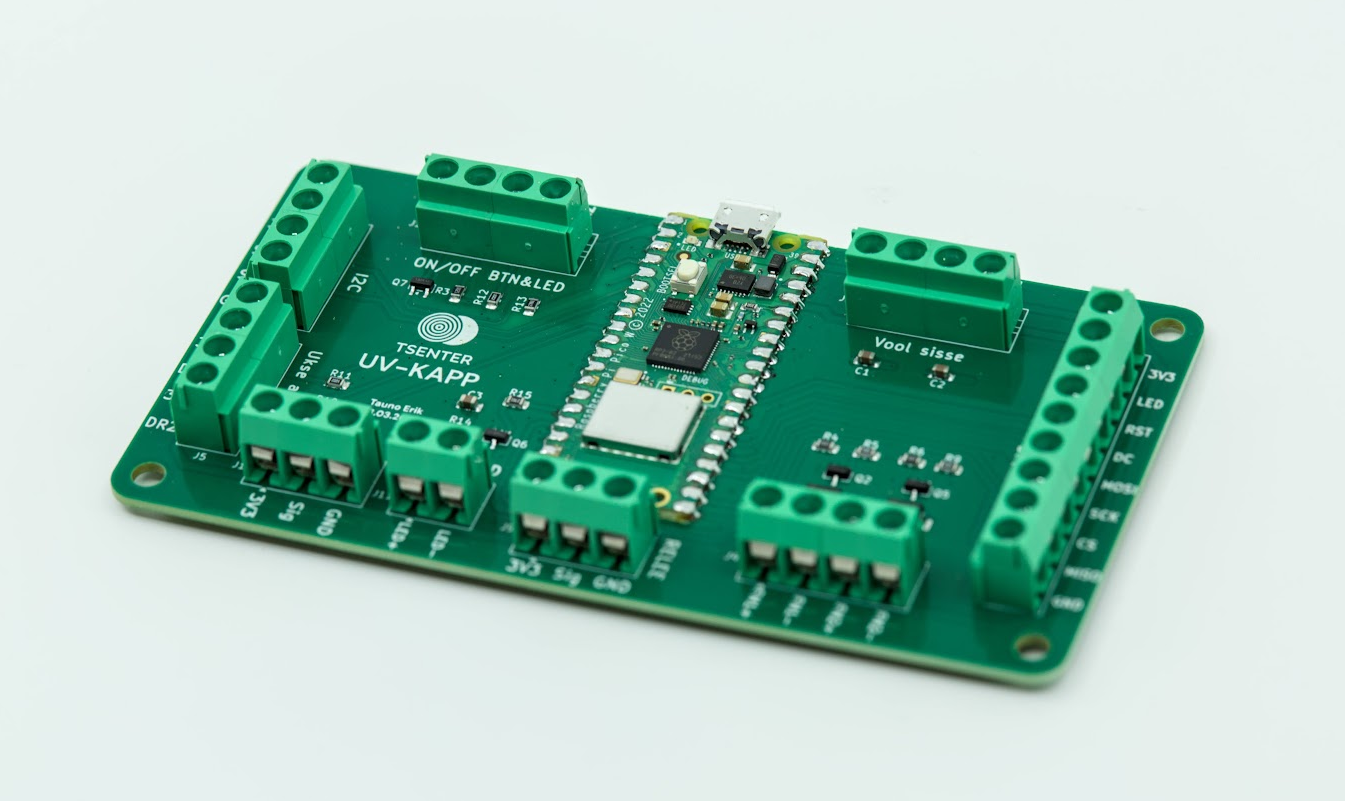
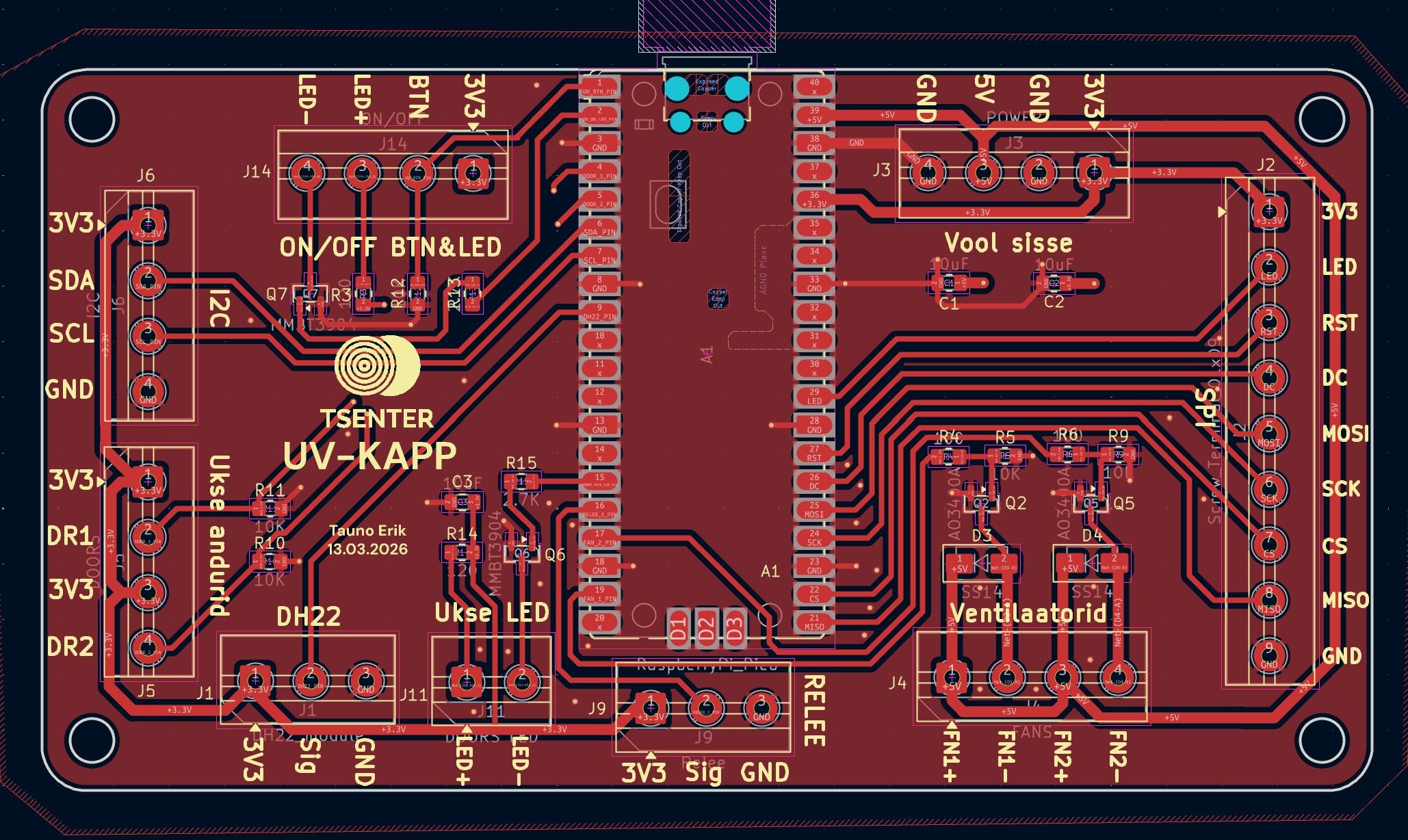
For the prototype, I used a PCB that was left over from a previous project. At the same time, I started to design a new PCB for this project. I contain most of the external components that I need for this board. Like a fans control circuit, LED drivers and buttons pull up resistors. All outputs are screw terminals. It is a plain green colour that matches the overall design of the cabinet. The PCB is made and assembled by PCBWay. As always, good quality. It is a simple two-layer board, but it makes it easier to connect different parts.
New PCB for the next prototype.New board schematicsDesigning a new board in KiCad
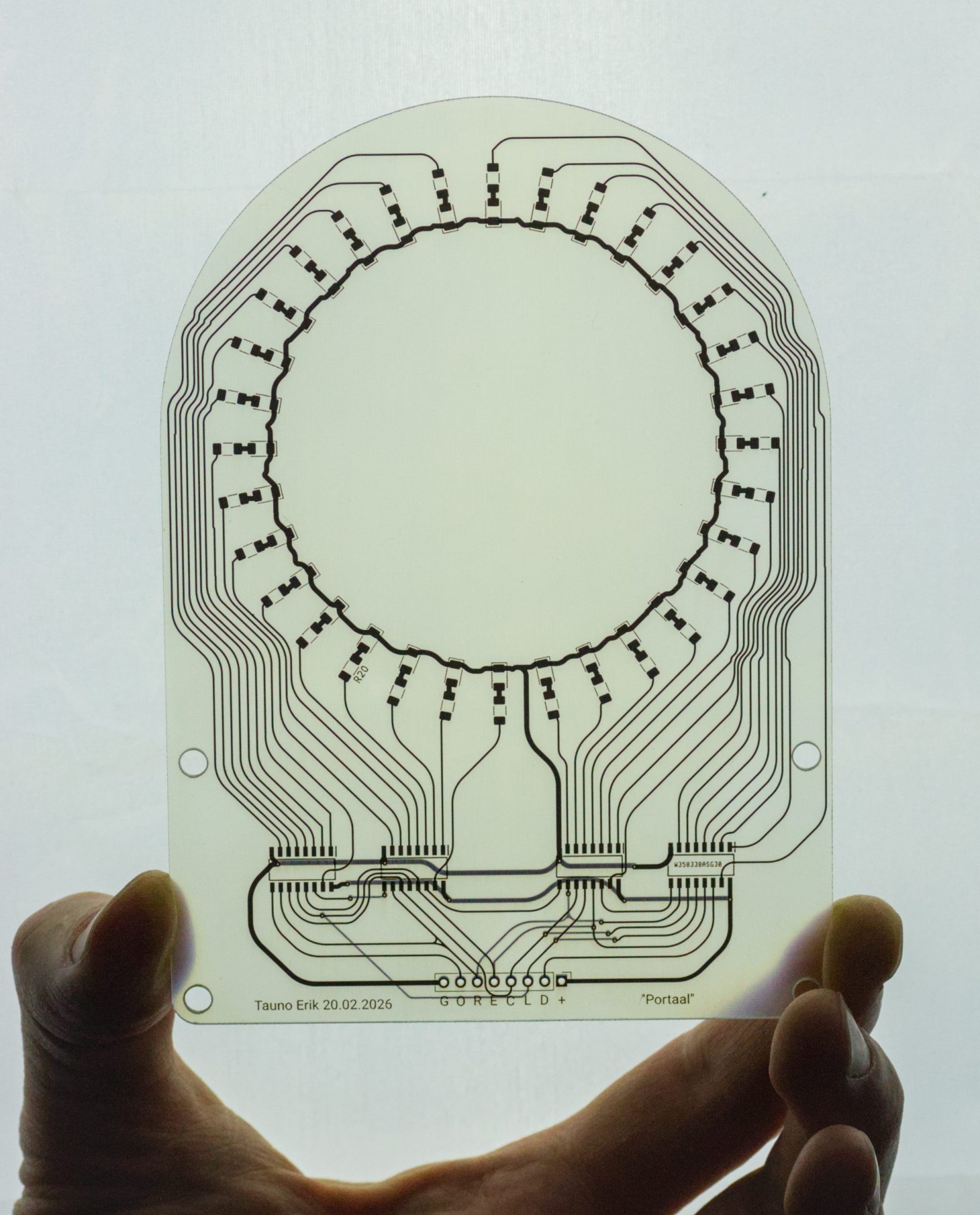
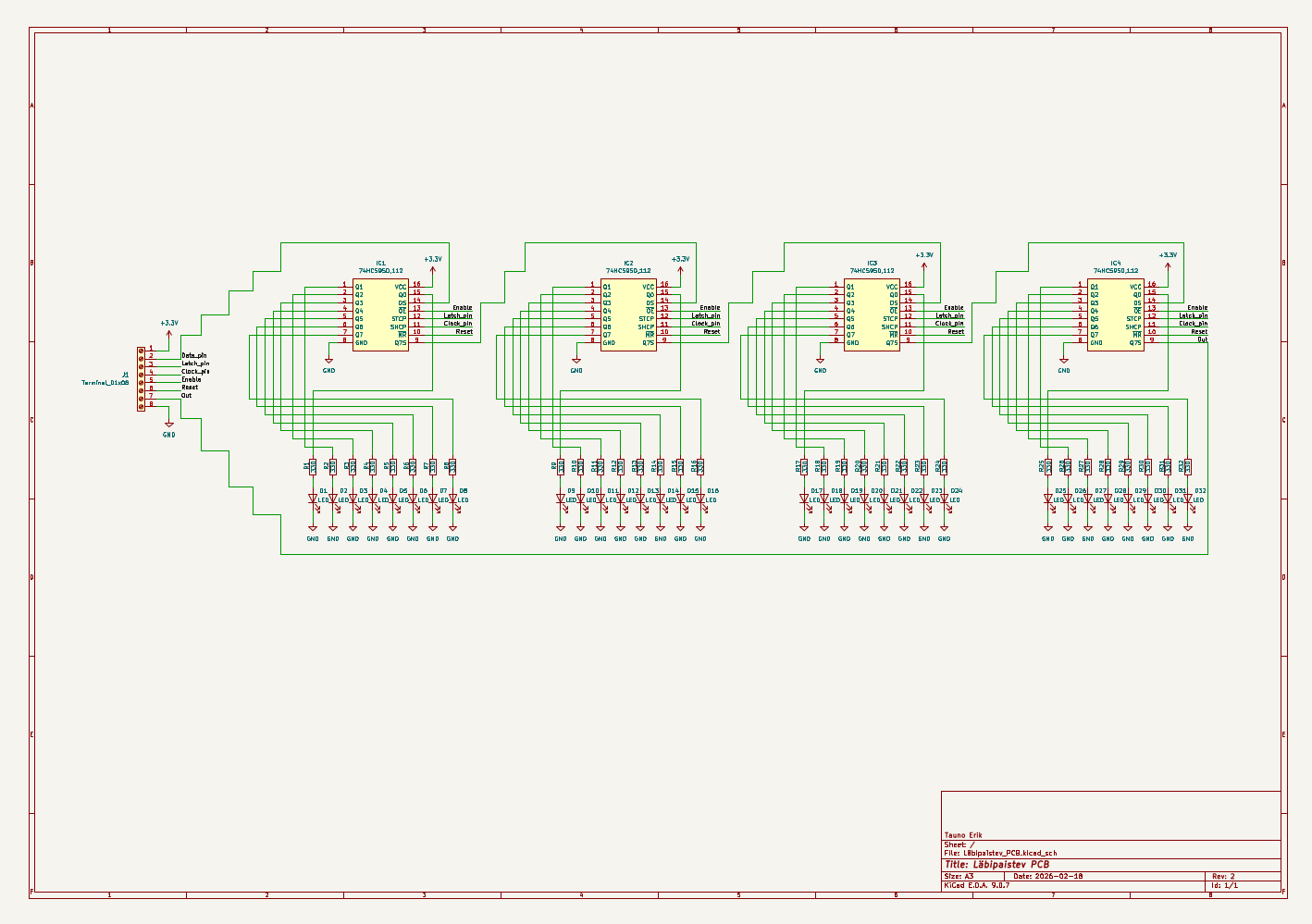
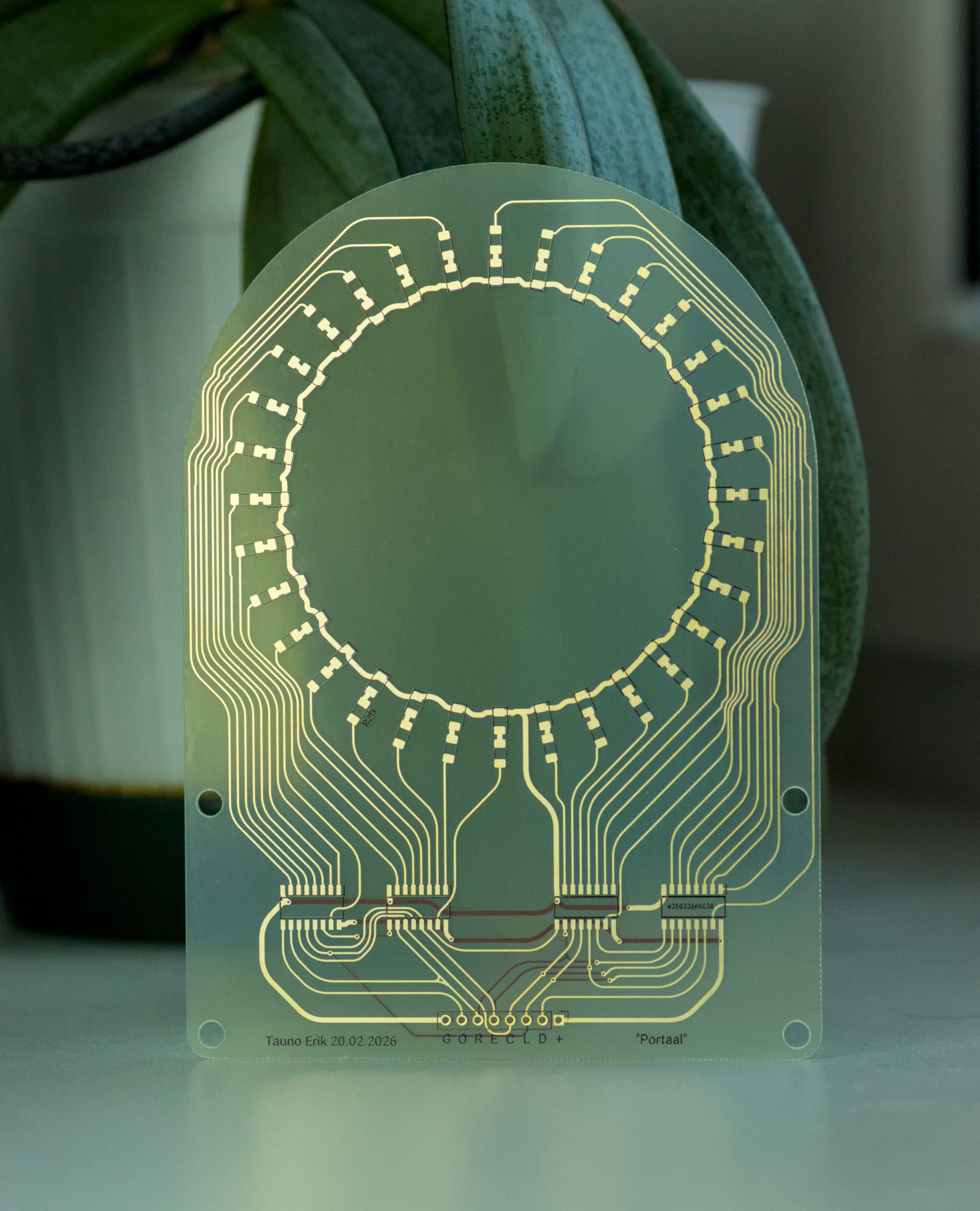
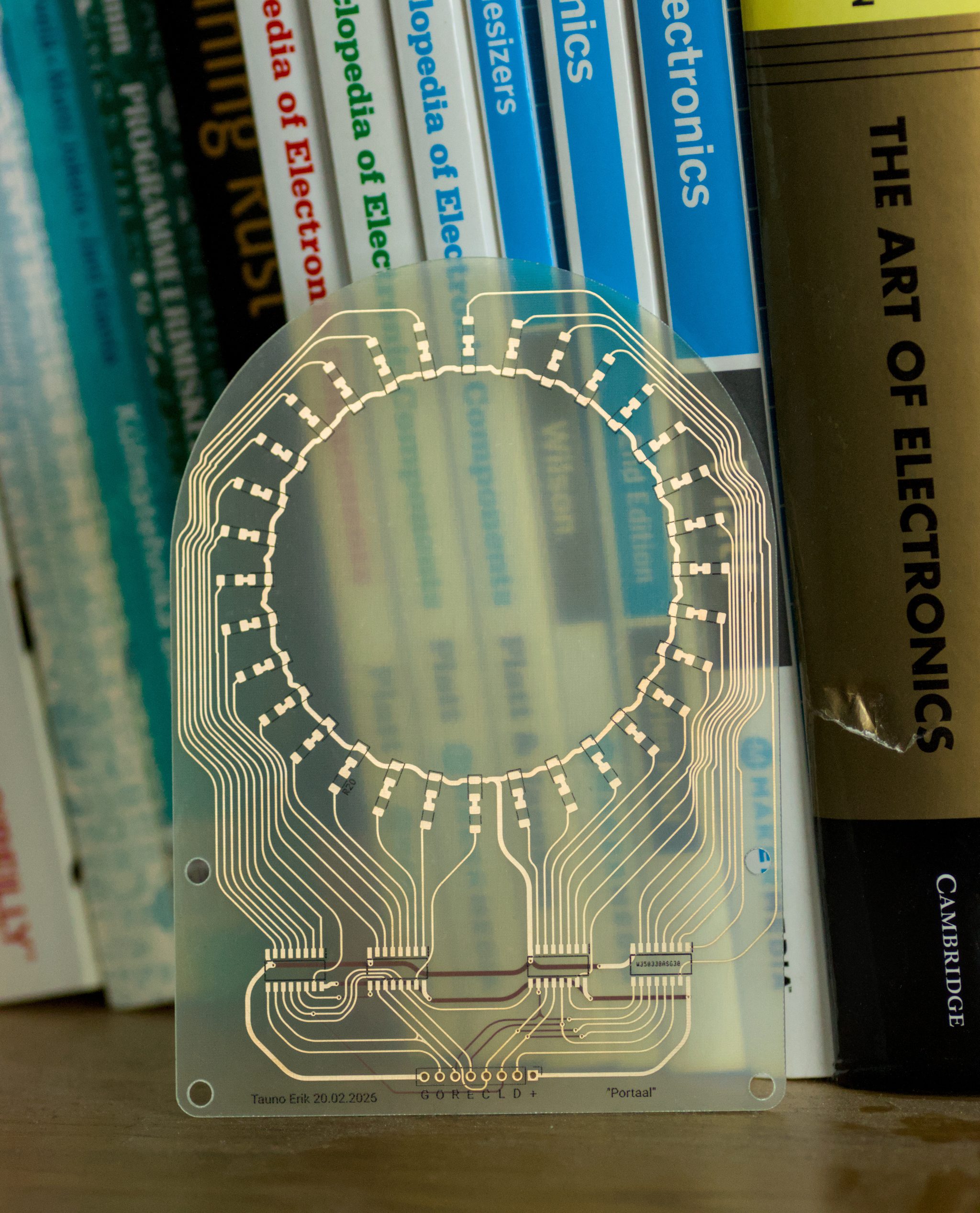
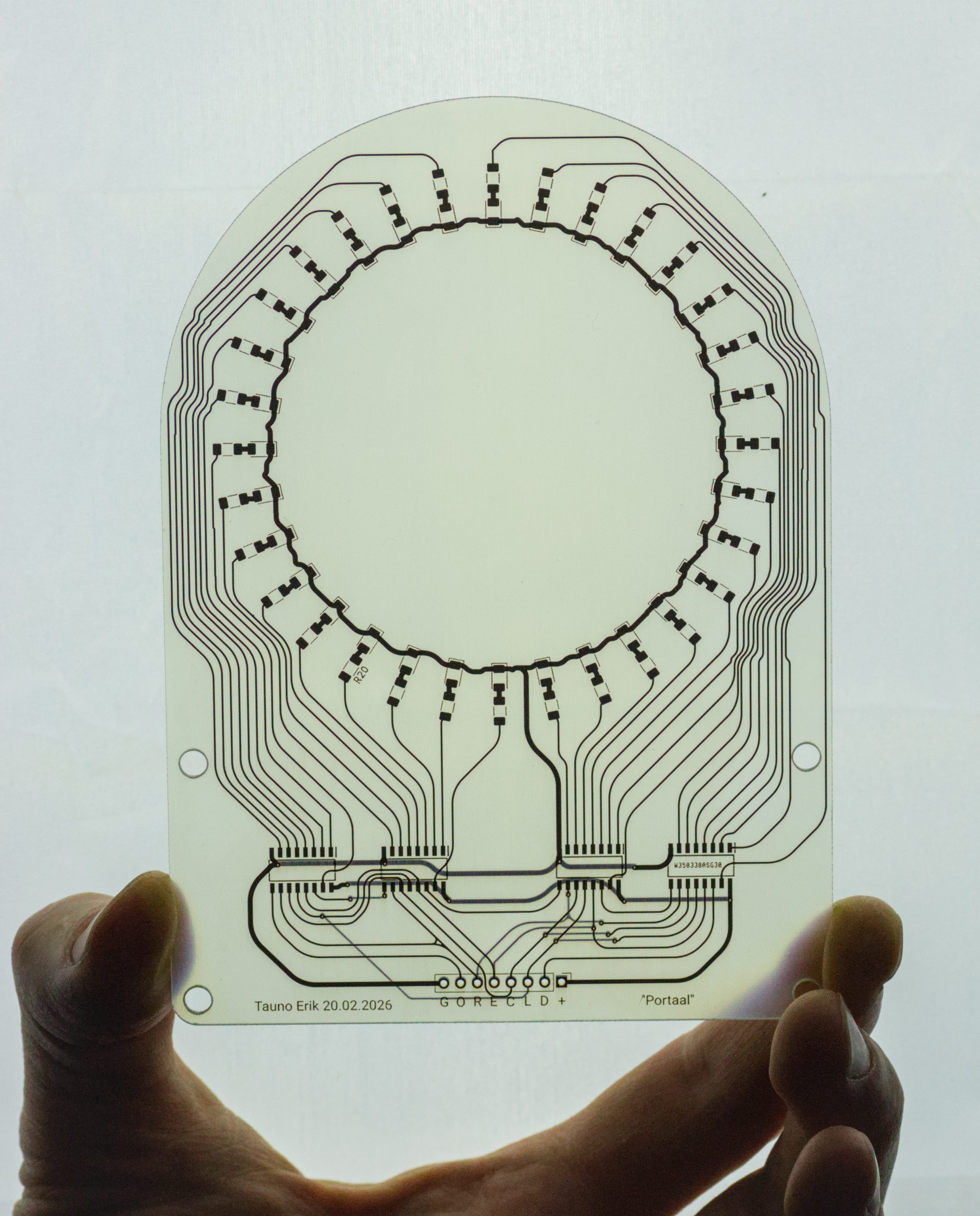
This was made by PCBWay. I designed it in KiCad. It’s basically four shift registers and LEDs. Since it was my first time seeing a transparent PCB, I designed it to explore how it could be used. It’s not transparent like glass. It’s more like translucent and diffuses light. One advantage is that you can see all the tracks.
Mine is without a solder mask. But you can select a transparent solder mask, which is under Advanced PCB.
This is a test code that uses the CH32V003 microcontroller and MounRiver Studio 2. It shifts round a 1-bit in a 32-bit register to light up the corresponding LED.
RTC – Real-Time Clock. Counts Seconds, Minutes, Hours, Date of the Month, Month, Day of the Week, and Year with Leap-Year. Compensation Valid Up to 2100.
24-hour or 12-hour format
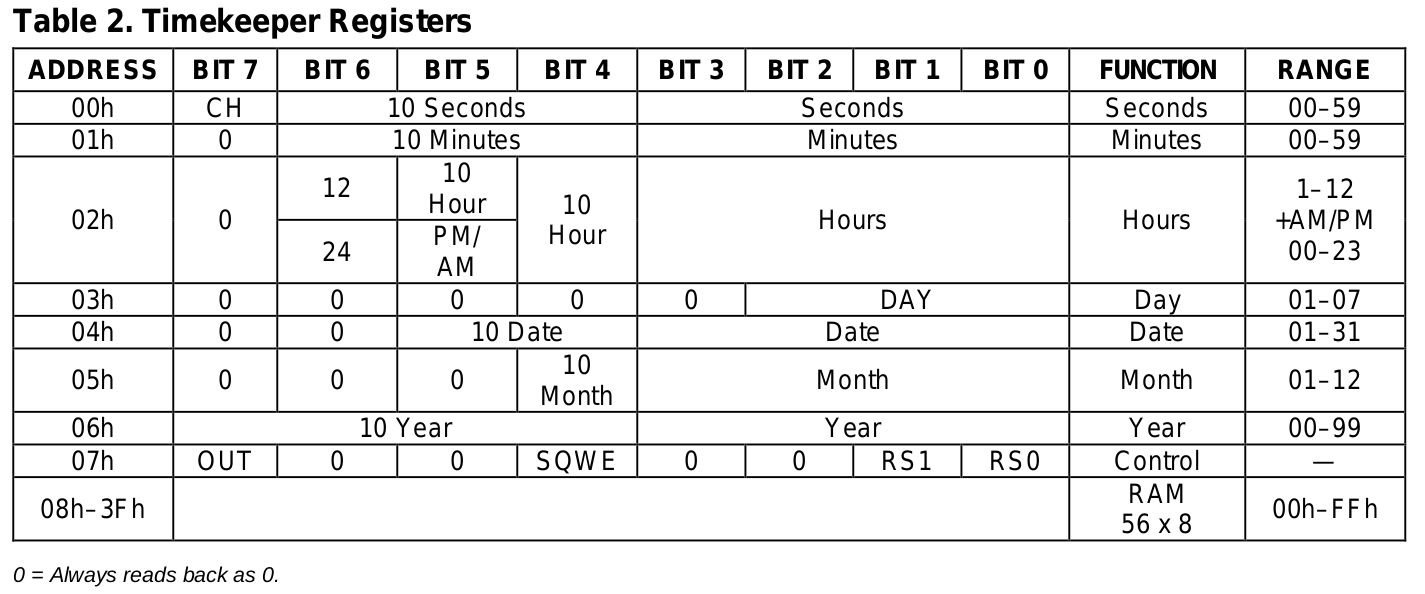
The contents of the time and calendar registers are in the BCD format. BCD – binary-coded decimal
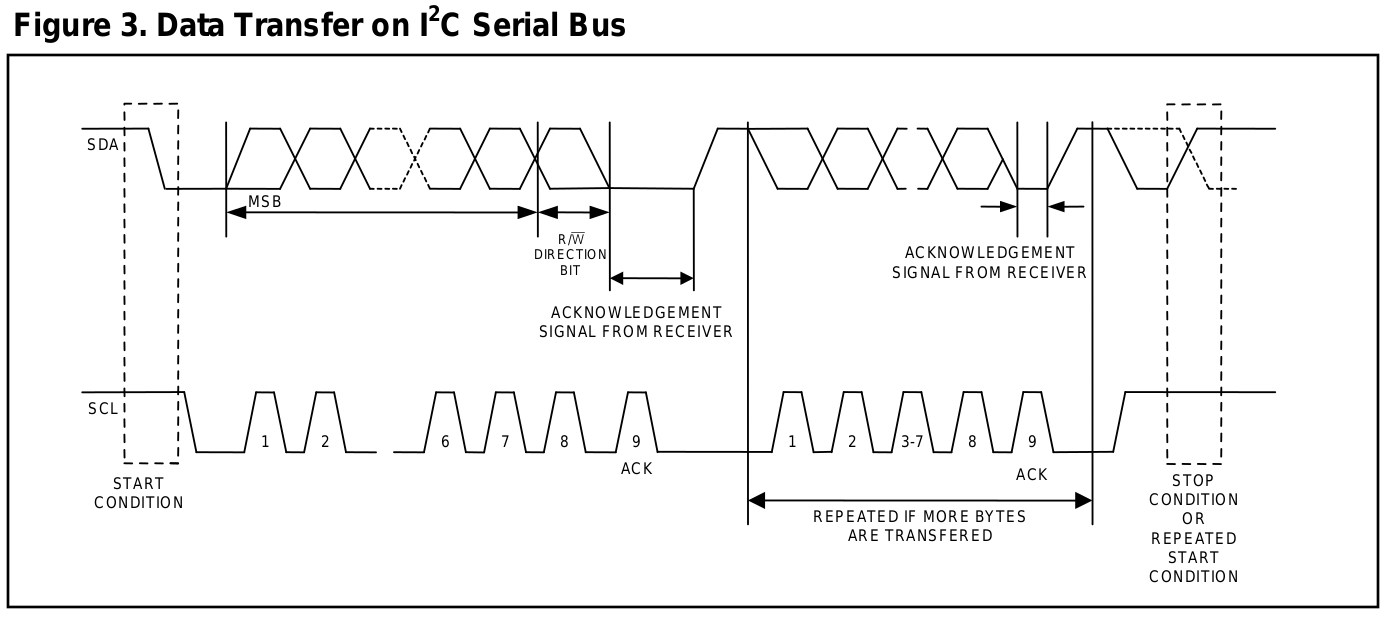
I2C serial interface. Slave device. Operates in the standard mode (100kHz) only.
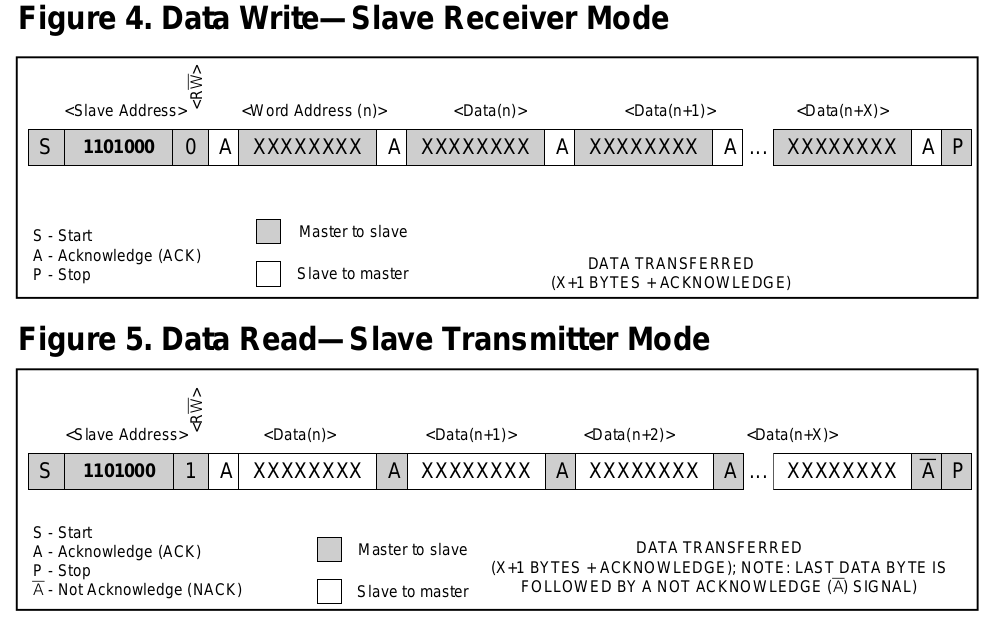
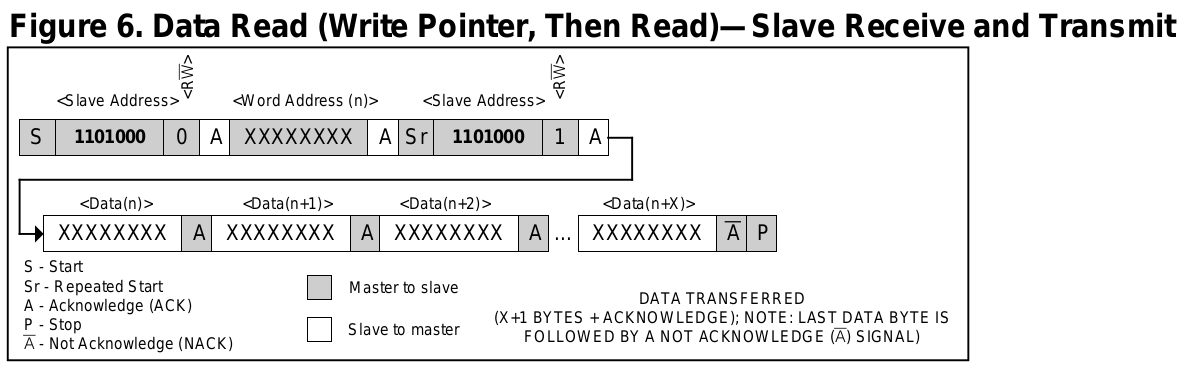
Address (7-bit) 1101000 = 0x68 followed by the direction bit (R/W).
Write address (8-bit) 11010000 = 0xD0
Read address (8-bit) 11010001 = 0xD1
Has a built-in power-sense circuit that detects power failures and automatically switches to the backup supply.
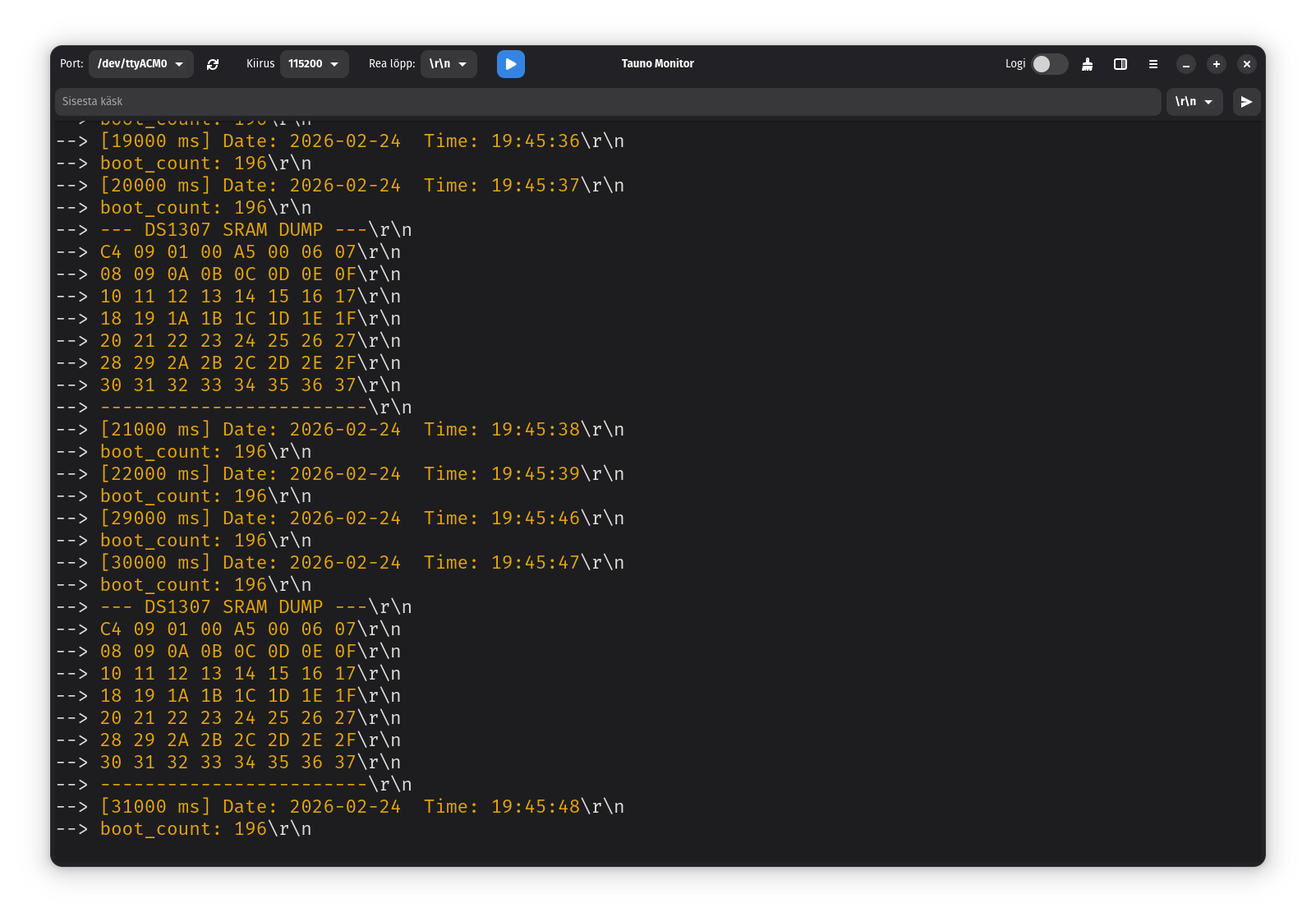
56-Byte, Battery-Backed, General-Purpose SRAM with Unlimited Writes
Programmable Square-Wave Output Signal
Consumes Less than 500nA in Battery-Backup Mode with Oscillator Running
RTC and RAM address map
RTC registers 0x00 to 0x07
SRAM registers 0x08 to 0x3F
BIT 7: CH – clock halt pit. When set to 1, the oscillator is disabled.
I gradually added material as the project progressed.
Goal
I need a sensor that can detect whether an object is in the desired location or not. Must use 24V input voltage, common in industry. Pass the signal on to either another microcontroller or a robot. The user must be able to easily adjust the sensitivity or distance of the sensor.
Plan
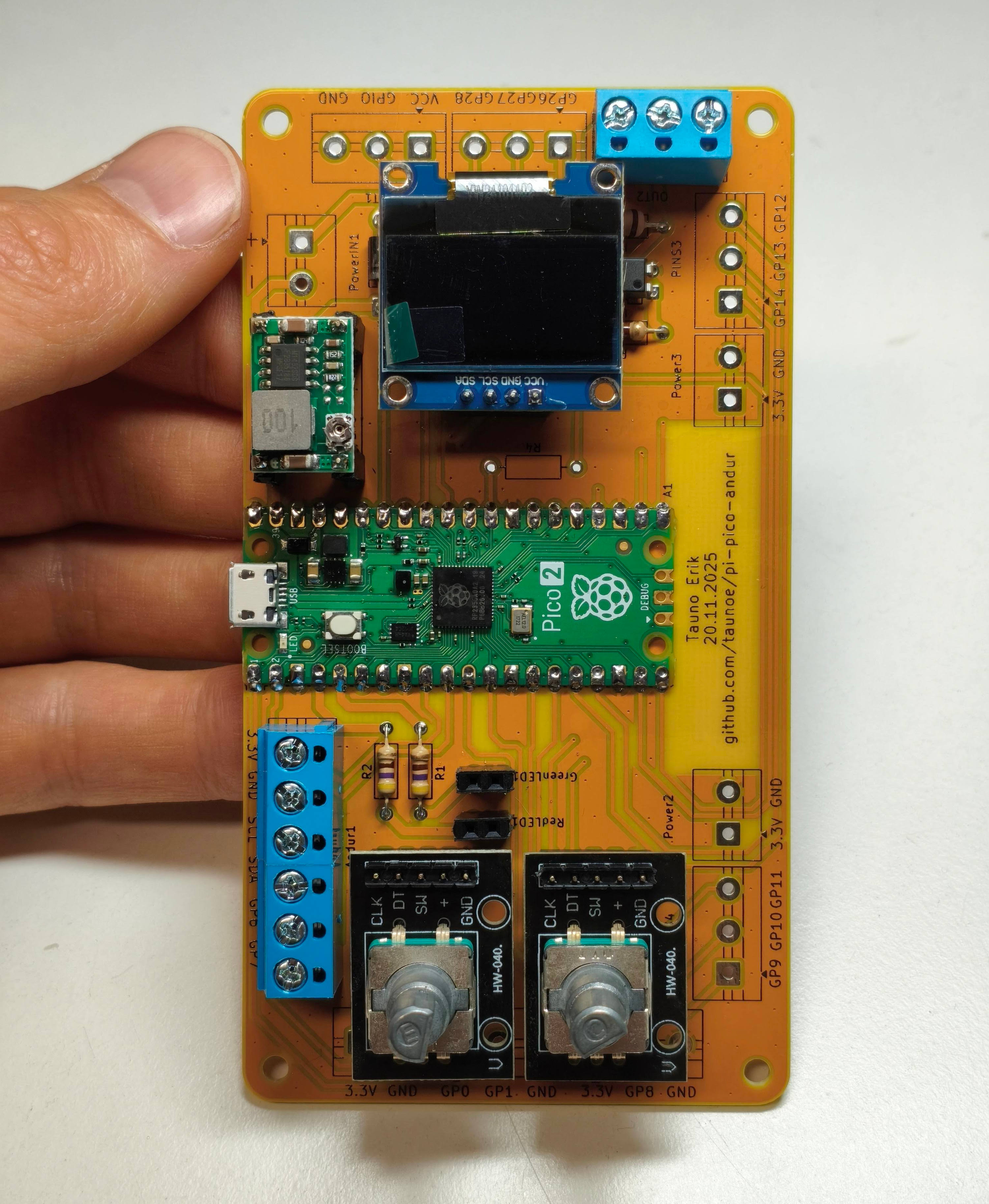
The plan is to make a custom printed circuit board (PCB) that will hold:
Power module – To convert 24V to a low voltage suitable for the microcontroller. OKY3504-1 Mini-360 DC-DC buck converter 4.75V-23V to 1V-17V step down power module.
Development board – Raspberry Pi Pico 2 RP2350. The board brain.
Sensor – ToF VL53L0X Time Of Flight distance sensor.
Display – To display current sensor readings and user-set parameters. 0.96″, 128×64 px, I2C, OLED Display Module. Driver IC: SSD1306.
Rotary encoders – User input. 360-degree rotation. With a push button.
Indicator LEDs (Red and green) – To quickly interpret sensor readings.
Optocouplers – PC817. Galvanically isolated signal output.
Screw terminals – To connect the sensor, power input, sensor output and other possible connections.
Since this project is still in its early stages, I reserve the right to make changes at a later stage. Therefore, I will add most MCU pins to the PCB.
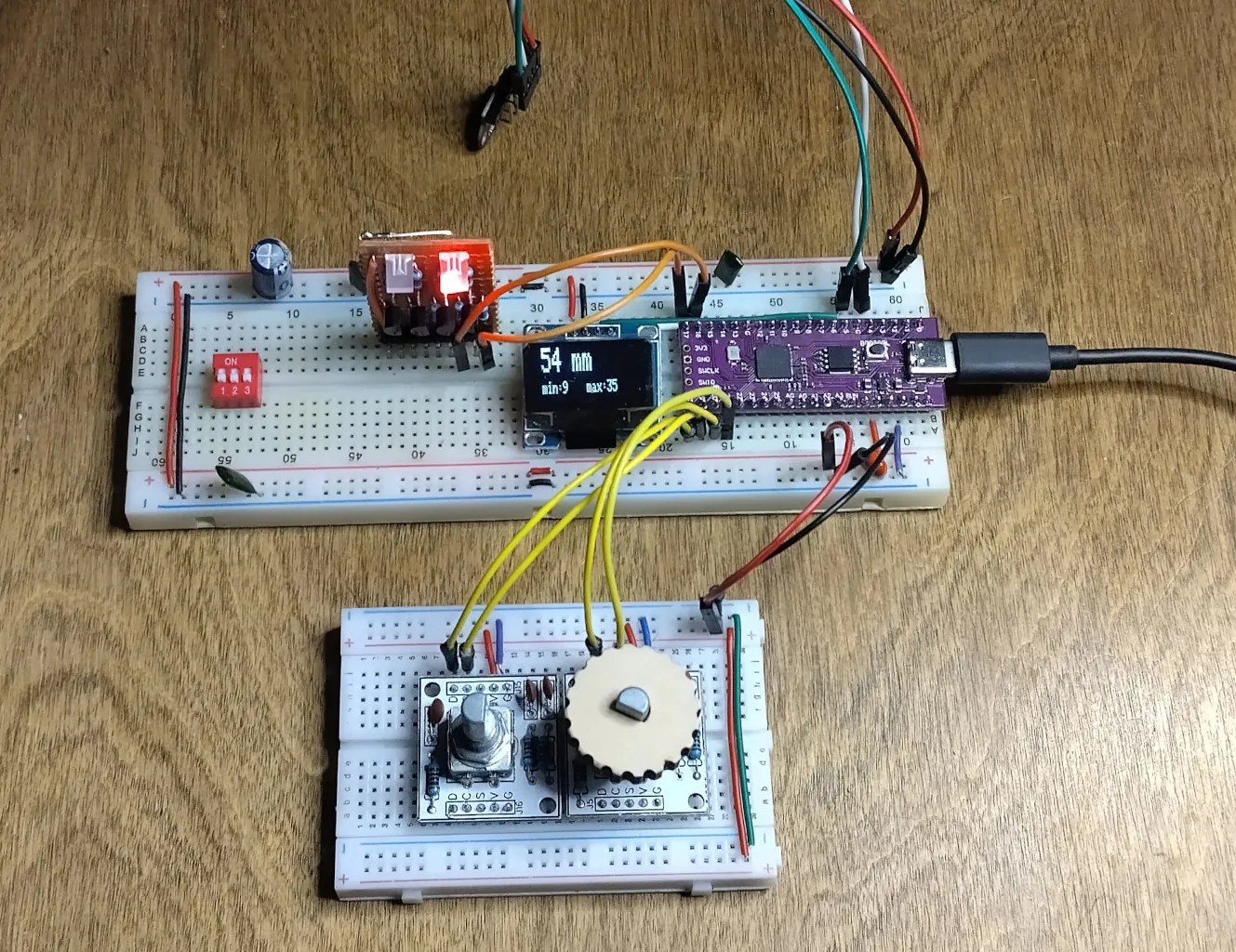
The first prototype on the breadboard
It uses a Pico 1 (RP2040) clone.
Prototype on a breadboard
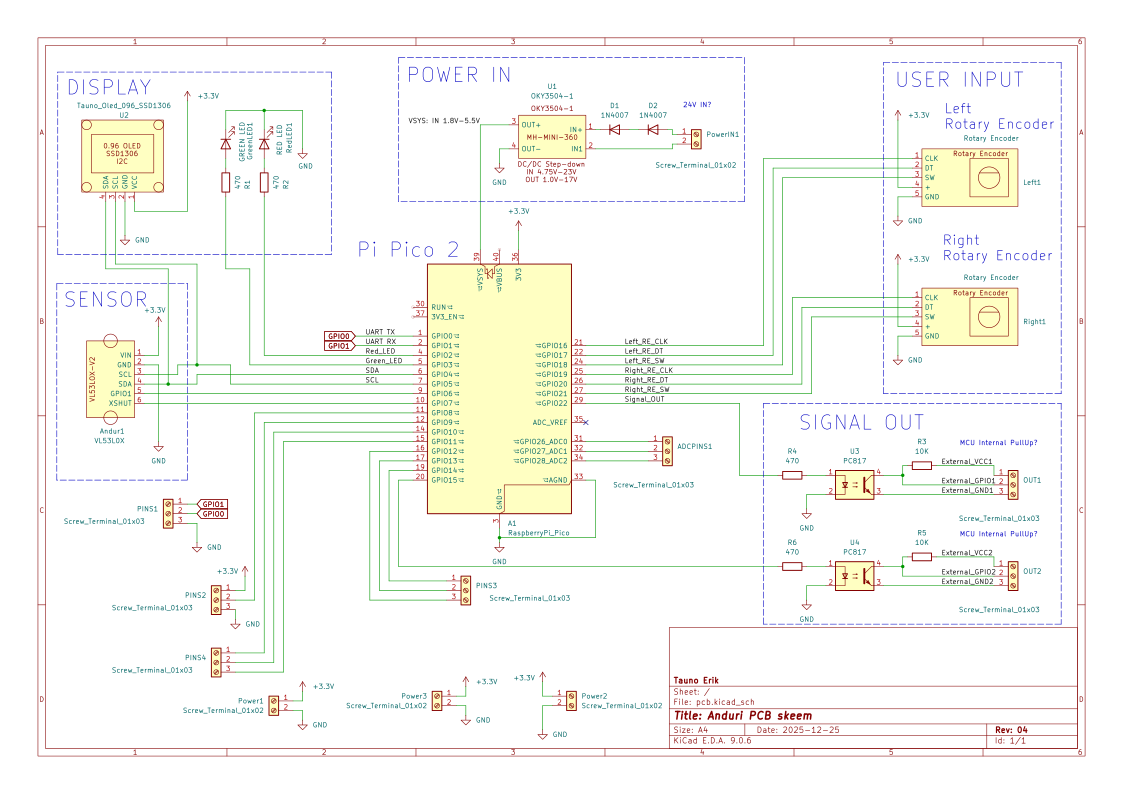
Prototype schematics
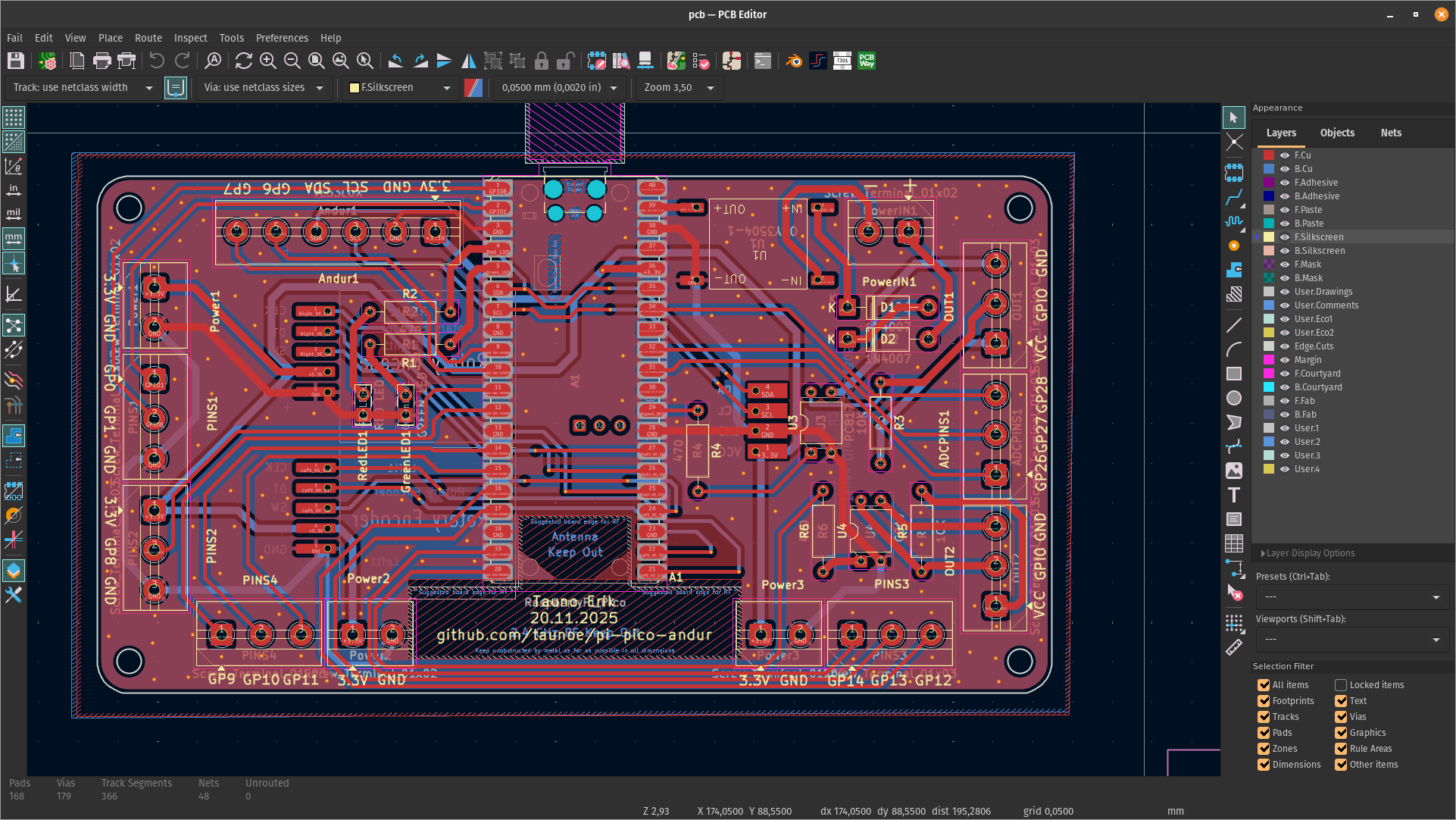
I designed the schematics and a 2-layer PCB in KiCAD. Added new symbols and footprints to modules that I needed, but didn’t exist in the library. I left the same pin order to symbols as on a real modules. To avoid pin order mistakes. Like on the OLED module, the VCC and GND pins can be in reverse order.
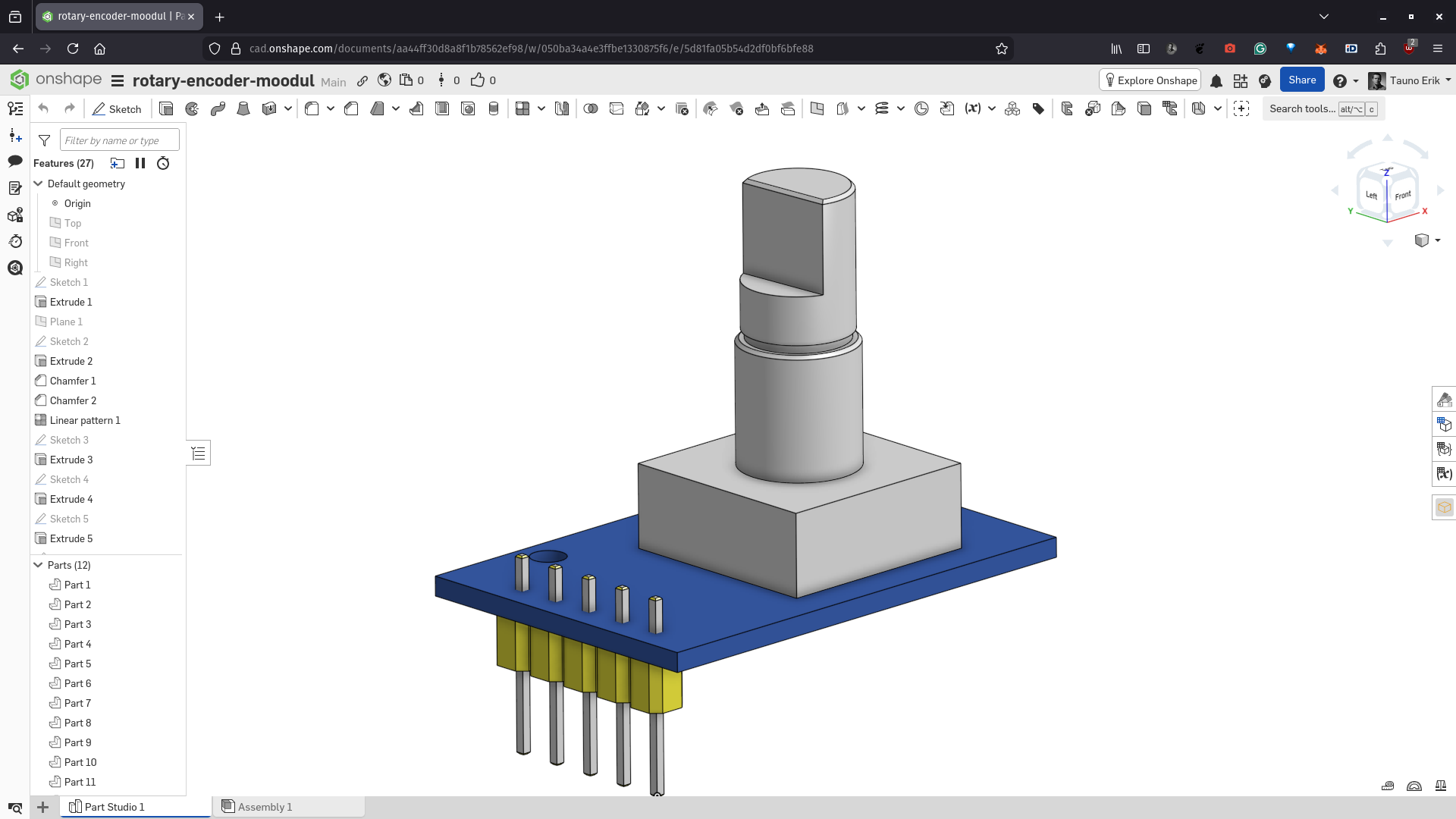
In OnShape, I designed simple 3D models that I exported as STEP files.
PCB SchematicsPCB drawing in KiCadRotary Encoder 3D model made in OnShape
PCBs
Fortunately, when I designed the prototype, PCBWay contacted me to support PCB fabrication. I have ordered a lot of printed circuit boards from them. And they will always be produced quickly, and the quality is good. I have never had any problems.
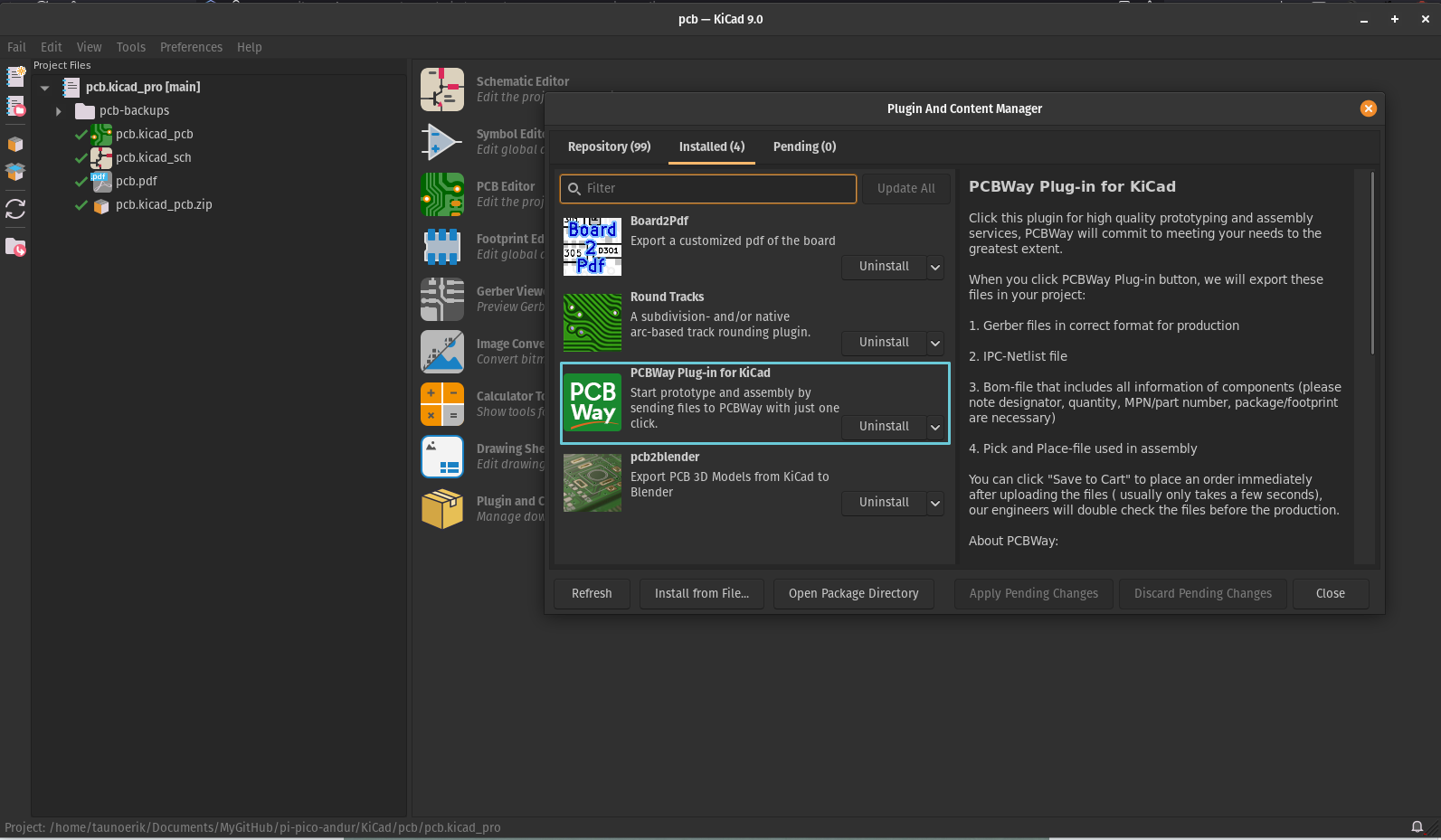
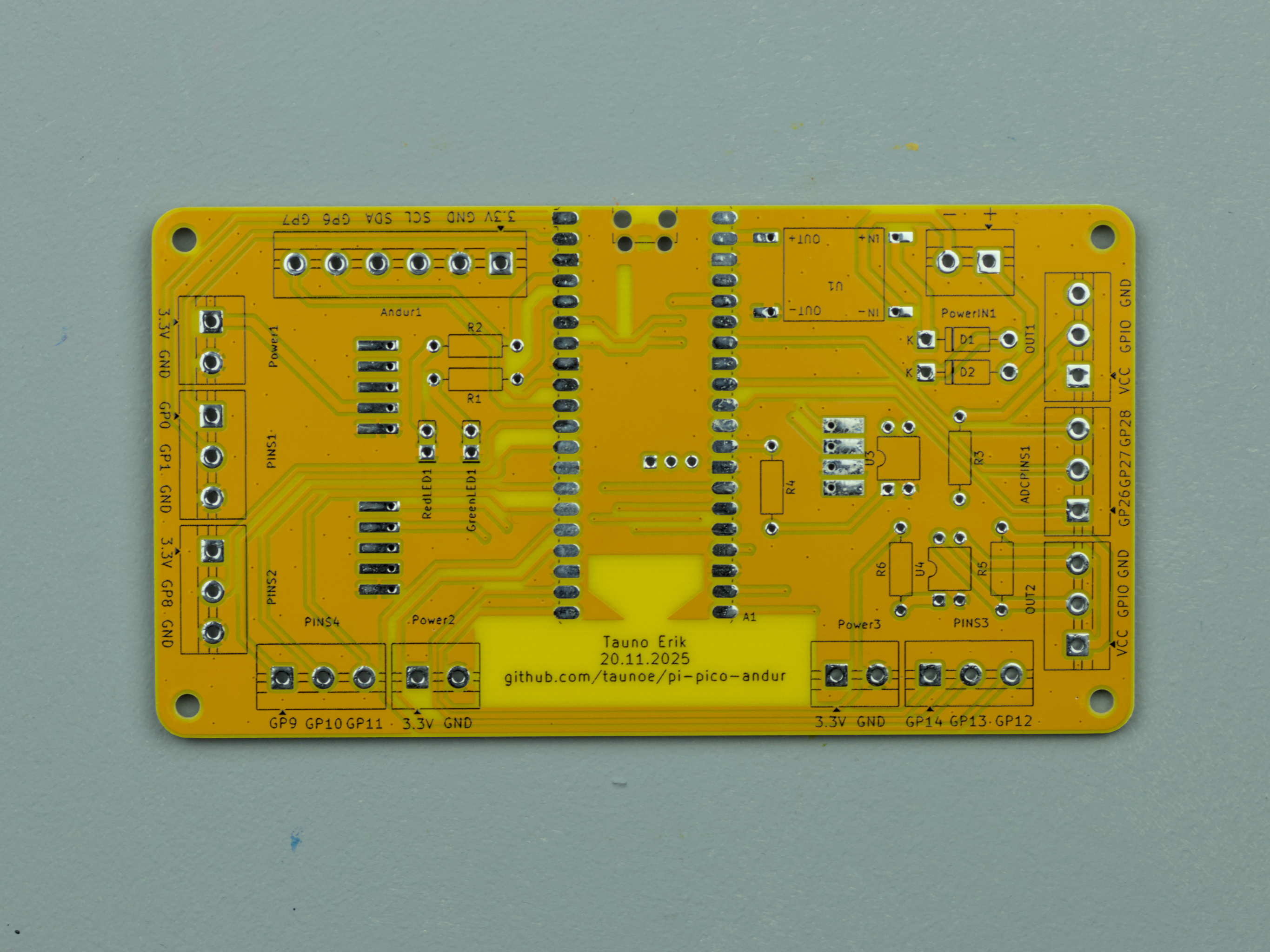
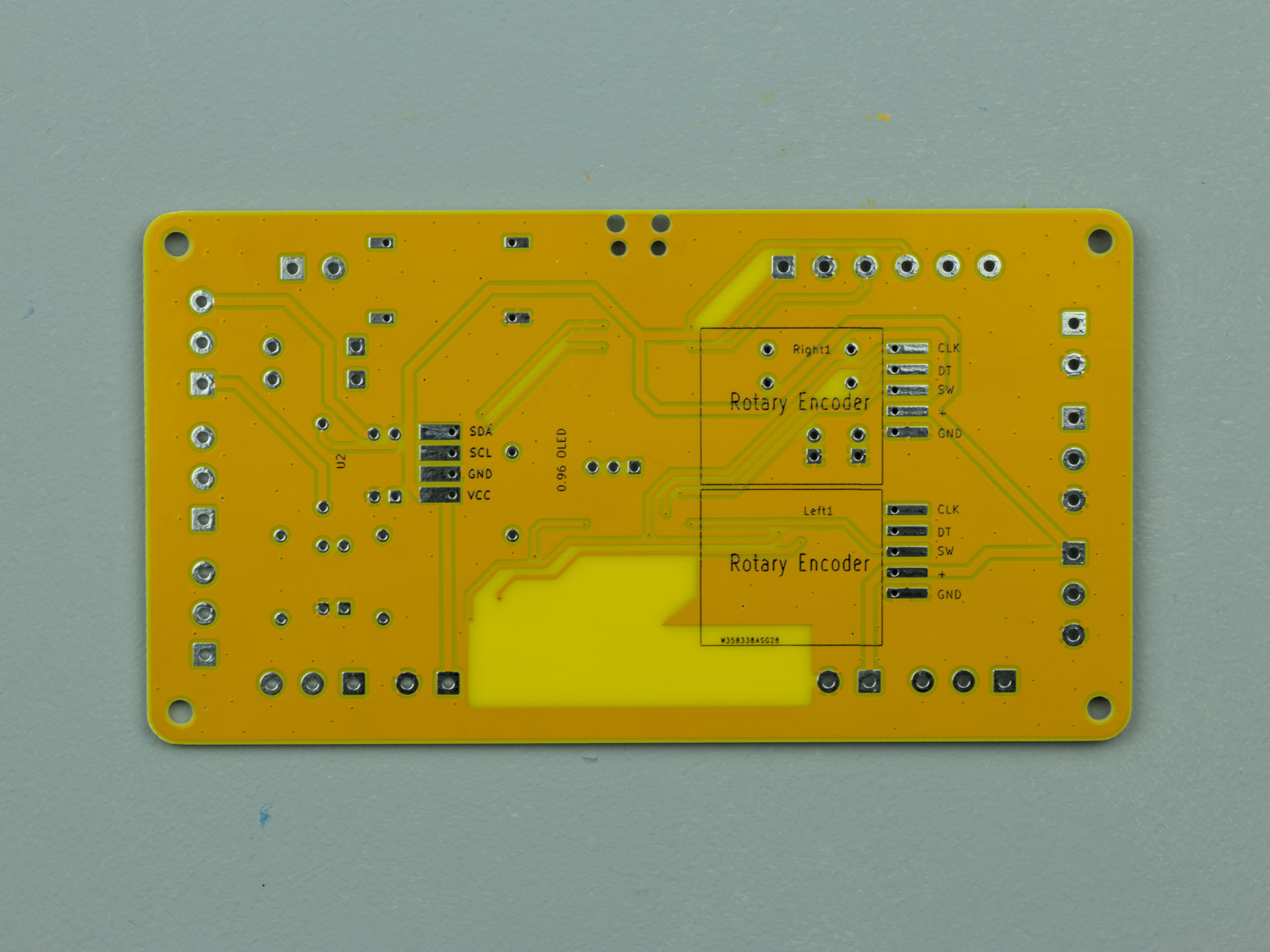
KiCAD has a plugin that allows you to quickly upload files to PCBway and place an order. You can directly install it from the KiCad Plugins window. Search “PCBWay”. It makes the ordering process simple. You don’t have to worry about whether you added all the layers and files. I ordered 10 yellow PCBs with a black silk screen. The yellow silk screen is not as bright as I like. But not bad. I like the board colour where there is no copper layer. Maybe next time I order one without copperfill.
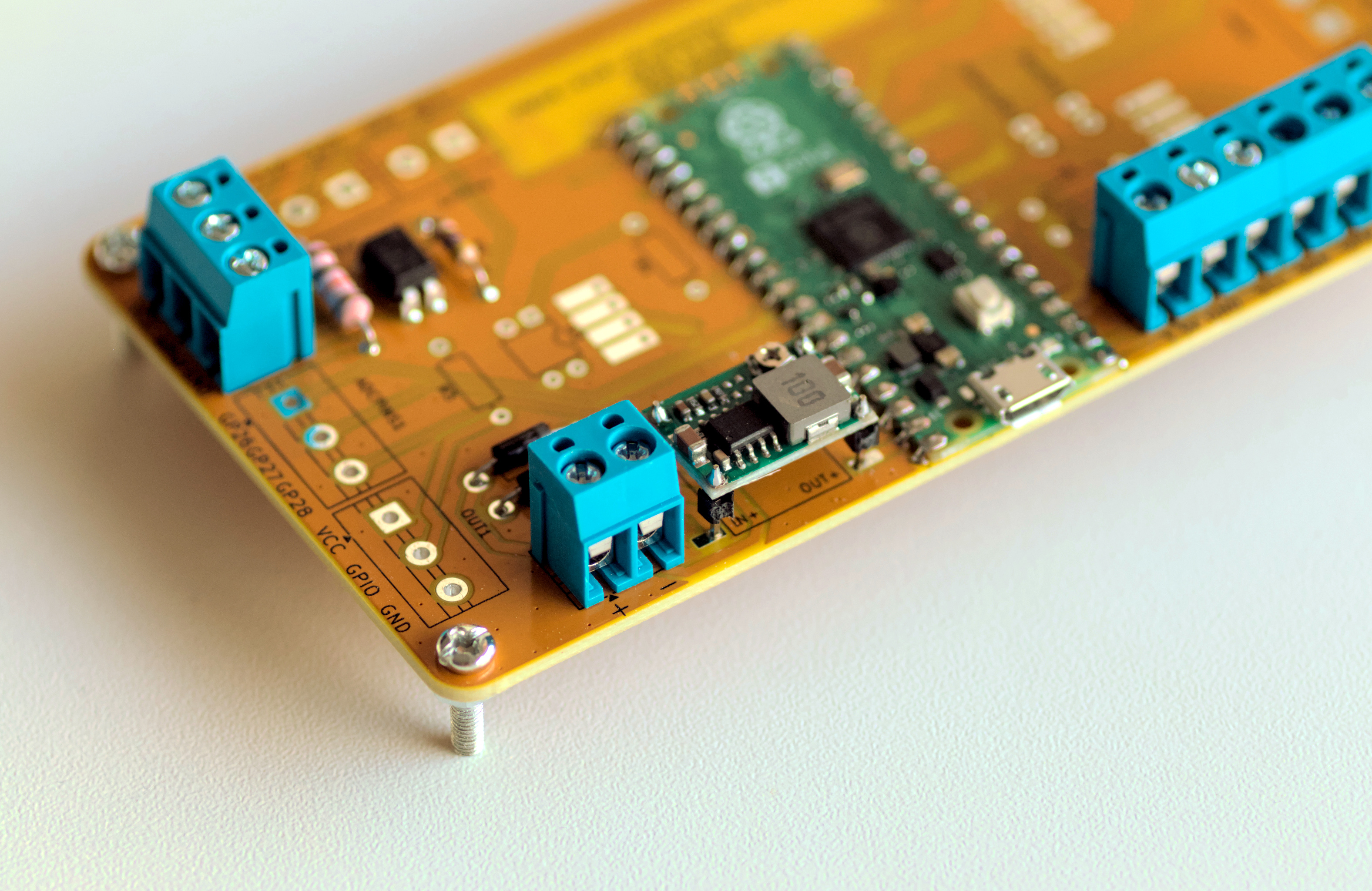
My design is now more like a Raspberry Pi Pico expansion board. And maybe next time I will make it smaller and with fewer pins. But now I added them all so I can use it more than one purpose.
PCB front sidePCB back side
Power module
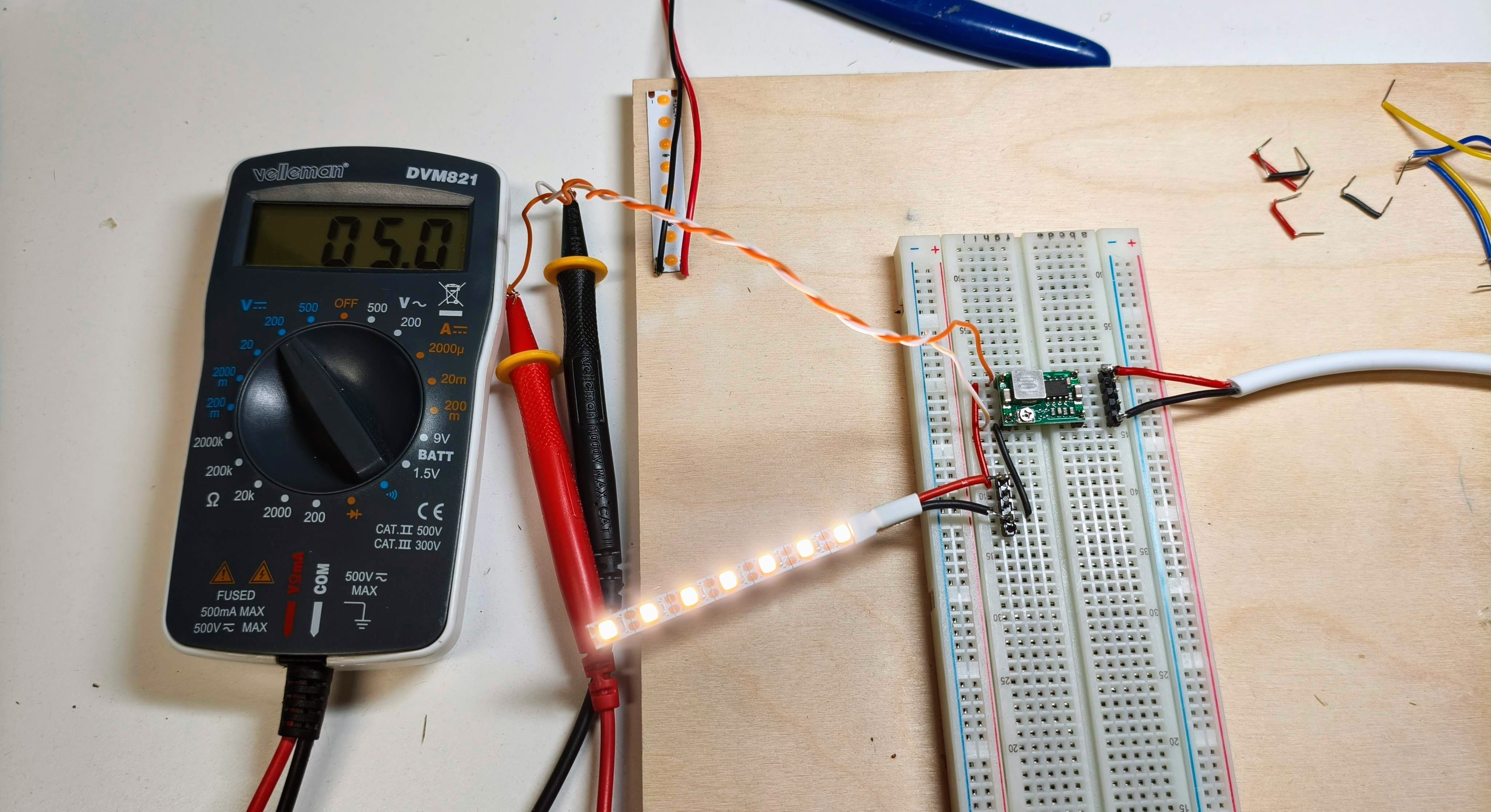
Because the Raspberry Pi Pico input voltage is 1.8V to 5.5V, I needed to configure the power module to the right output voltage. I use the OKY3504-1 DC-to-DC step-down converter. The input voltage is 24V, and the output is 5V.
I set up a breadboard to configure it. There is a little screw on the board for that.
Configuring the power module
Sensor module
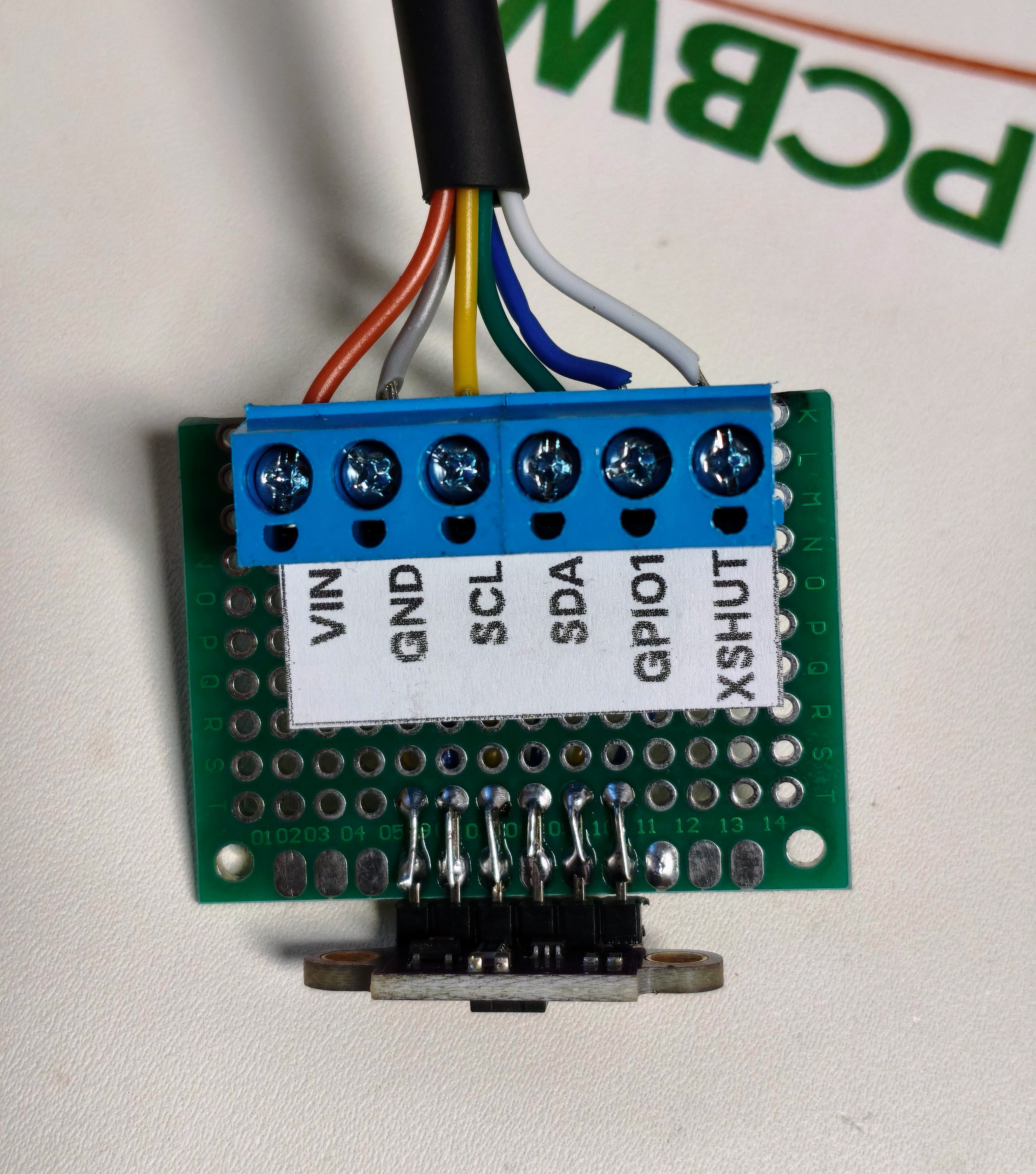
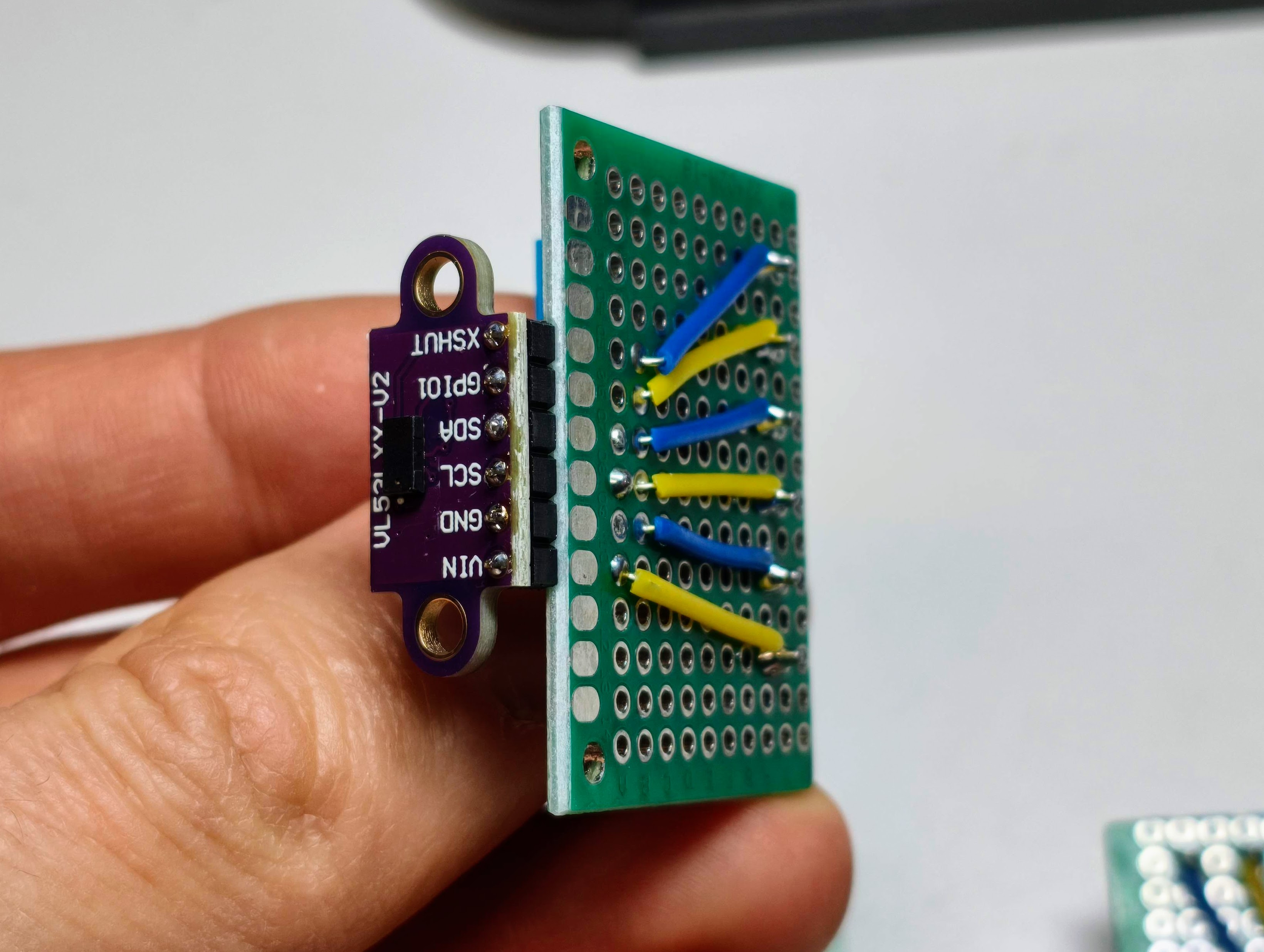
I soldered the sensor on a separate PCB. With has screw terminals to connect the cable.Sensor on protoboard
Case for Sensor v1
I made a simple case for the sensor from plywood. It is made of 4 mm plywood and laser cut.
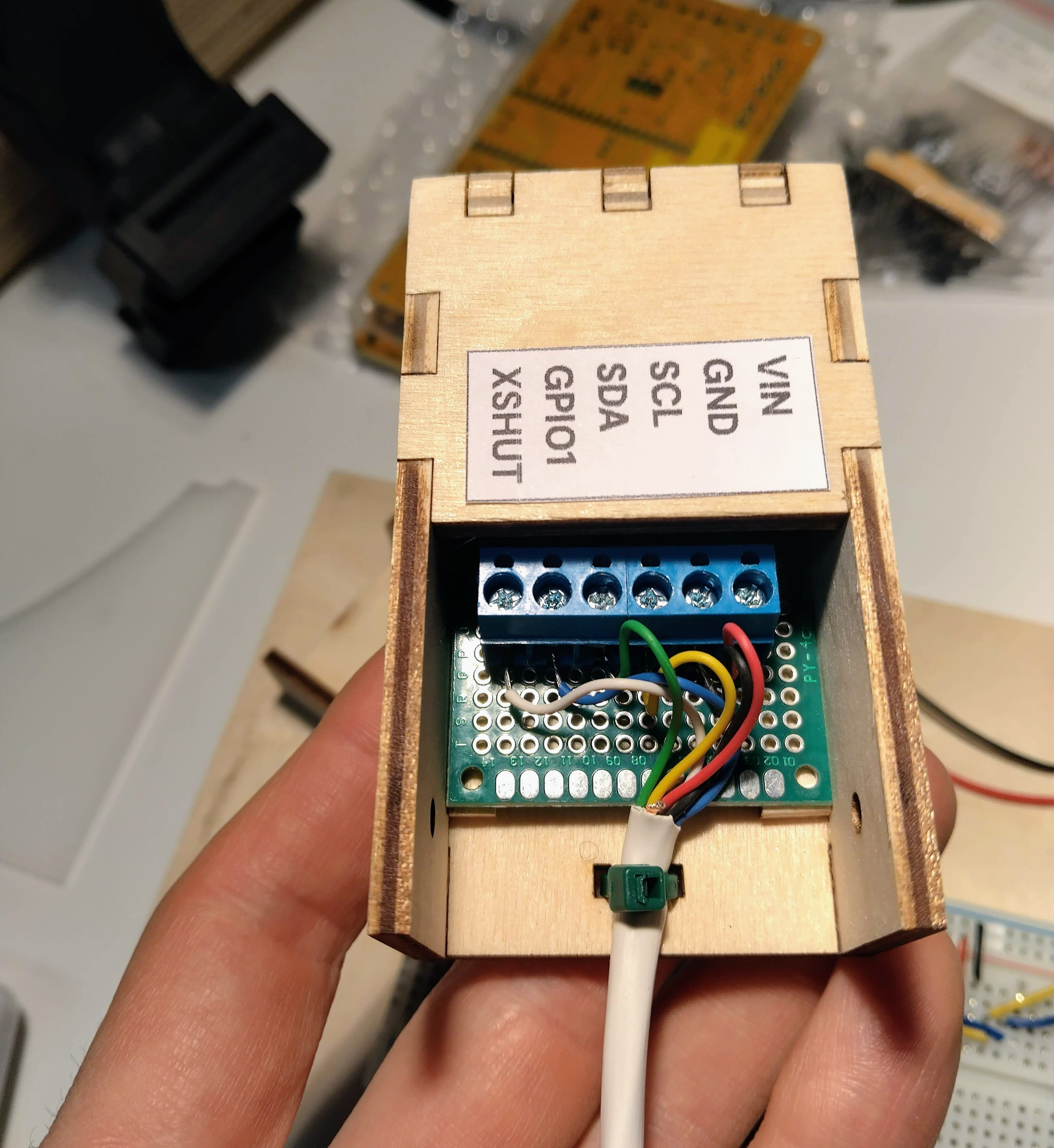
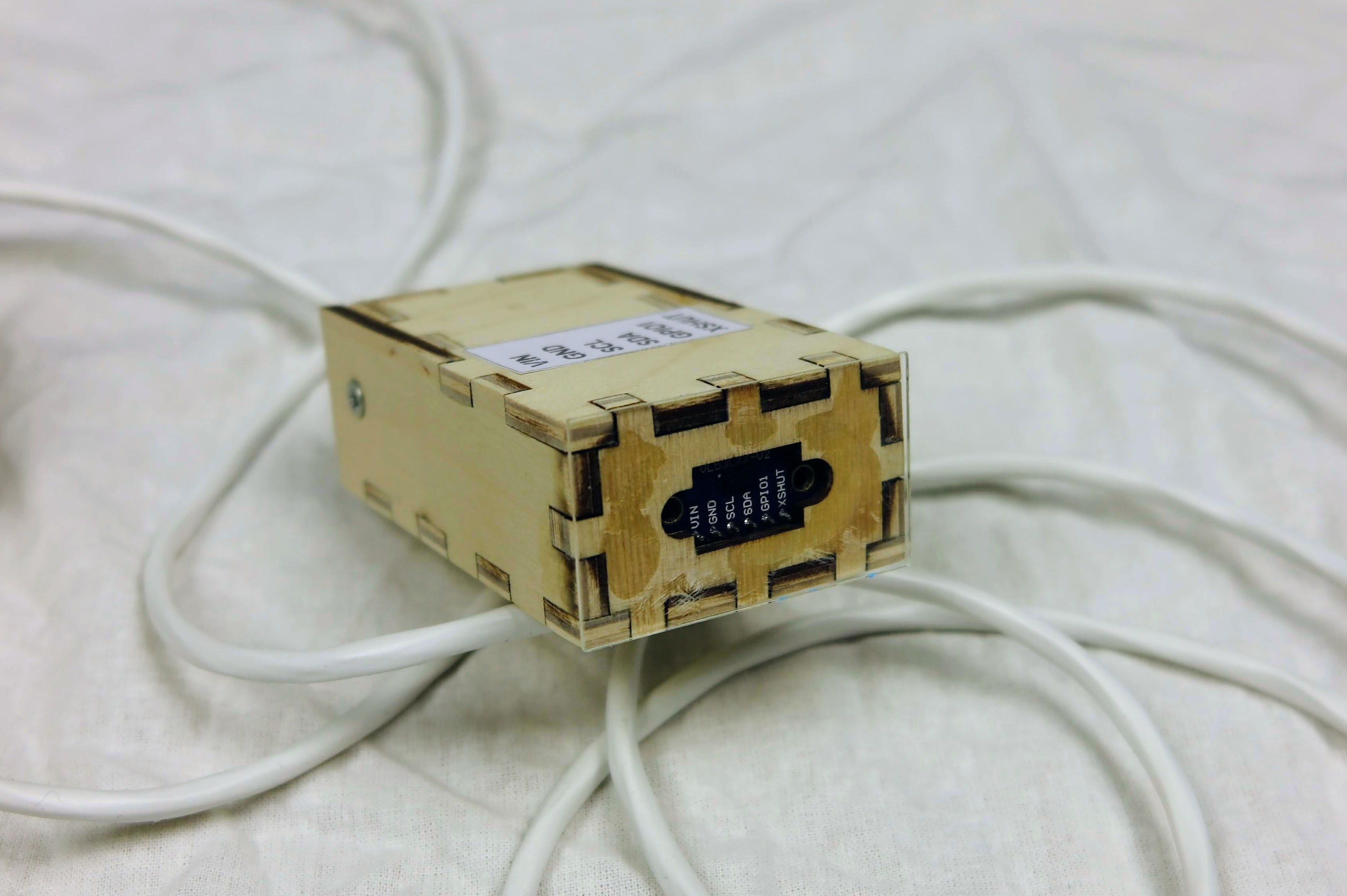
First case version for the sensor. Back side opened.First case version for the sensor. Front side.
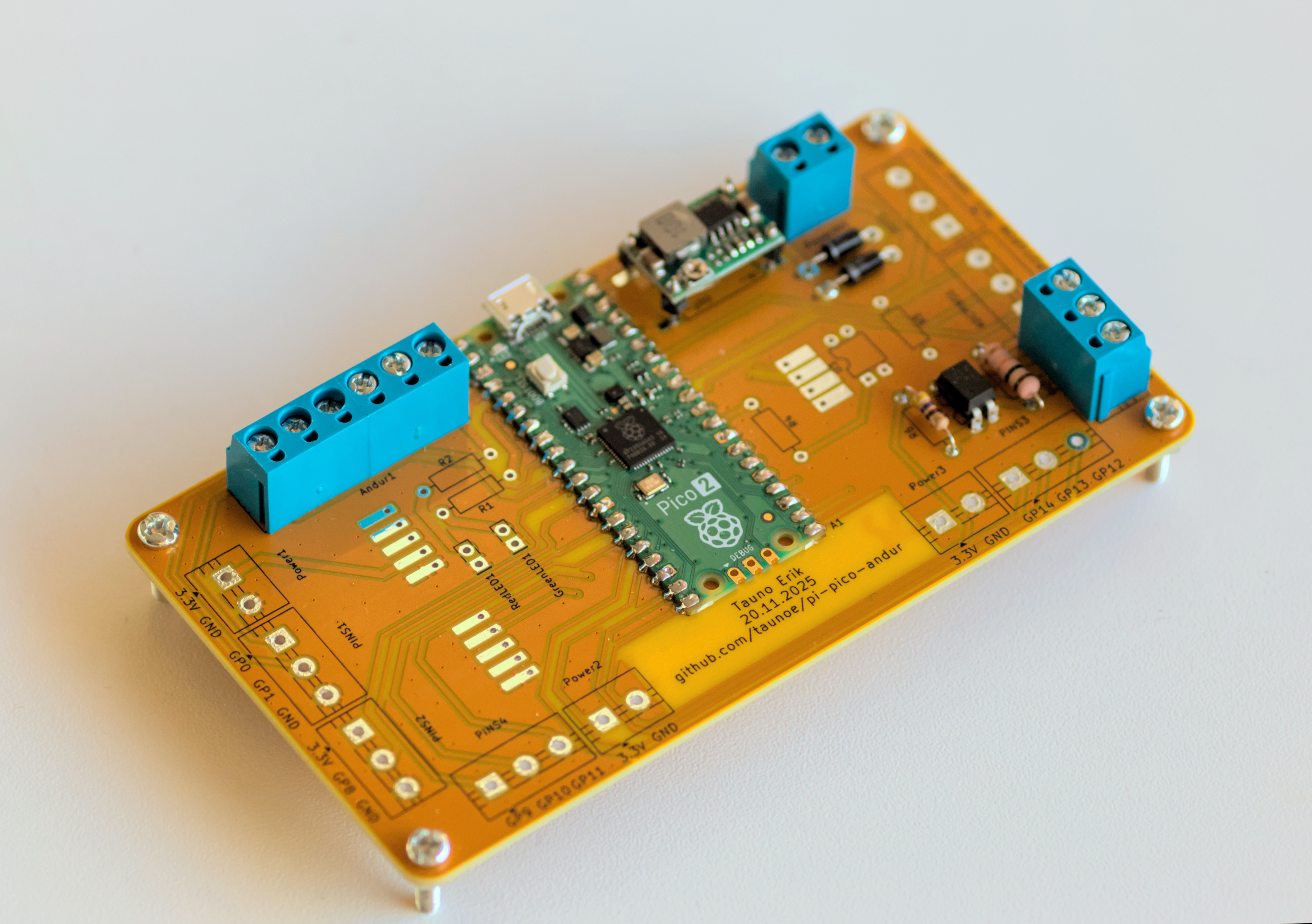
Assembled PCB
Most components are soldered to the printed circuit board.Full view of PCBAll essential components are soldered to the PCB.
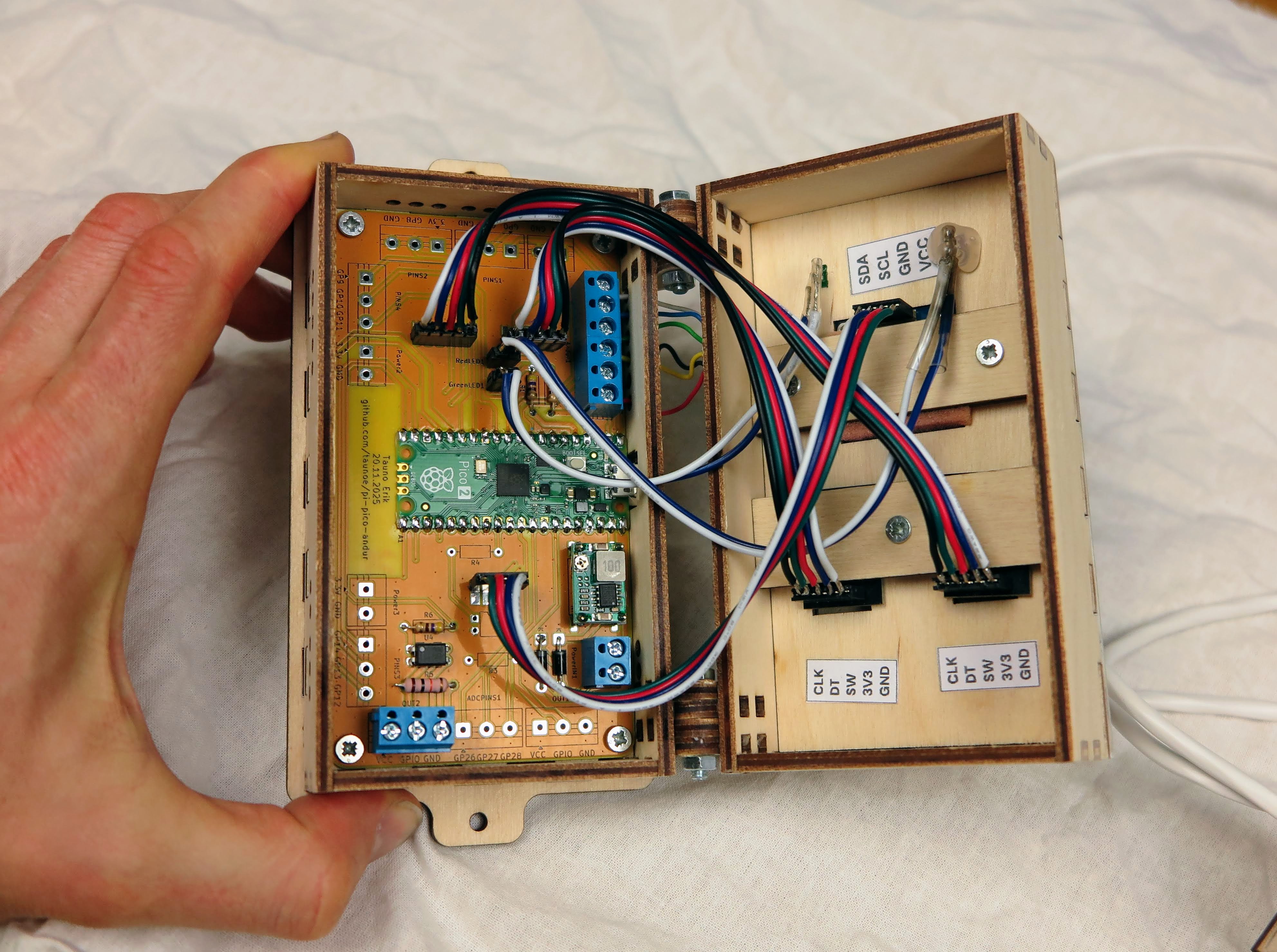
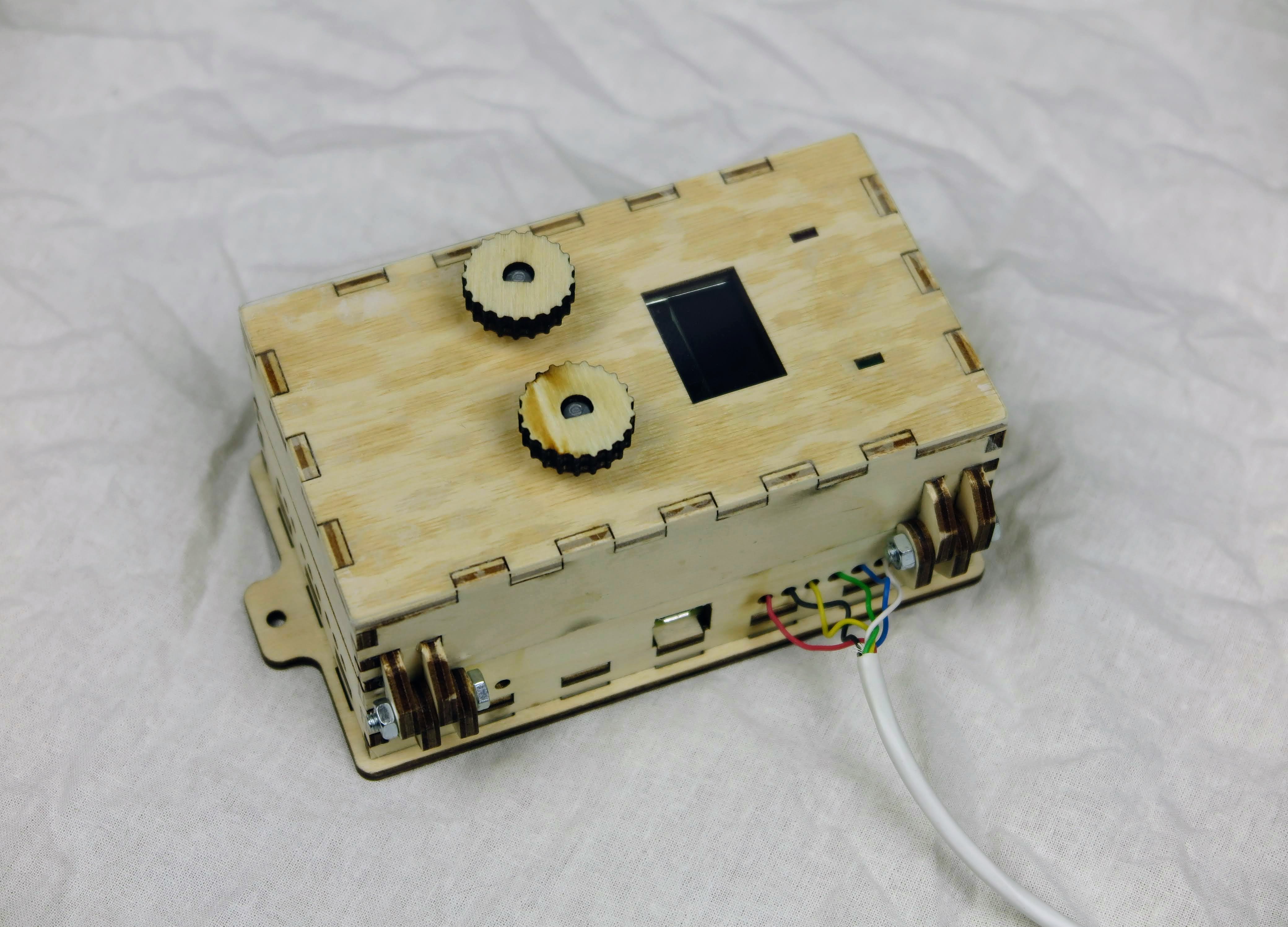
Project box v1
The first project box consisted of two parts. Connected with the hinge. It was a complicated design and assembly.
Project box at opened state.Project box at closed state. On the right is the sensor cable.Project box with a screen and rotary encoders.
Project box v2
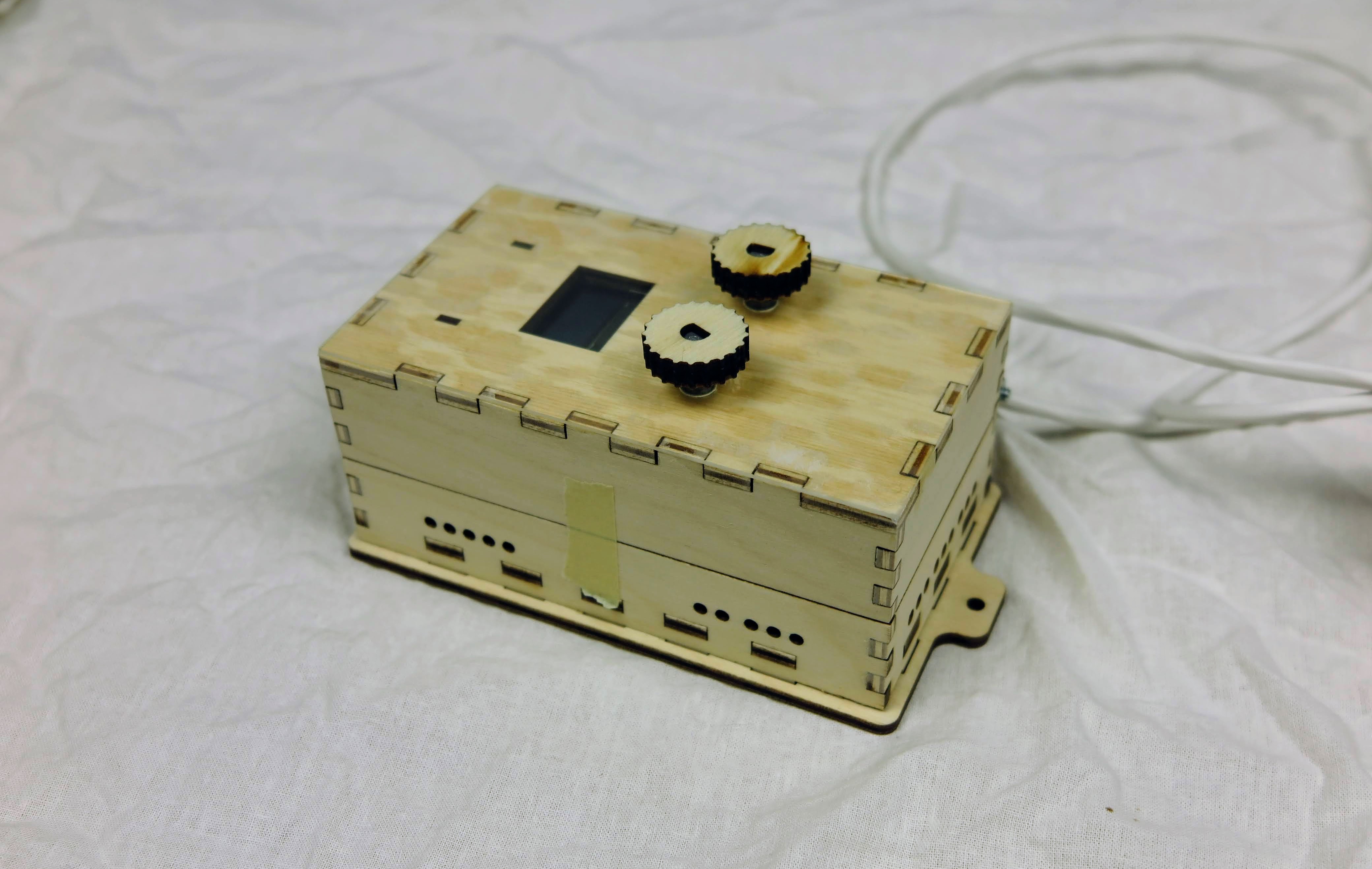
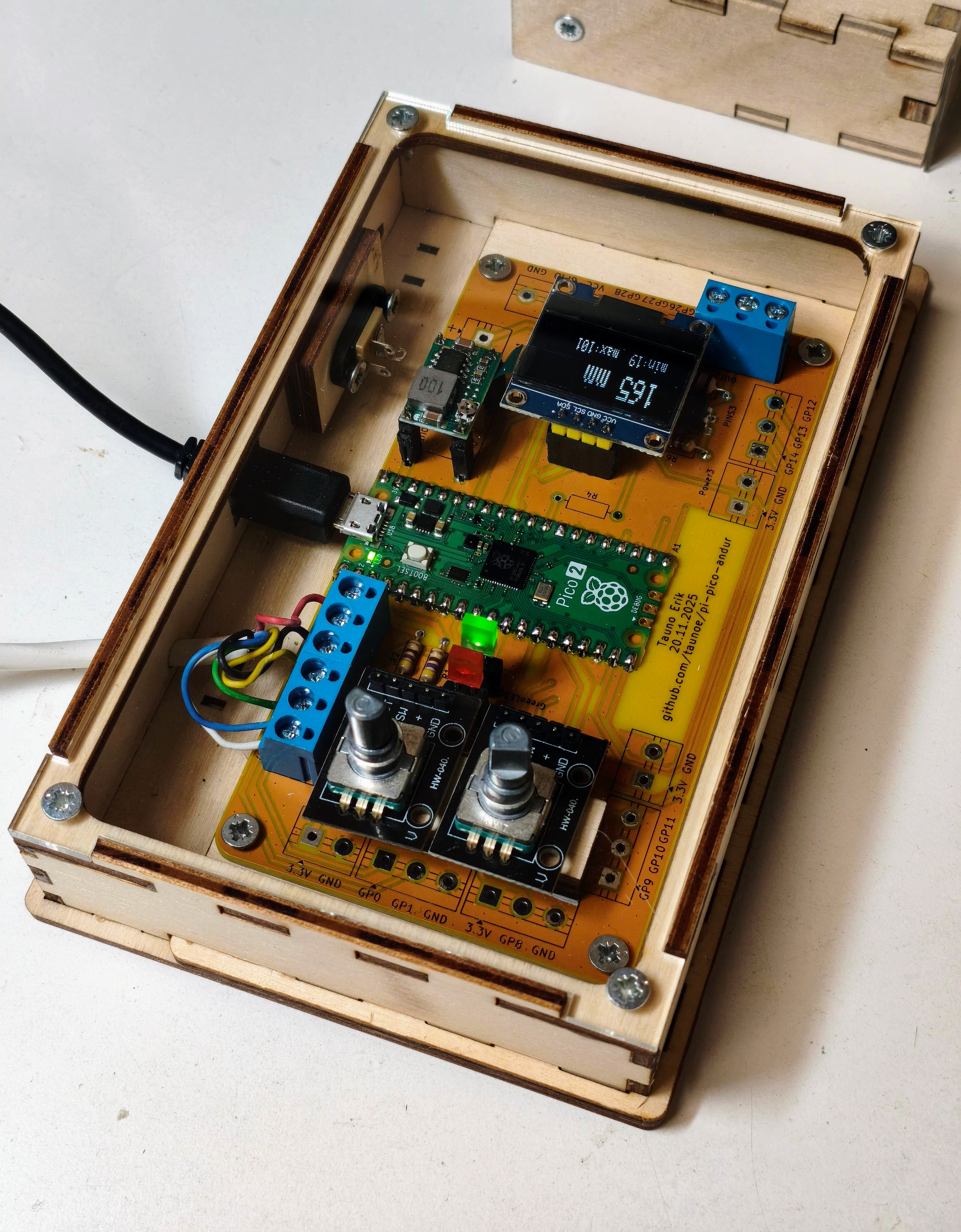
In the second version, I simplified the box design. There is now only one box with an acrylic cover.
Project box version 2. The cover is made from acrylic glass. (Text on screen is upside down).
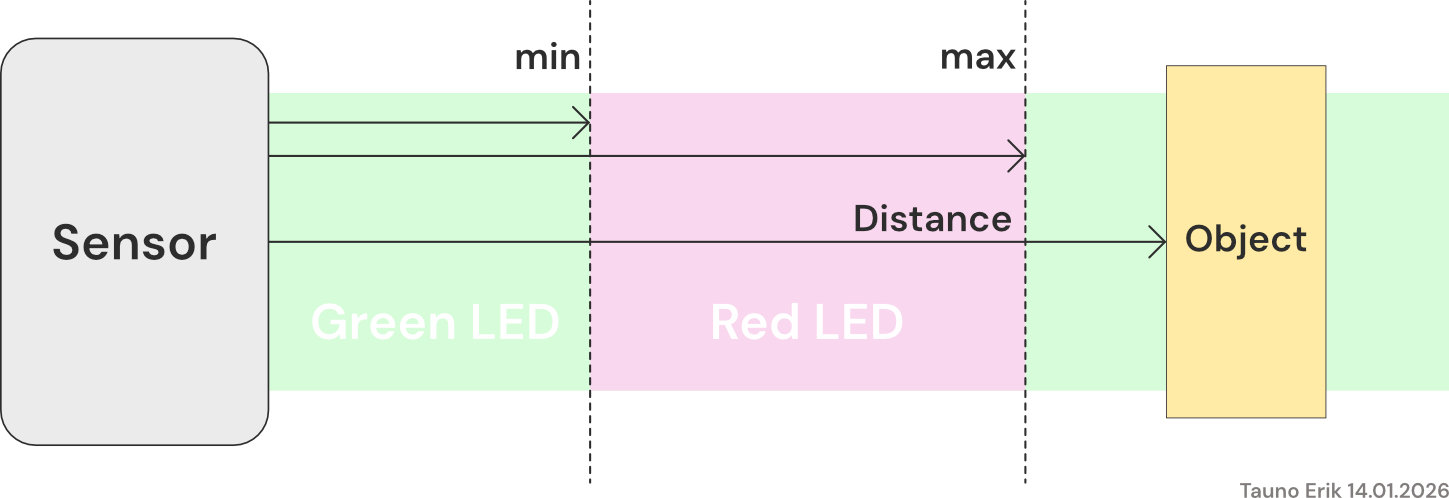
The working principle of the sensor. The left cnob is to set the min. distance and right one set the max. distance. When the object is between min and max, then the output signal is in the ON state, and the red LED is on.
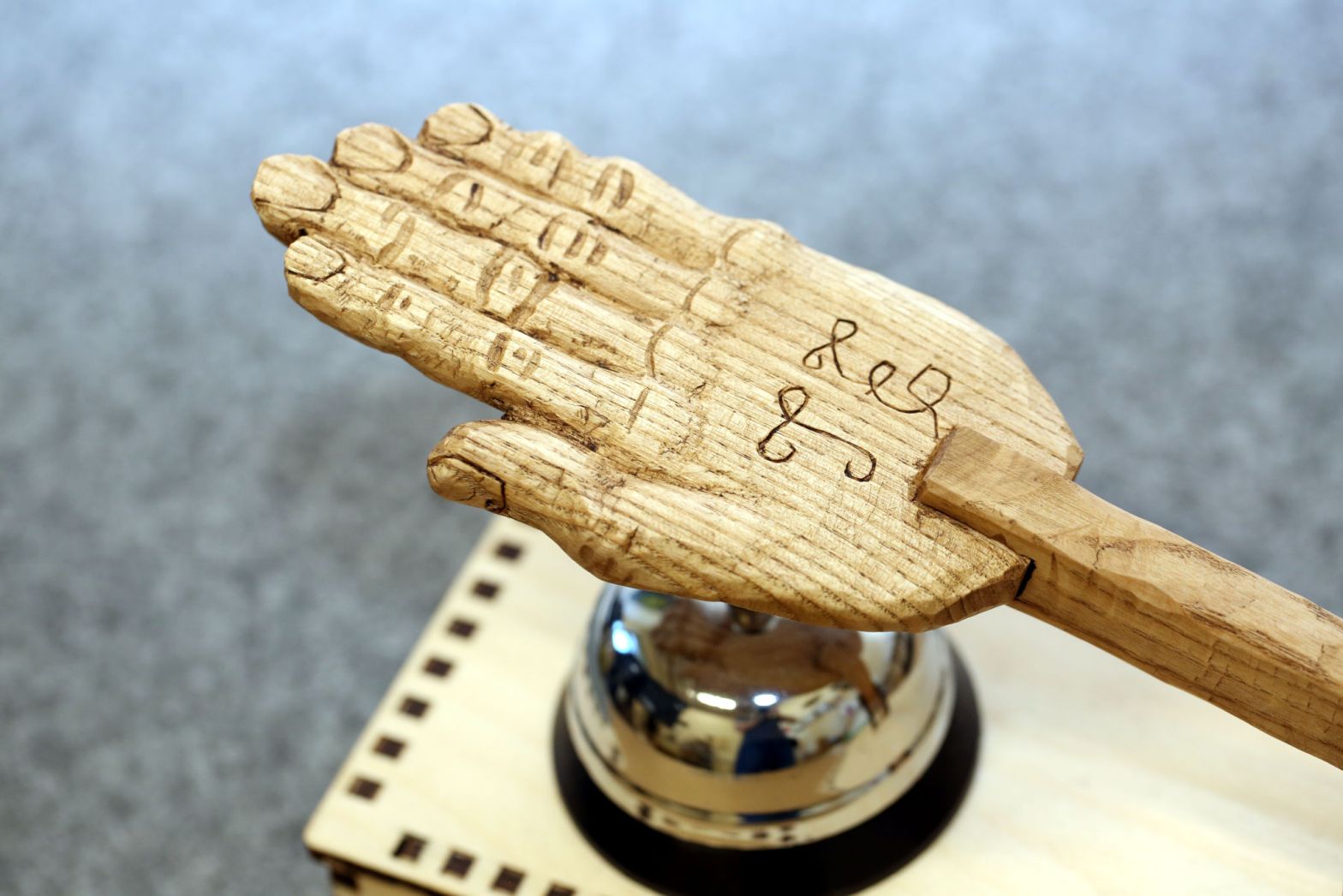
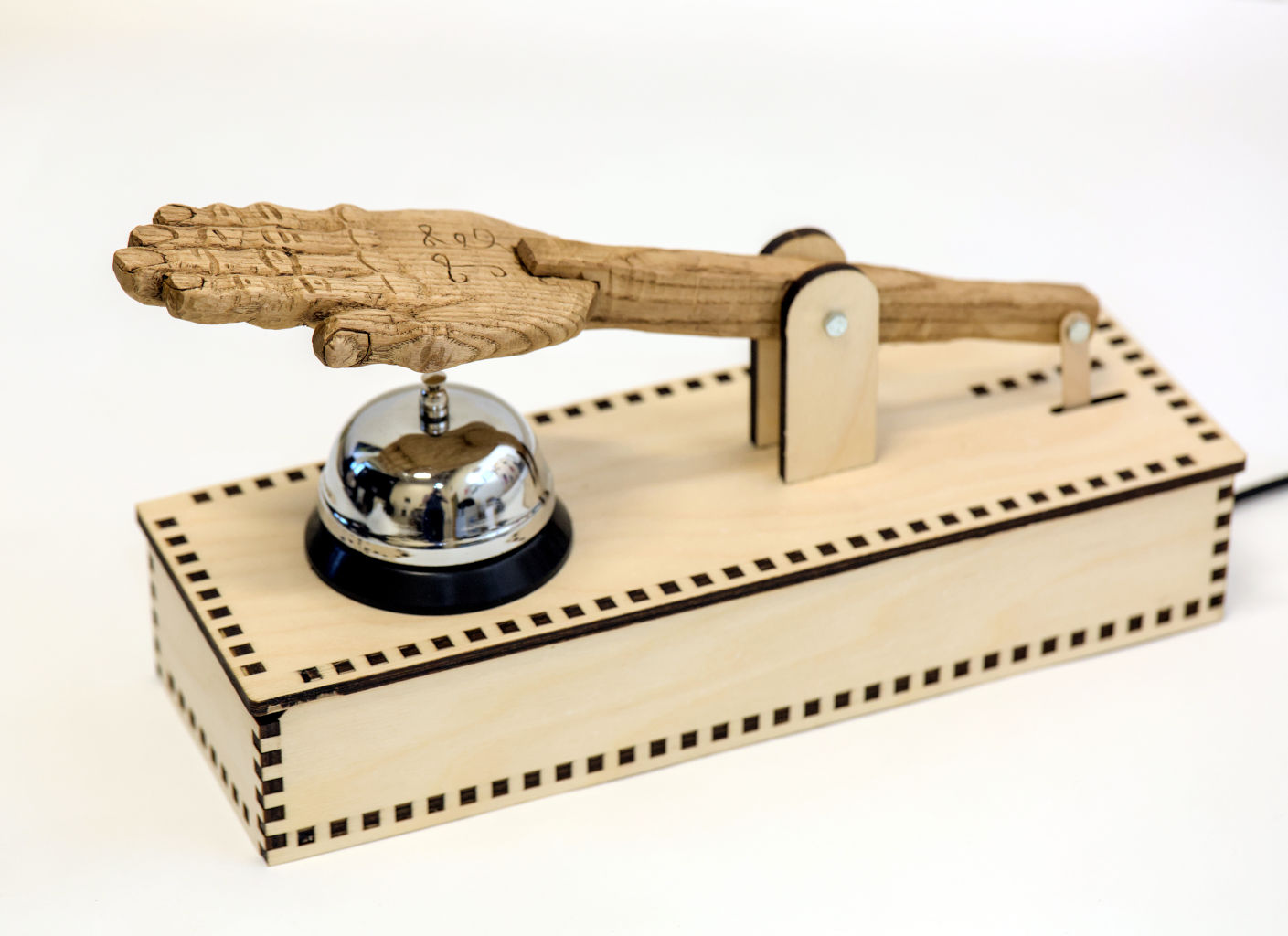
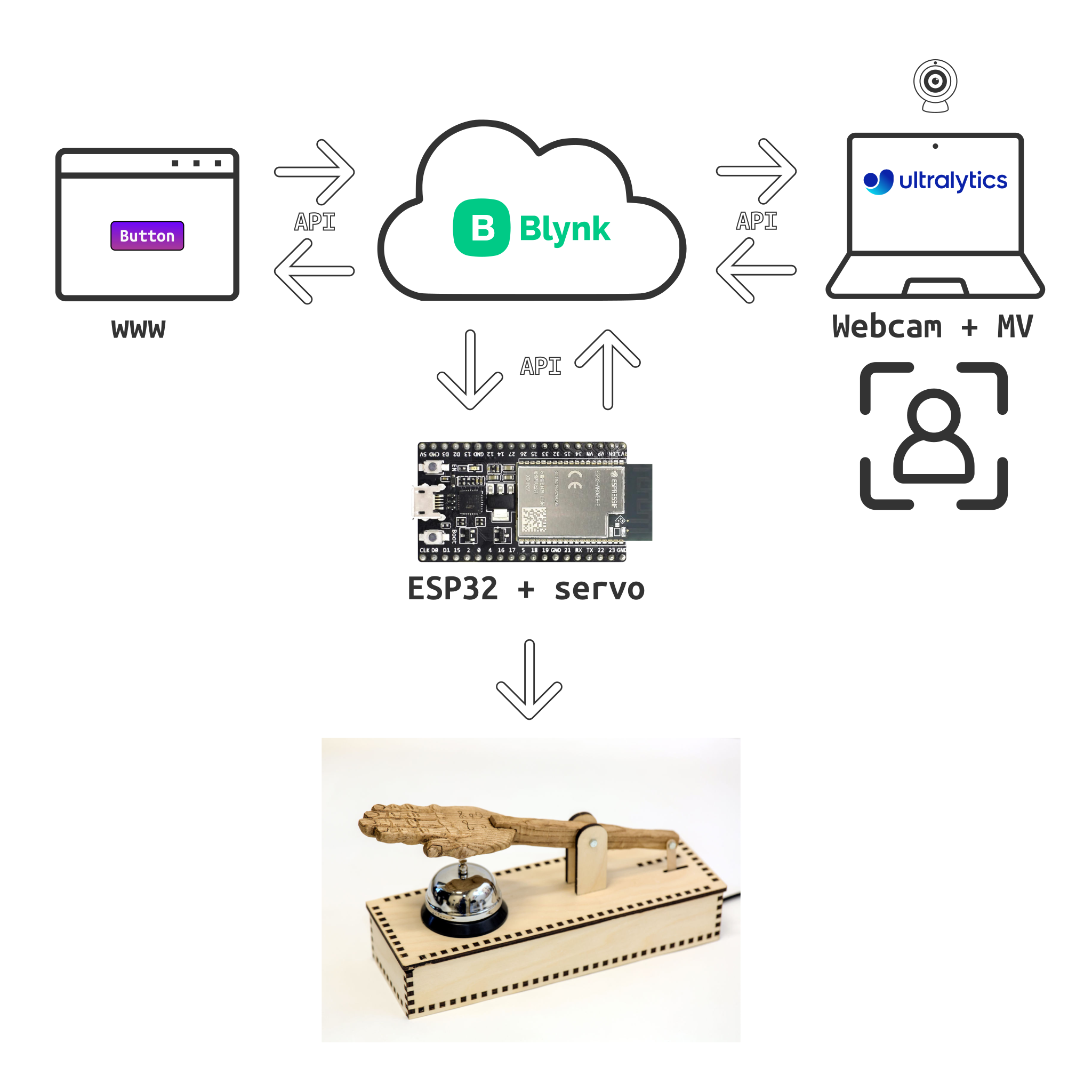
This is a fun project in which I created a mechanised system to ring a table bell powered by an ESP32 microcontroller and connected to the Blynk IoT cloud platform. The bell can be triggered through the Blynk API.
There are two ways to activate the bell:
Manual Control: I built a simple webpage hosted on GitHub Pages with a button to manually ring the bell.
Automated System: Using an old laptop with a webcam, I developed an automated system powered by a Python script utilizing the Ultralytics machine vision library. The system detects objects like people, cups, or other items, and when a match is found, it sends a signal to activate the bell.
The GPIO can also be configured as an “alternate function”. Used for specific hardware functions like pulse width modulation (PWM) or serial peripheral interface (SPI).
The modes for alternate functions can be:
Open drain: GPIO_Mode_AF_OD
Push-pull (PWM): GPIO_Mode_AF_PP
GPIO_InitStructure.GPIO_Mode = GPIO_Mode_AF_PP;
Speed
There are three-speed options:
GPIO_Speed_2MHz
GPIO_Speed_10MHz
GPIO_Speed_50MHz
GPIO_InitStructure.GPIO_Speed = GPIO_Speed_50MHz;
Output Function
GPIO_SetBits – used for setting the GPIO High (1)
GPIO_ResetBits – used for setting the GPIO Low (0)
GPIO_WriteBit – used when you want to SET (High) and REST (Low) the GPIO with the same function
GPIO_Write – to set the complete GPIO port
GPIO_PinLockConfig – special function. Helps you lock the pin so that accidentally in other parts of the configuration can’t be changed.
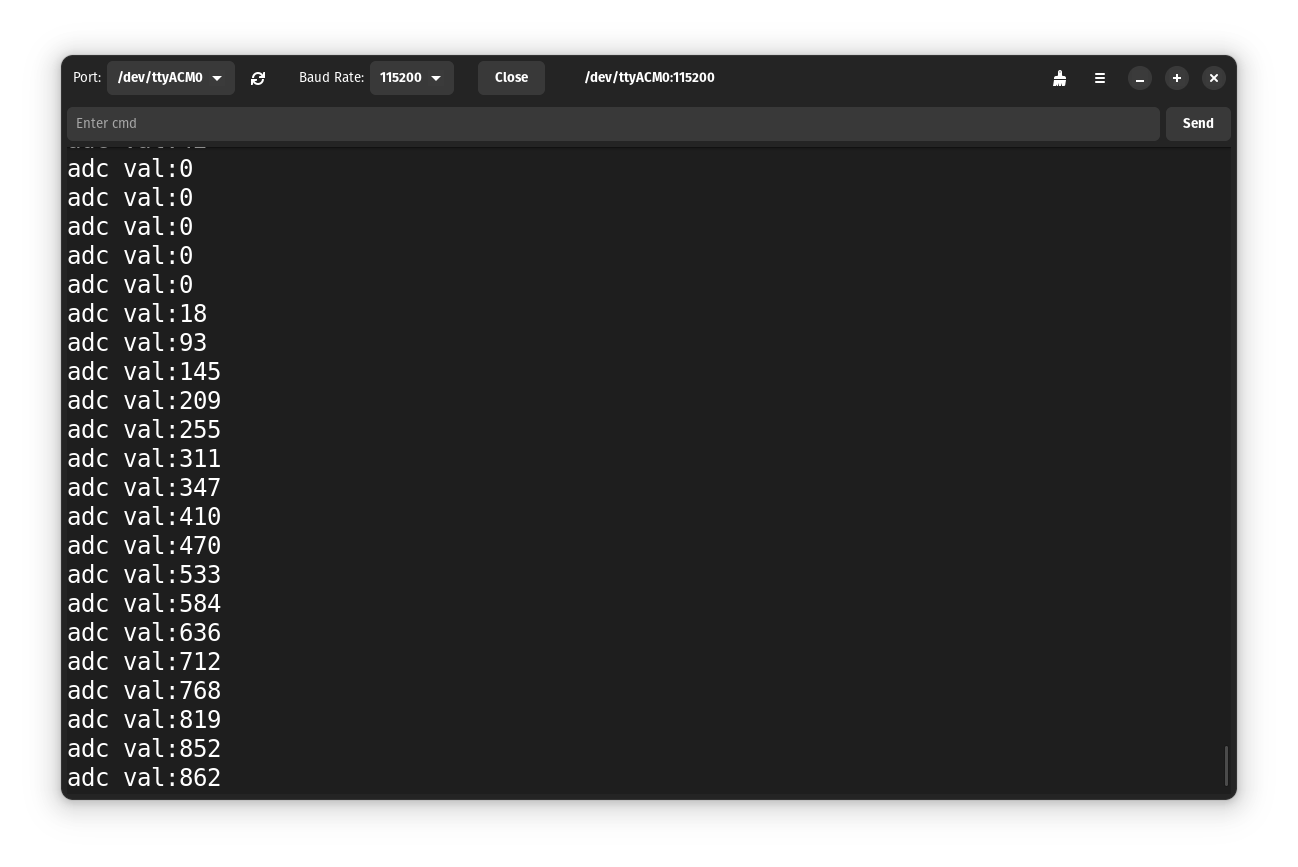
ADC (Analog-to-Digital Converter): Converts an analog signal (such as a voltage) into a digital value that can be processed by a microcontroller. The conversion process typically involves sampling the analog signal at a specific rate and quantizing the signal to produce a digital representation.
CH32V003 ADC has a 10-bit resolution. Values 0-1023.
DMA (Direct Memory Access): This is a feature that allows the transfer of data directly to or from memory without involving the CPU. The DMA controller can move data between memory and peripherals autonomously, freeing the CPU to perform other tasks and increasing the efficiency of data transfers.
When combined, ADC DMA refers to a setup where the ADC performs analog-to-digital conversions, and the resulting digital data is transferred directly to memory using DMA.
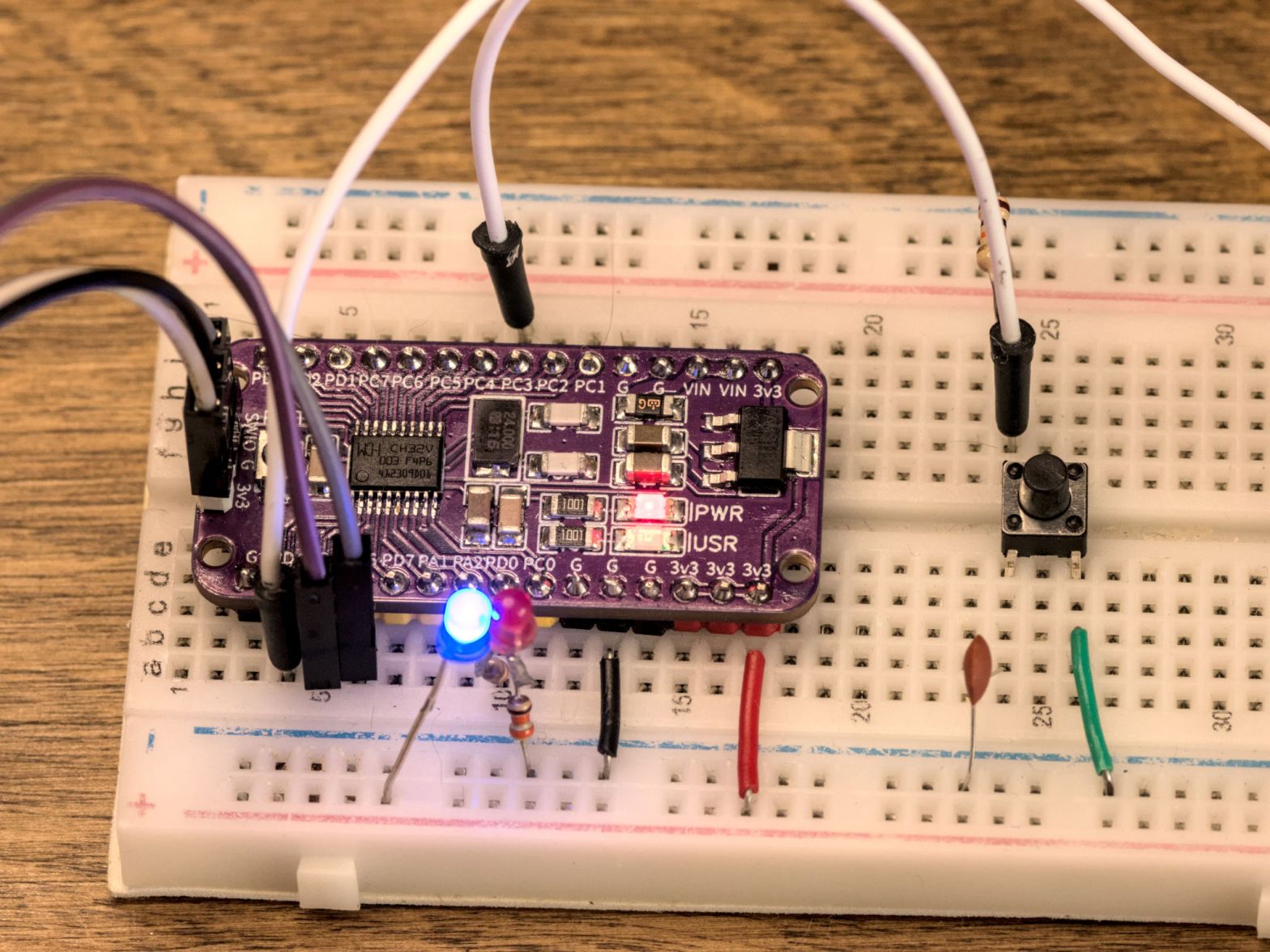
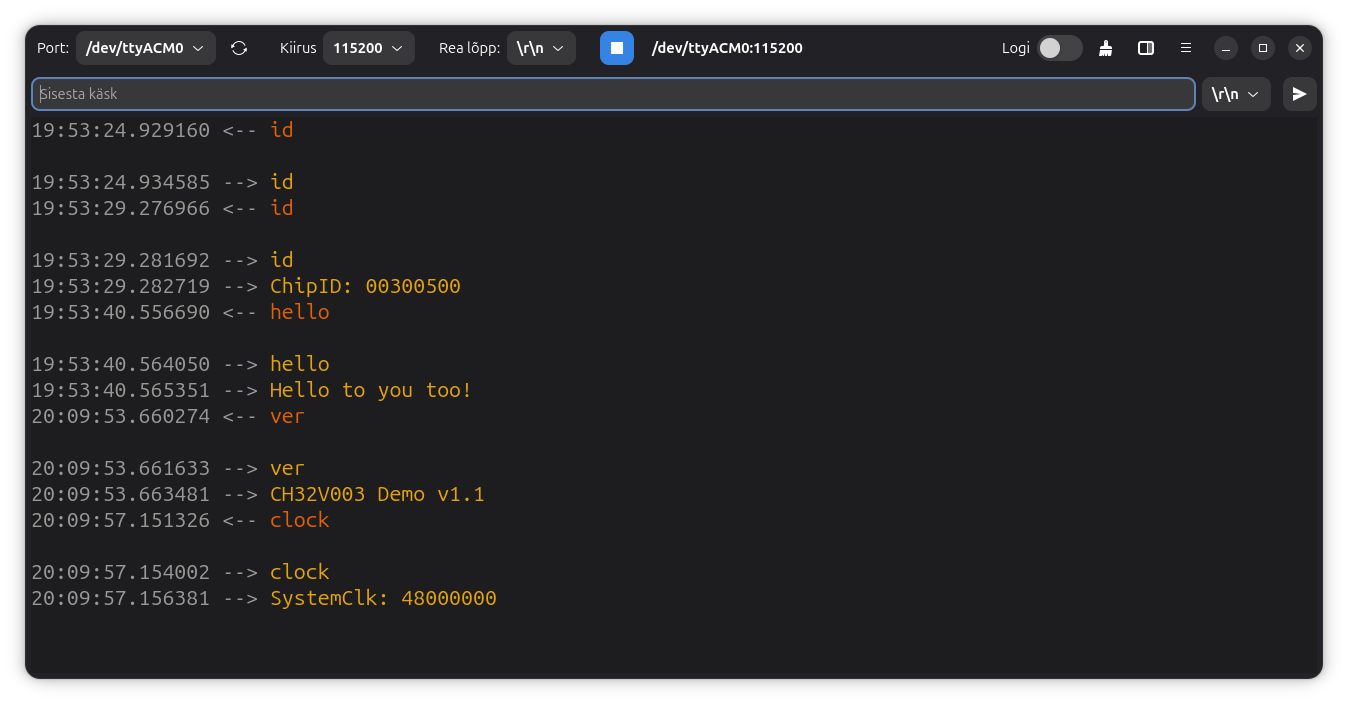
I use my custom-made CH32V003 development board. However, the code should work on all boards that use this MCU. It has 8 ADC channels (Pins). We can not use ADC channels 0 and 1 if the external crystal is connected, like on my board.
My test setup:
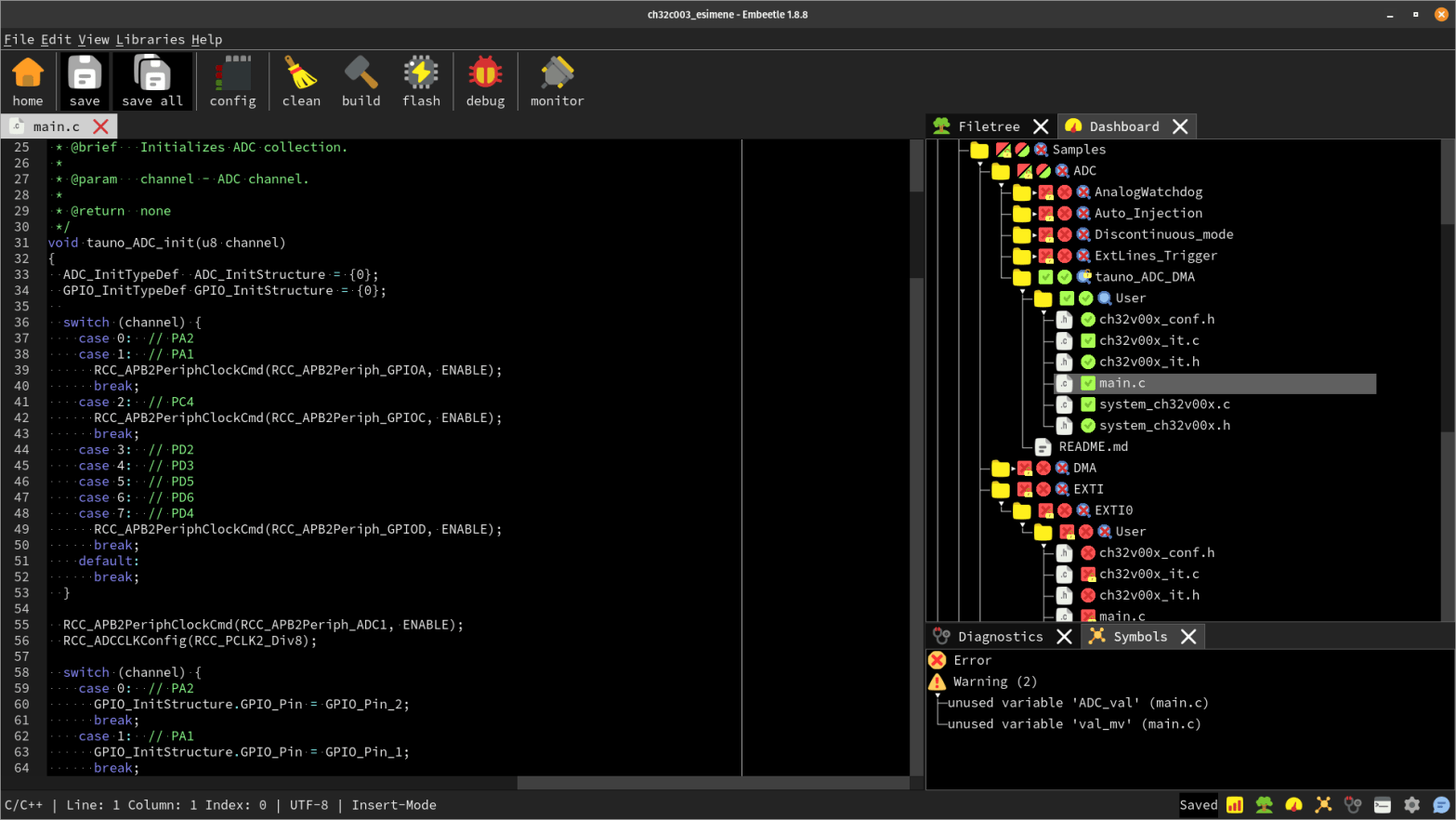
This is my main.c file.
/*********************************************************************
* File Name : main.c
* Board : ch32v003
* Date : 13.07.2024
* Description : ADC DMA example
**********************************************************************/
#include "debug.h"
/* Global Variable */
u16 TxBuf[10];
// Pin: PA2 - channel 0 can not be used if the external crystal is connected
// PA1 - channel 1 can not be used if the external crystal is connected
// PC4 - channel 2
// PD2 - channel 3
// PD3 - channel 4
// PD5 - channel 5
// PD6 - channel 6
// PD4 - channel 7
u8 channel = 7;
/*********************************************************************
* @fn ADC_Init
*
* @brief Initializes ADC collection.
*
* @param channel - ADC channel.
*
* @return none
*/
void tauno_ADC_init(u8 channel)
{
ADC_InitTypeDef ADC_InitStructure = {0};
GPIO_InitTypeDef GPIO_InitStructure = {0};
switch (channel) {
case 0: // PA2
case 1: // PA1
RCC_APB2PeriphClockCmd(RCC_APB2Periph_GPIOA, ENABLE);
break;
case 2: // PC4
RCC_APB2PeriphClockCmd(RCC_APB2Periph_GPIOC, ENABLE);
break;
case 3: // PD2
case 4: // PD3
case 5: // PD5
case 6: // PD6
case 7: // PD4
RCC_APB2PeriphClockCmd(RCC_APB2Periph_GPIOD, ENABLE);
break;
default:
break;
}
RCC_APB2PeriphClockCmd(RCC_APB2Periph_ADC1, ENABLE);
RCC_ADCCLKConfig(RCC_PCLK2_Div8);
switch (channel) {
case 0: // PA2
GPIO_InitStructure.GPIO_Pin = GPIO_Pin_2;
break;
case 1: // PA1
GPIO_InitStructure.GPIO_Pin = GPIO_Pin_1;
break;
case 2: // PC4
GPIO_InitStructure.GPIO_Pin = GPIO_Pin_4;
break;
case 3: // PD2
GPIO_InitStructure.GPIO_Pin = GPIO_Pin_2;
break;
case 4: // PD3
GPIO_InitStructure.GPIO_Pin = GPIO_Pin_3;
break;
case 5: // PD5
GPIO_InitStructure.GPIO_Pin = GPIO_Pin_5;
break;
case 6: // PD6
GPIO_InitStructure.GPIO_Pin = GPIO_Pin_6;
break;
case 7: // PD4
GPIO_InitStructure.GPIO_Pin = GPIO_Pin_4;
break;
default:
break;
}
GPIO_InitStructure.GPIO_Mode = GPIO_Mode_AIN;
switch (channel) {
case 0: // PA2
case 1: // PA1
GPIO_Init(GPIOA, &GPIO_InitStructure);
break;
case 2: // PC4
GPIO_Init(GPIOC, &GPIO_InitStructure);
break;
case 3: // PD2
case 4: // PD3
case 5: // PD5
case 6: // PD6
case 7: // PD4
GPIO_Init(GPIOD, &GPIO_InitStructure);
break;
default:
break;
}
ADC_DeInit(ADC1);
ADC_InitStructure.ADC_Mode = ADC_Mode_Independent;
ADC_InitStructure.ADC_ScanConvMode = DISABLE;
ADC_InitStructure.ADC_ContinuousConvMode = ENABLE;
ADC_InitStructure.ADC_ExternalTrigConv = ADC_ExternalTrigConv_None;
ADC_InitStructure.ADC_DataAlign = ADC_DataAlign_Right;
ADC_InitStructure.ADC_NbrOfChannel = 1;
ADC_Init(ADC1, &ADC_InitStructure);
ADC_Calibration_Vol(ADC1, ADC_CALVOL_50PERCENT);
ADC_DMACmd(ADC1, ENABLE);
ADC_Cmd(ADC1, ENABLE);
ADC_ResetCalibration(ADC1);
while(ADC_GetResetCalibrationStatus(ADC1));
ADC_StartCalibration(ADC1);
while(ADC_GetCalibrationStatus(ADC1));
//s16 Calibrattion_Val = Get_CalibrationValue(ADC1); ????
}
/*********************************************************************
* @fn Get_ADC_Val
*
* @brief Returns ADCx conversion result data.
*
* @param ch - ADC channel.
* ADC_Channel_0 - ADC Channel0 selected.
* ADC_Channel_1 - ADC Channel1 selected.
* ADC_Channel_2 - ADC Channel2 selected.
* ADC_Channel_3 - ADC Channel3 selected.
* ADC_Channel_4 - ADC Channel4 selected.
* ADC_Channel_5 - ADC Channel5 selected.
* ADC_Channel_6 - ADC Channel6 selected.
* ADC_Channel_7 - ADC Channel7 selected.
* ADC_Channel_8 - ADC Channel8 selected.
* ADC_Channel_9 - ADC Channel9 selected.
*
* @return val
*/
u16 Get_ADC_Val(u8 channel)
{
u16 val;
ADC_RegularChannelConfig(ADC1, channel, 1, ADC_SampleTime_241Cycles);
ADC_SoftwareStartConvCmd(ADC1, ENABLE);
while(!ADC_GetFlagStatus(ADC1, ADC_FLAG_EOC));
val = ADC_GetConversionValue(ADC1);
return val;
}
/*
* https://github.com/Community-PIO-CH32V/platform-ch32v/blob/develop/examples/adc-cpu-temp-none-os/src/main.c
*/
u16 Get_ADC_Average(u8 ch, u8 times)
{
u32 temp_val = 0;
u8 t;
u16 val;
for (t = 0; t < times; t++)
{
temp_val += Get_ADC_Val(ch);
Delay_Ms(5);
}
val = temp_val / times;
return val;
}
/*********************************************************************
* @fn DMA_Tx_Init
*
* @brief Initializes the DMAy Channelx configuration.
*
* @param DMA_CHx - x can be 1 to 7.
* ppadr - Peripheral base address.
* memadr - Memory base address.
* bufsize - DMA channel buffer size.
*
* @return none
*/
void DMA_Tx_Init(DMA_Channel_TypeDef *DMA_CHx, u32 ppadr, u32 memadr, u16 bufsize)
{
DMA_InitTypeDef DMA_InitStructure = {0};
RCC_AHBPeriphClockCmd(RCC_AHBPeriph_DMA1, ENABLE);
DMA_DeInit(DMA_CHx);
DMA_InitStructure.DMA_PeripheralBaseAddr = ppadr;
DMA_InitStructure.DMA_MemoryBaseAddr = memadr;
DMA_InitStructure.DMA_DIR = DMA_DIR_PeripheralSRC;
DMA_InitStructure.DMA_BufferSize = bufsize;
DMA_InitStructure.DMA_PeripheralInc = DMA_PeripheralInc_Disable;
DMA_InitStructure.DMA_MemoryInc = DMA_MemoryInc_Enable;
DMA_InitStructure.DMA_PeripheralDataSize = DMA_PeripheralDataSize_HalfWord;
DMA_InitStructure.DMA_MemoryDataSize = DMA_MemoryDataSize_HalfWord;
DMA_InitStructure.DMA_Mode = DMA_Mode_Normal;
DMA_InitStructure.DMA_Priority = DMA_Priority_VeryHigh;
DMA_InitStructure.DMA_M2M = DMA_M2M_Disable;
DMA_Init(DMA_CHx, &DMA_InitStructure);
}
/*********************************************************************
* @fn main
*
* @brief Main program.
*
* @return none
*/
int main(void) {
u16 adc_val; // 0-1023
u16 i;
Delay_Init();
USART_Printf_Init(115200);
Delay_Ms(3000); // Give serial monitor time to open
printf("SystemClk:%d\r\n", (unsigned)SystemCoreClock);
printf("DeviceID: %08x\r\n", (unsigned)DBGMCU_GetDEVID());
tauno_ADC_init(channel);
DMA_Tx_Init(DMA1_Channel1, (u32)&ADC1->RDATAR, (u32)TxBuf, 10);
DMA_Cmd(DMA1_Channel1, ENABLE);
ADC_RegularChannelConfig(ADC1, ADC_Channel_2, 1, ADC_SampleTime_241Cycles);
ADC_SoftwareStartConvCmd(ADC1, ENABLE);
Delay_Ms(50);
ADC_SoftwareStartConvCmd(ADC1, DISABLE);
for (i = 0; i < 10; i++) {
printf("%04d\r\n", TxBuf[i]);
Delay_Ms(10);
}
while (1) {
adc_val = Get_ADC_Val(channel);
printf("adc val:%d\r\n", adc_val);
Delay_Ms(100);
}
return 0;
}
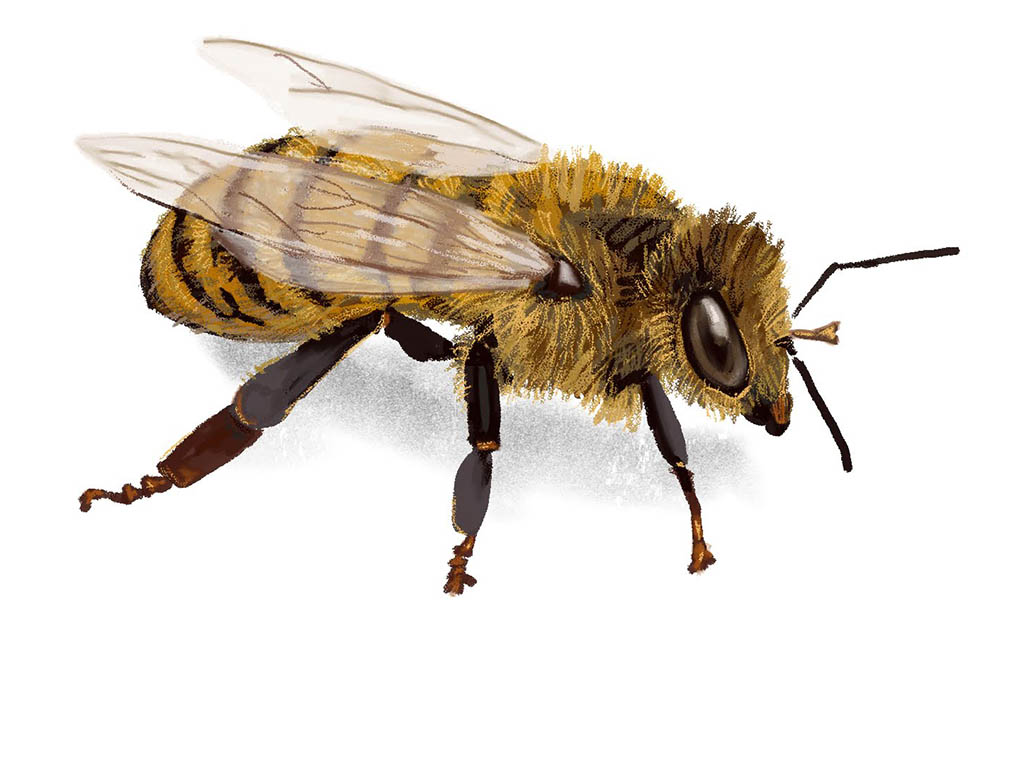
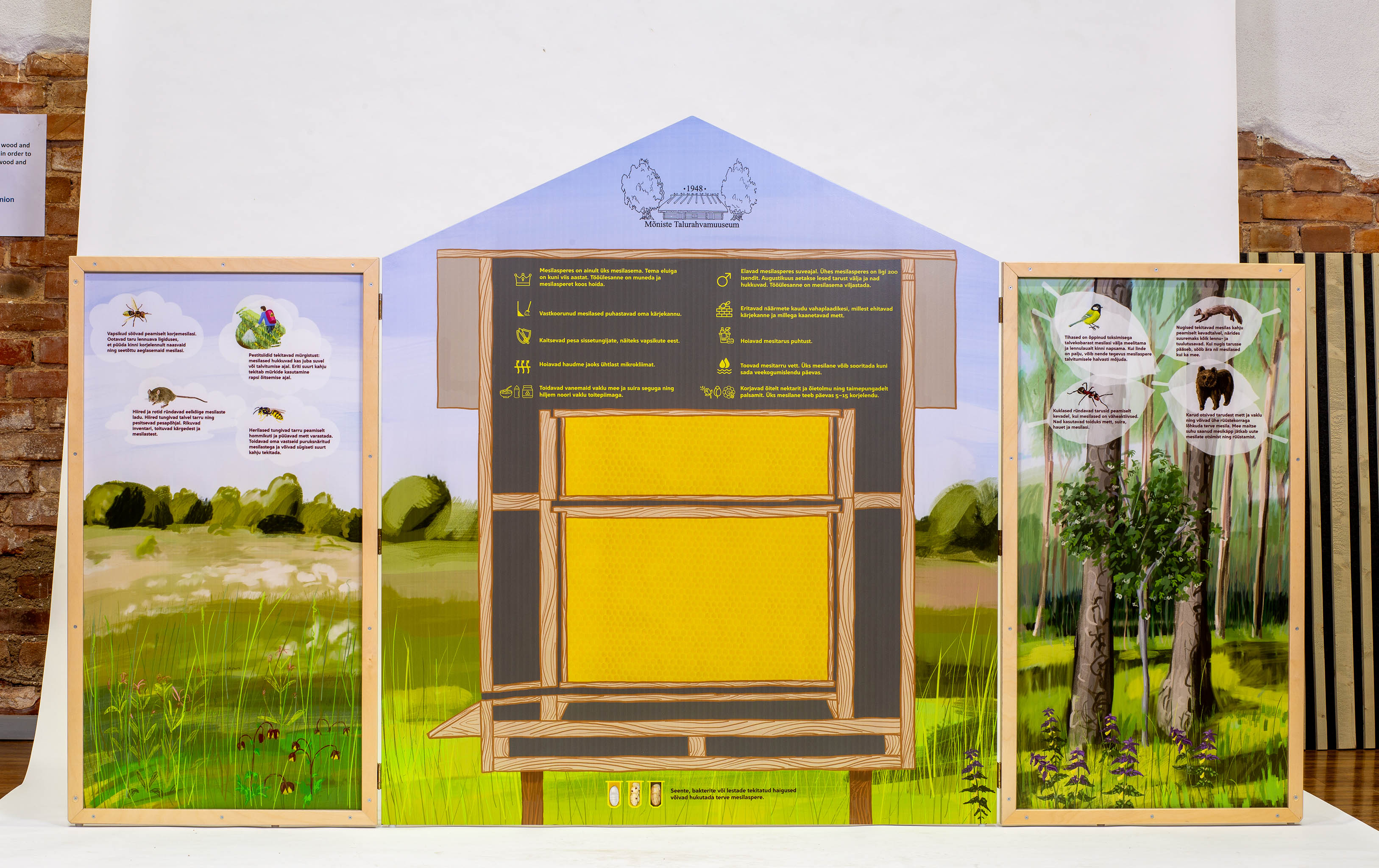
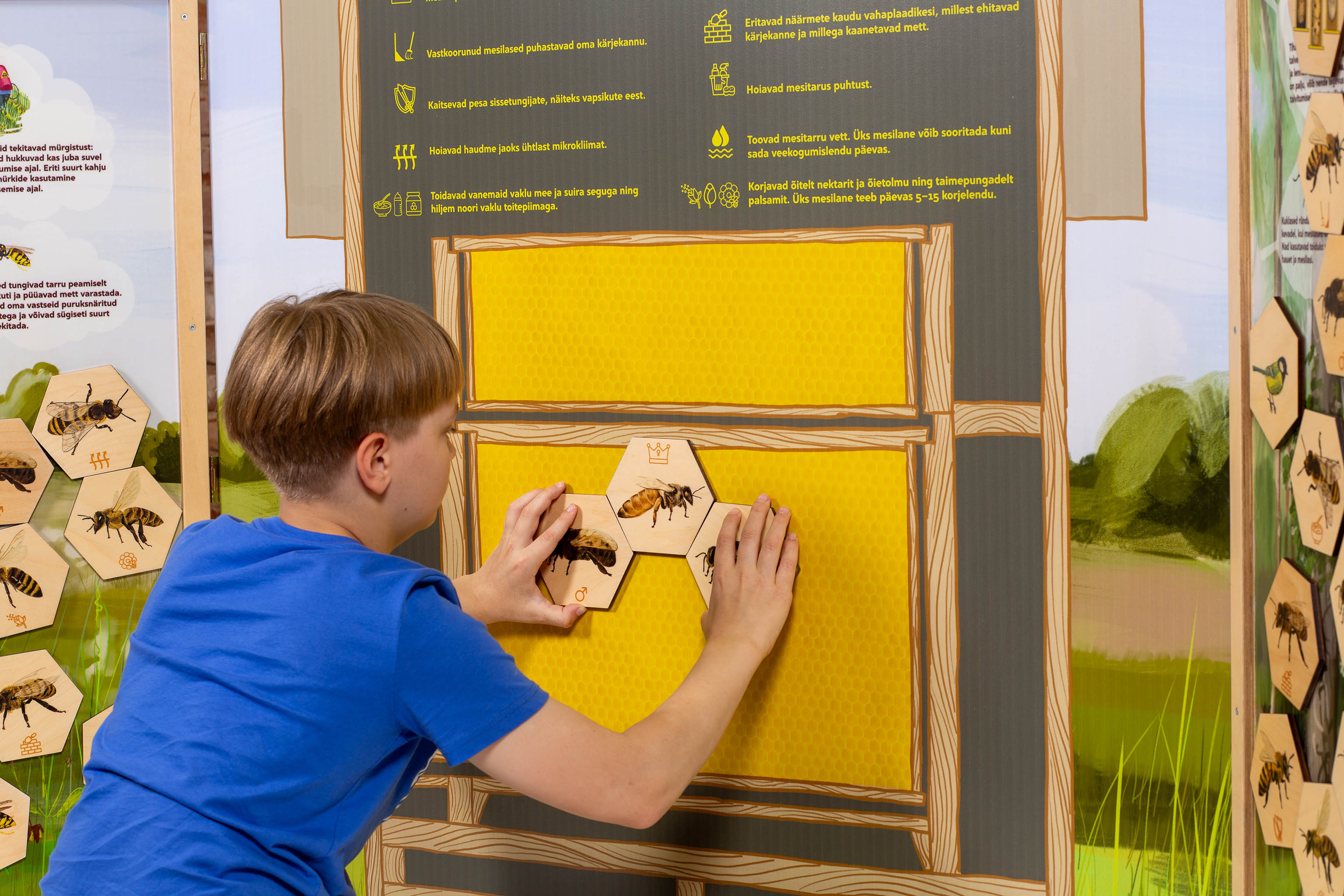
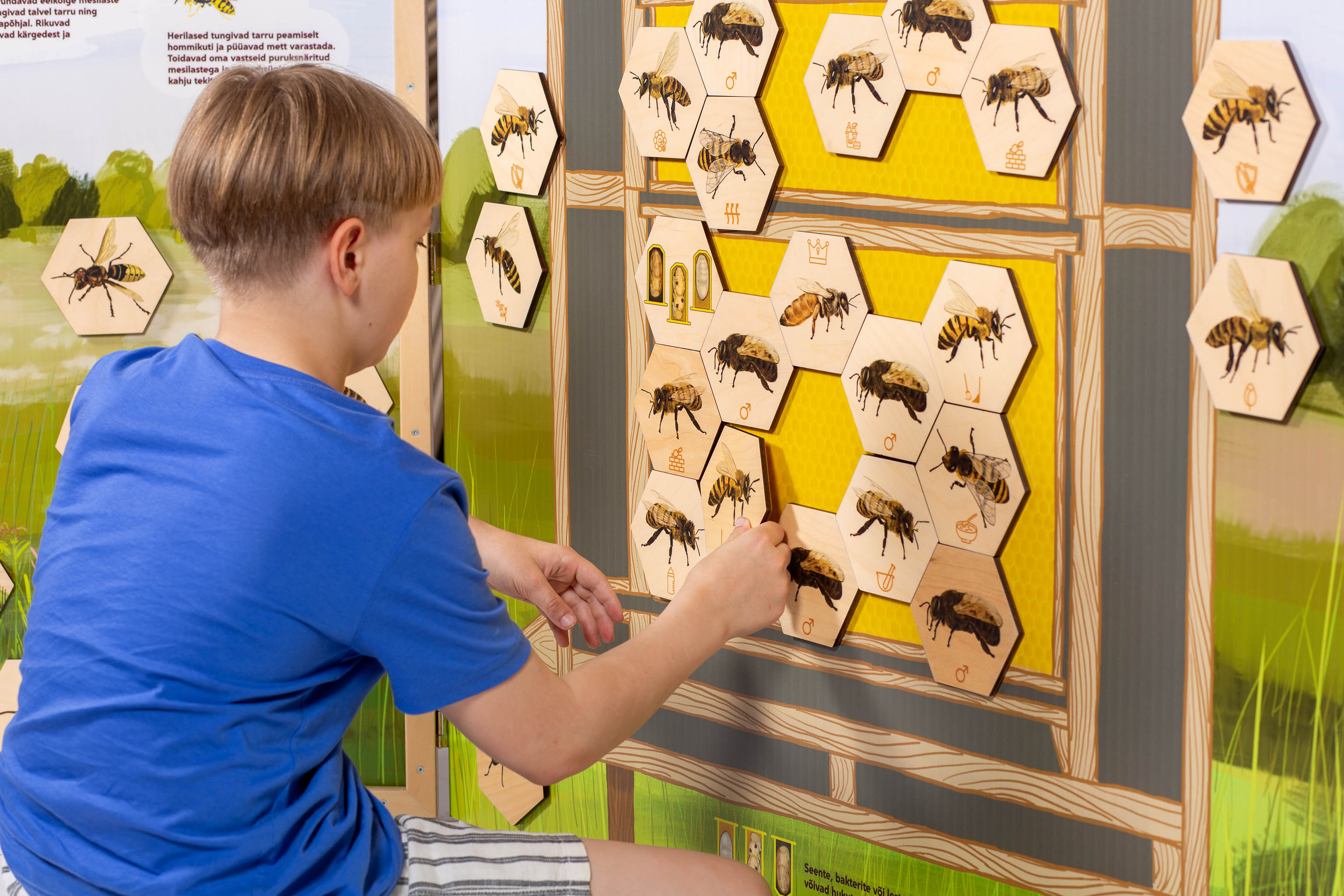
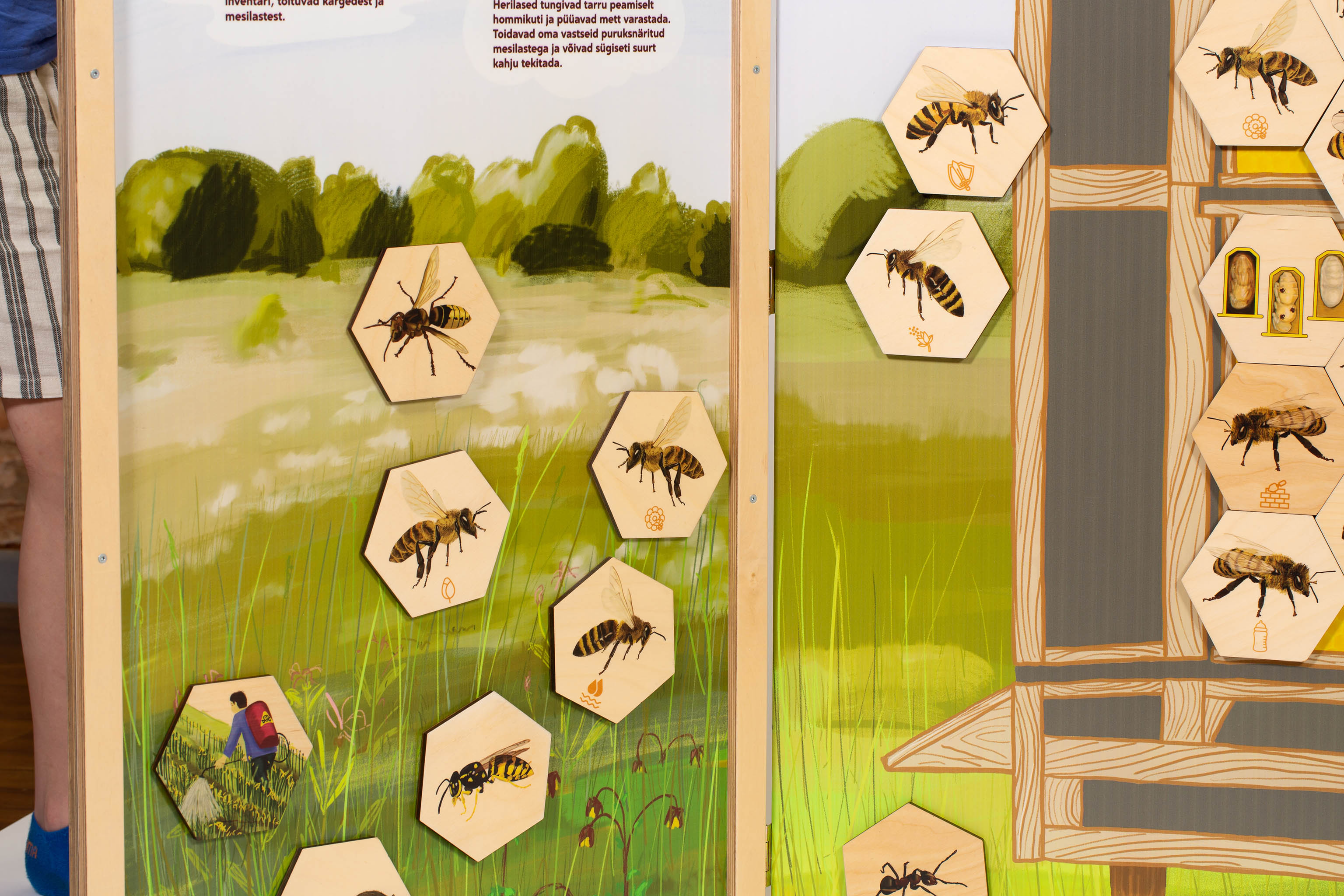
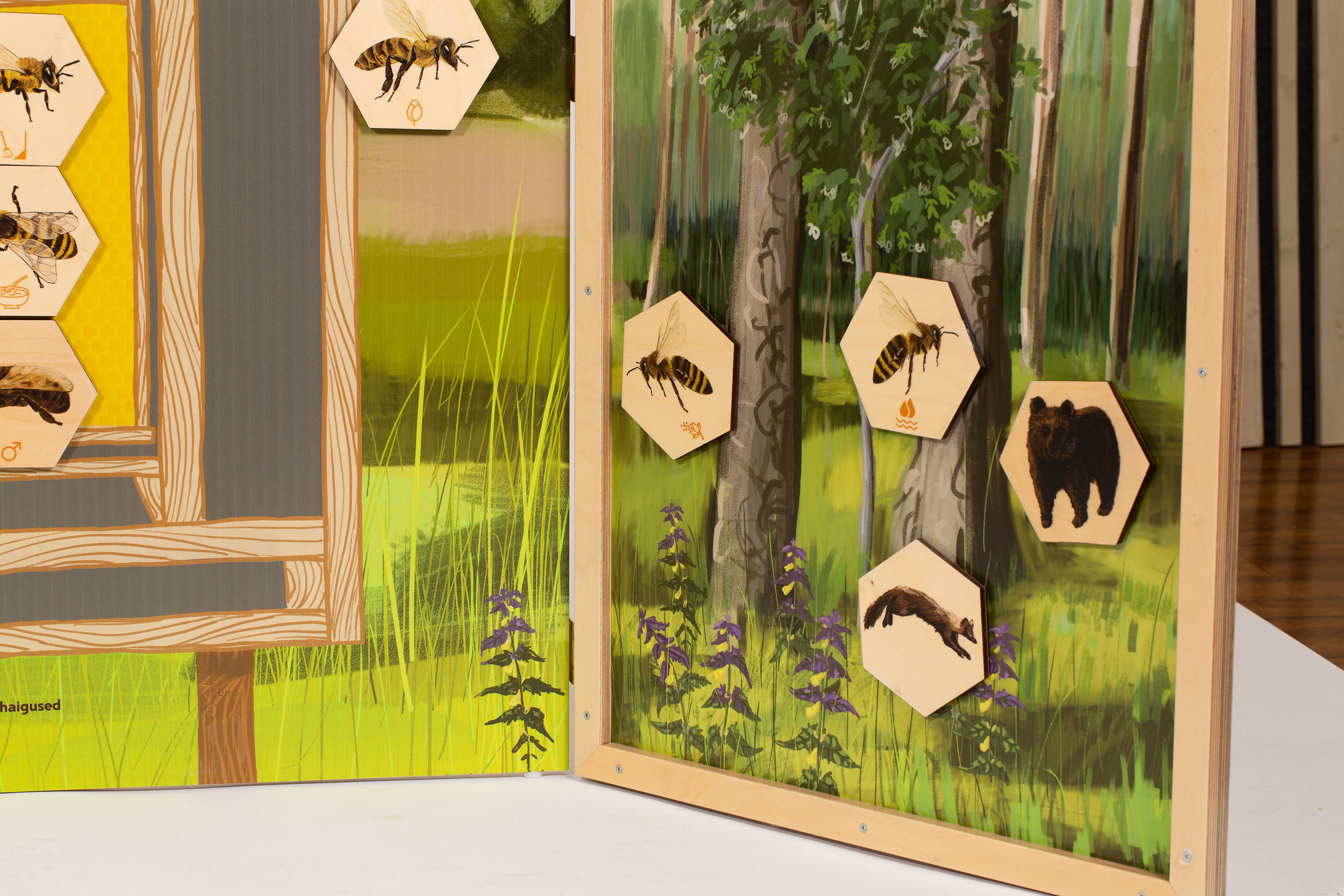
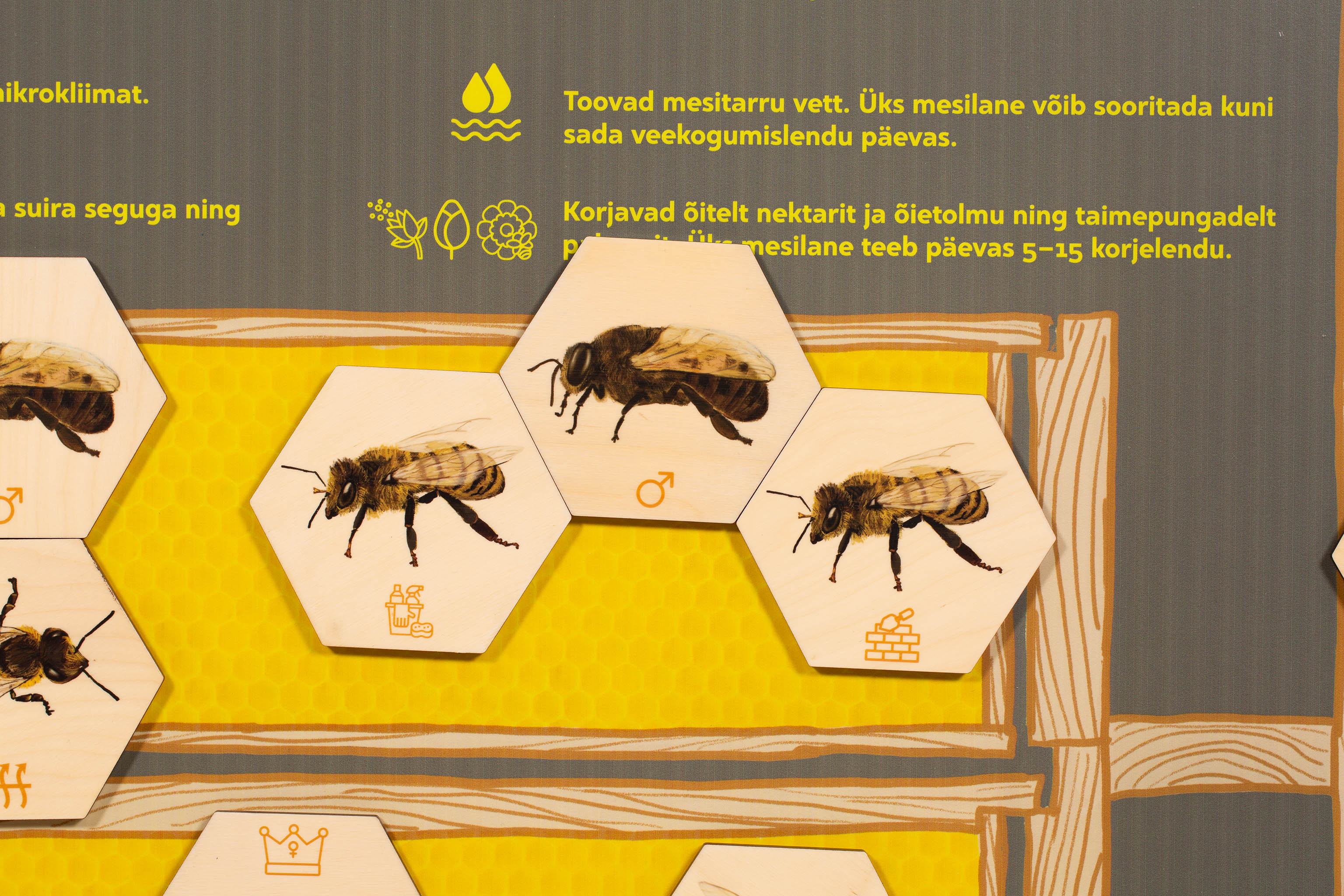
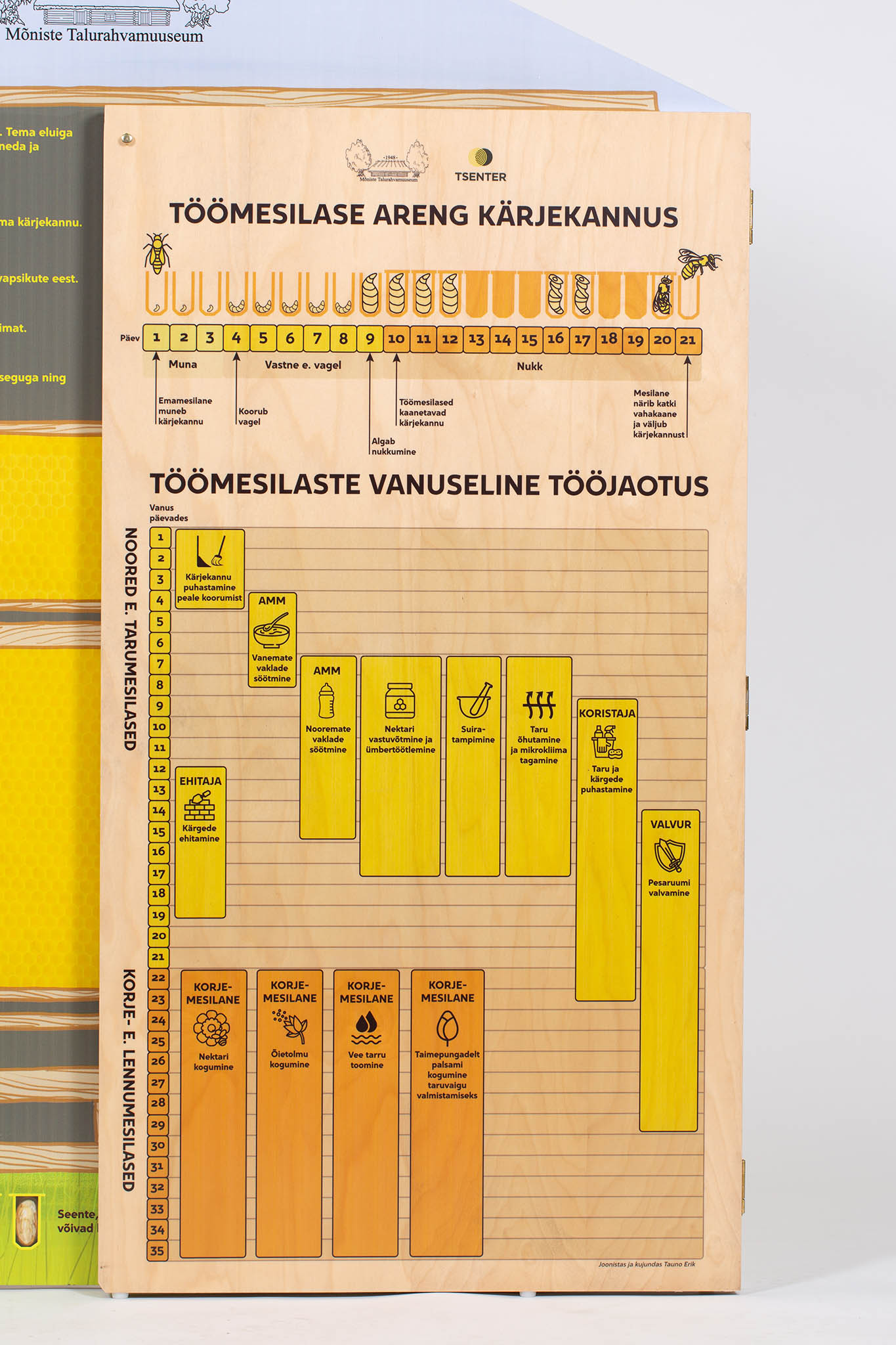
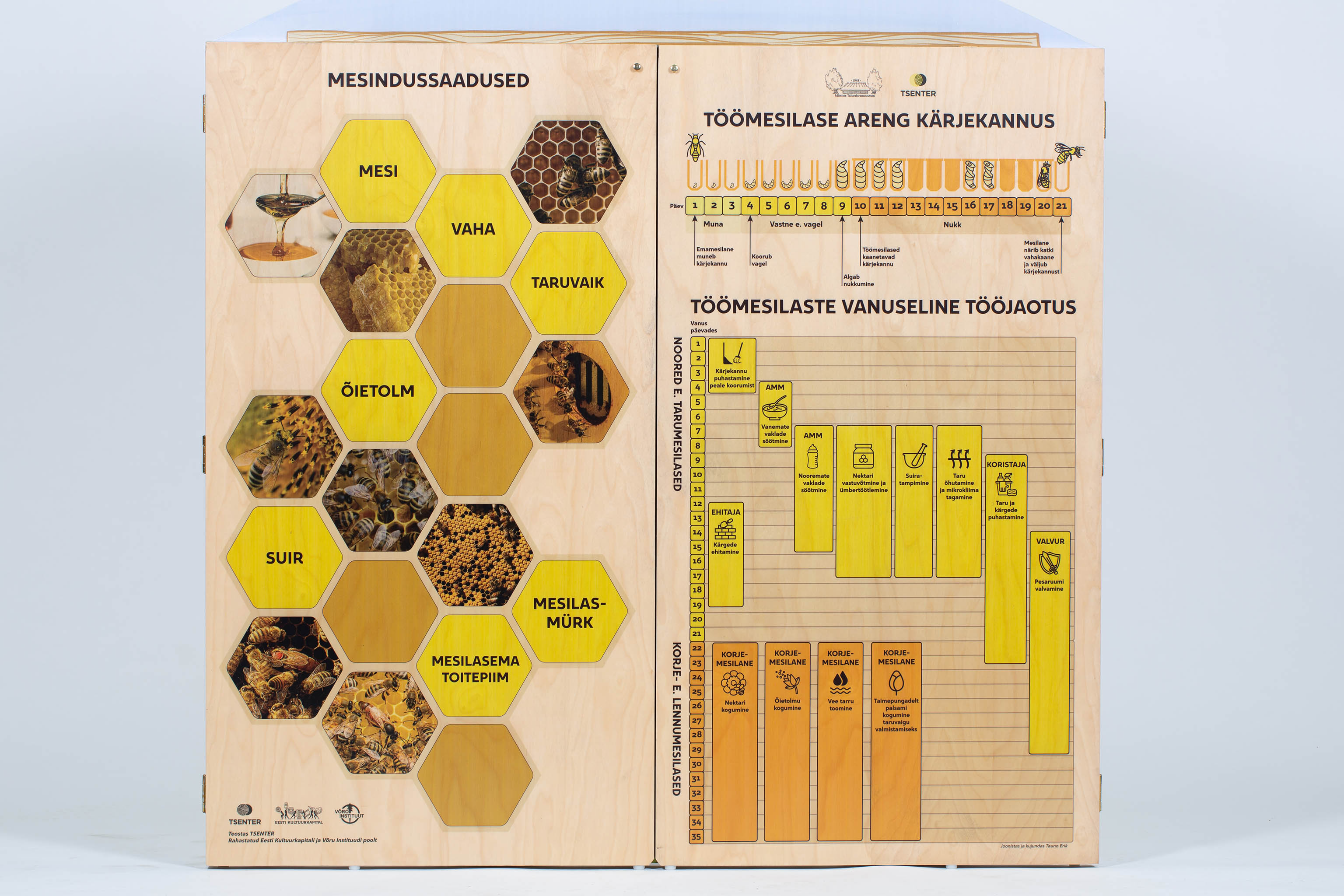
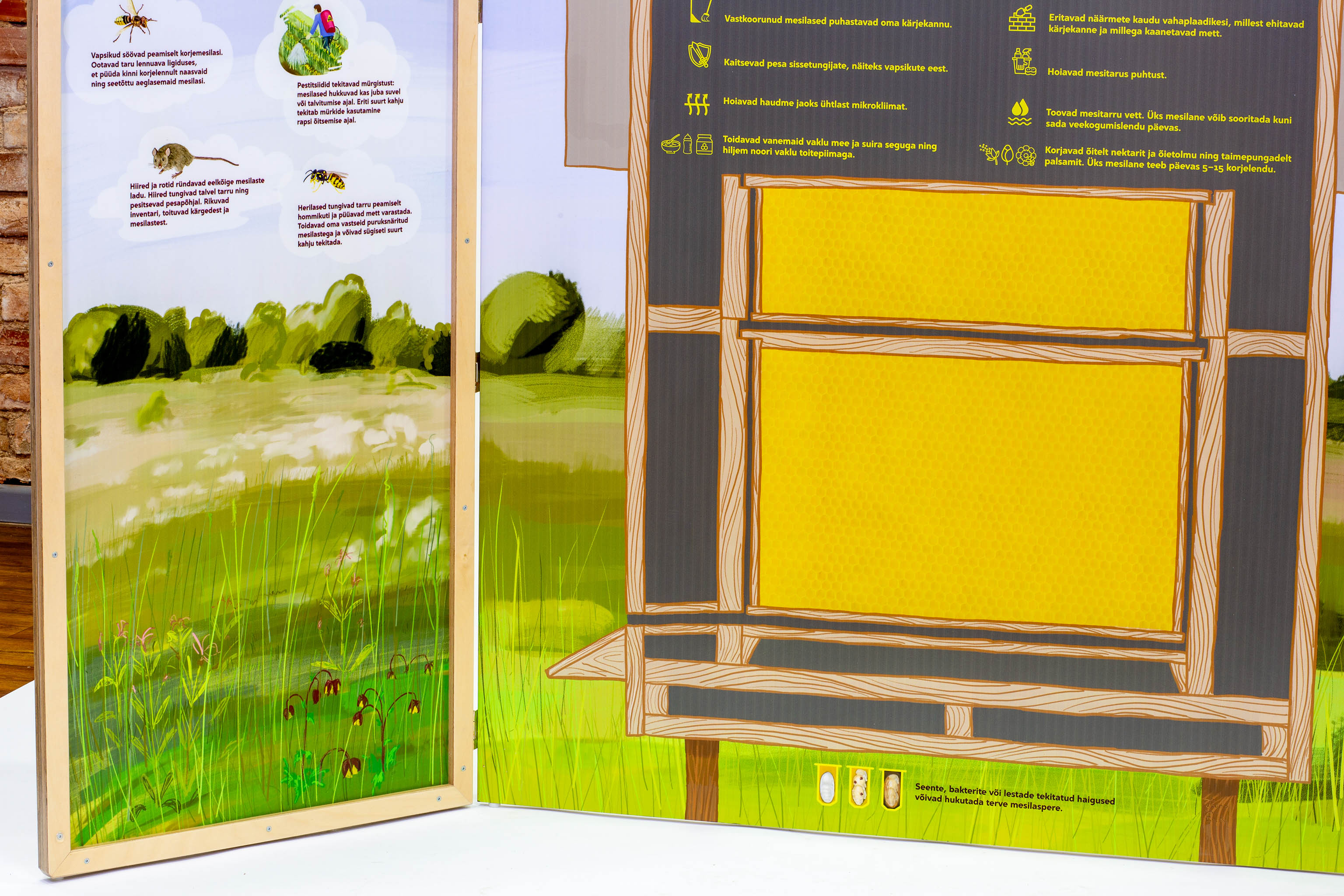
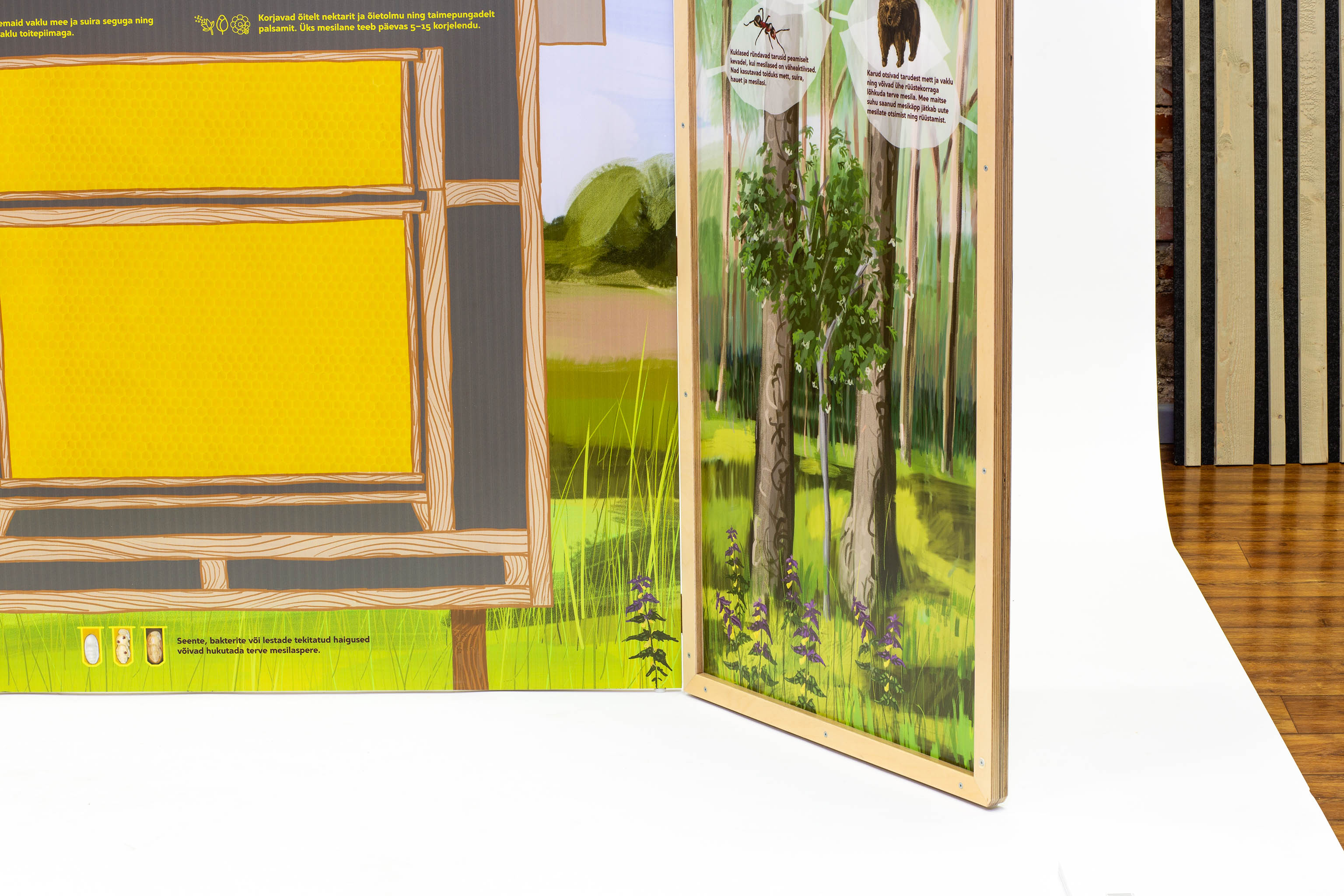
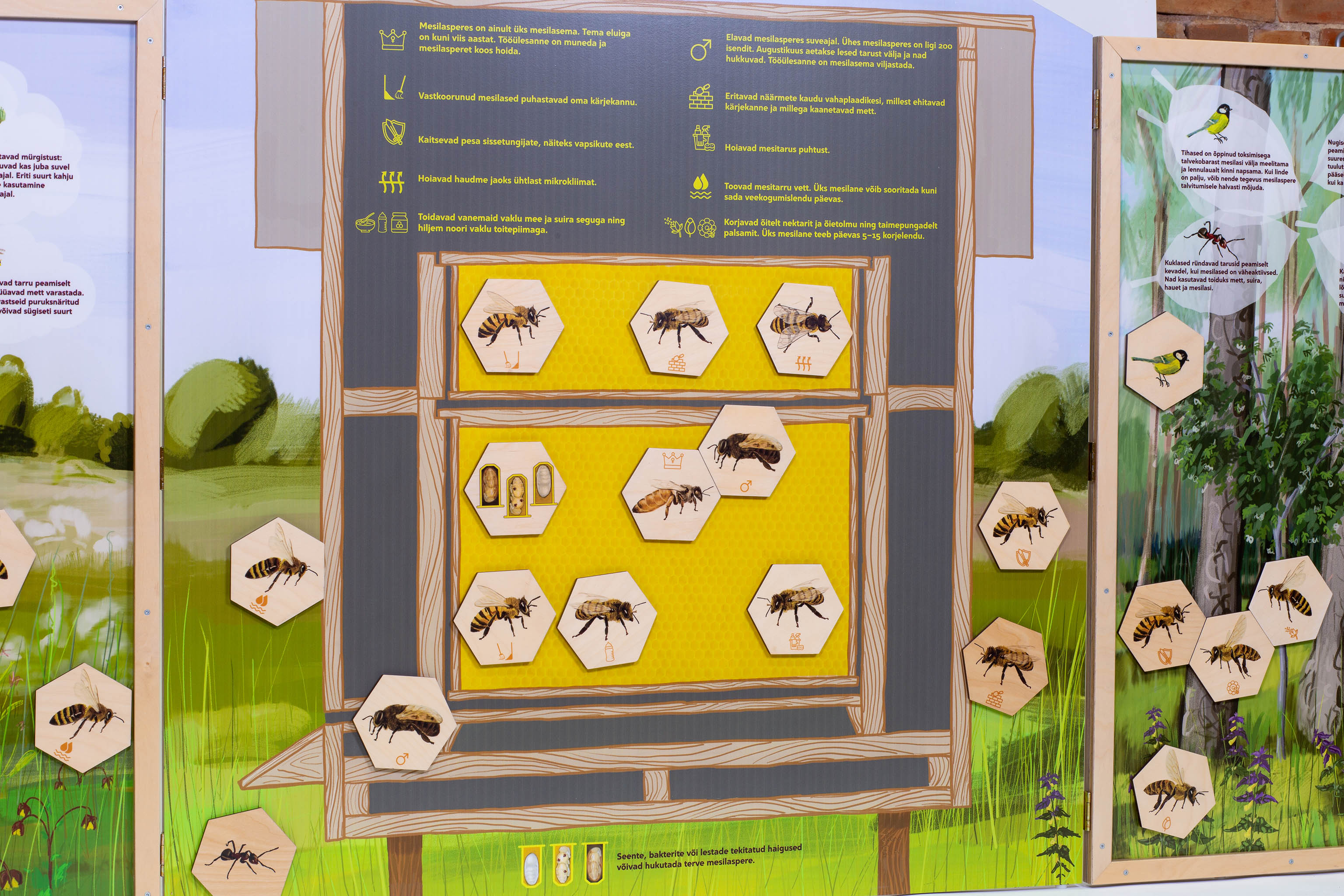
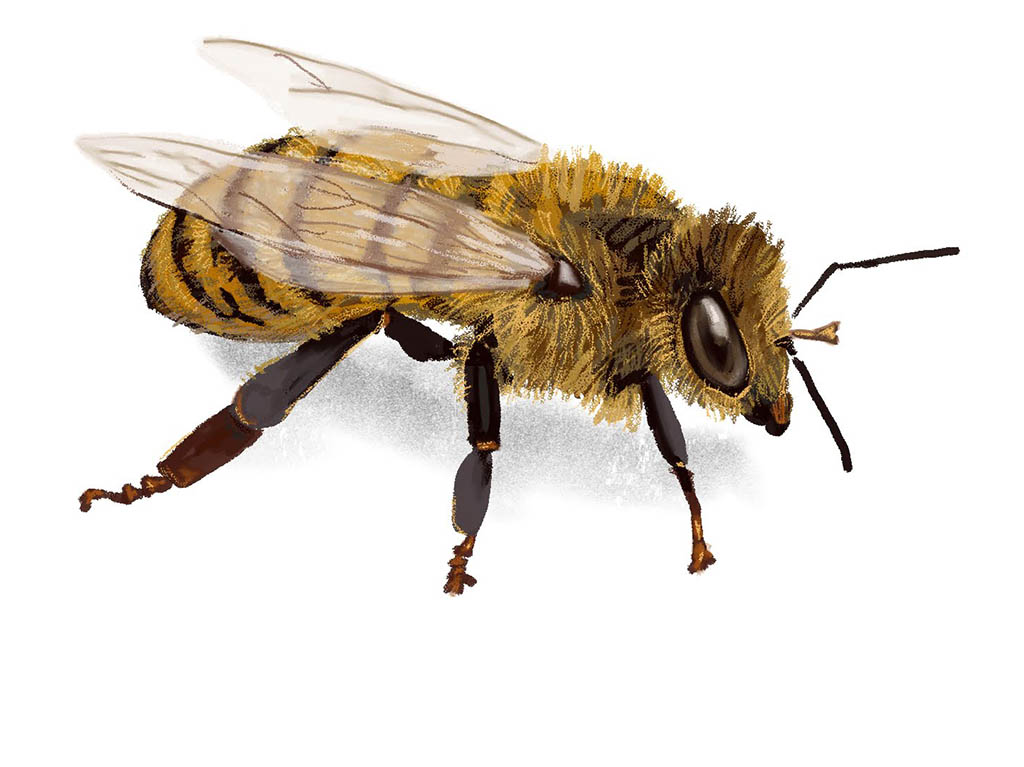
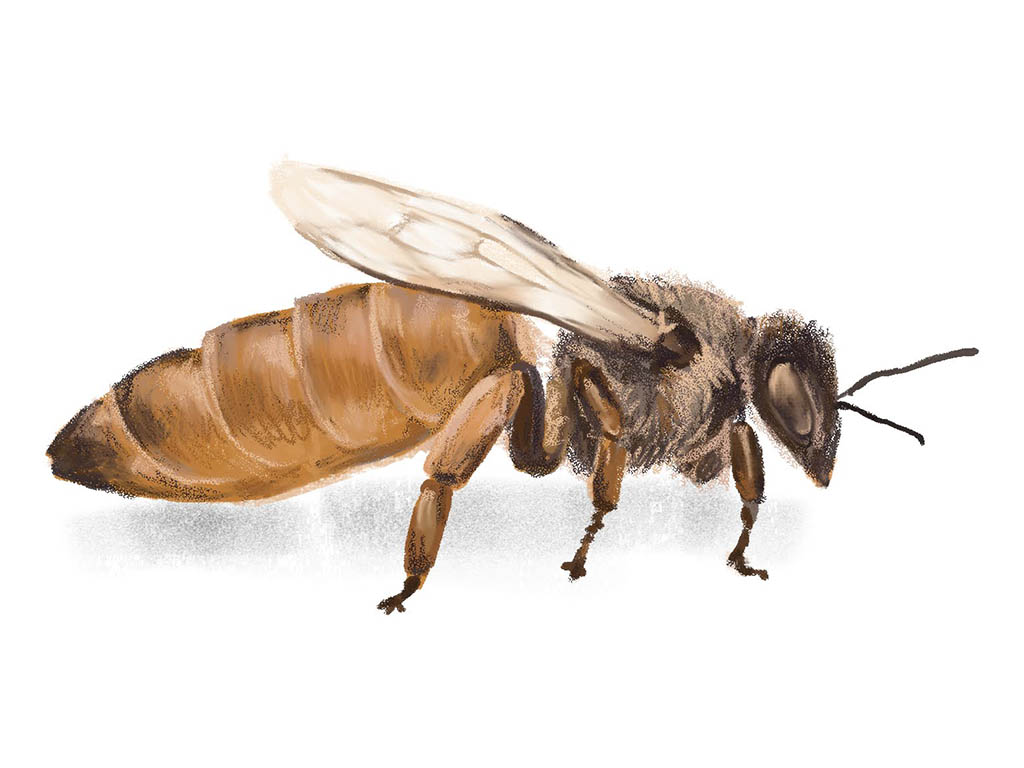
Kujundasin Mõniste Talurahva muuseumile Mesitaru mängu. Joonistasin, digimaali tehnikas, kõik mesilased, taustamaastikud ja muud elukad. Tekstid koostas Liispet Jalandi. Valmistas TSENTER.
Üks LED valgusti 15 LEDiga. LEDe juhitakse läbi WS2811 kiipide, mis lubab kõikide LEDide heledust kontrollida individuaalselt. Tahaküljele saab kinnitada ka Seeedstudi XIAO arendusplaadi. Või siis kontrollida eraldi oleva mikrokontrolleriga. Mina kasutan siin ESP32te. Neid valgusteid saab ka järjestiku mitu tükki üksteise järgi. PCBd valmistas ja printis PCBWay. Komponendid jootsin ise. PCB läbimõõt 10cm.
ESP-IDF is Espressif’s official IoT Development Framework for the ESP32, ESP32-S, ESP32-C and ESP32-H series. It provides a self-sufficient SDK for any generic application development on these platforms, using programming languages such as C and C++.
Select an Espressif target (esp32, esp32s2, etc.) with the ESP-IDF: Set Espressif Device Target command. Default is esp32.
Configure your project using menuconfig. Use the ESP-IDF: SDK Configuration Editor command (CTRLEG keyboard shortcut ) where the user can modify the ESP-IDF project settings.
Open the project configuration menu (idf.py menuconfig).
Build the project, use the ESP-IDF: Build your Project command (CTRLEB keyboard shortcut).
Blink example code
#include <stdio.h>
#include "freertos/FreeRTOS.h"
#include "freertos/task.h"
#include "driver/gpio.h"
#include "esp_log.h"
#include "led_strip.h"
#include "sdkconfig.h"
static const char *TAG = "example";
/* Use project configuration menu (idf.py menuconfig) to choose the GPIO to blink,
or you can edit the following line and set a number here.
*/
#define BLINK_GPIO 2 // pin
static uint8_t s_led_state = 0;
static void blink_led(void) {
/* Set the GPIO level according to the state (LOW or HIGH)*/
gpio_set_level(BLINK_GPIO, s_led_state);
}
static void configure_led(void) {
ESP_LOGI(TAG, "Blink GPIO LED!");
gpio_reset_pin(BLINK_GPIO);
/* Set the GPIO as a push/pull output */
gpio_set_direction(BLINK_GPIO, GPIO_MODE_OUTPUT);
}
void app_main(void) {
/* Configure the peripheral according to the LED type */
configure_led();
while (1) {
ESP_LOGI(TAG, "Turning the LED %s!", s_led_state == true ? "ON" : "OFF");
blink_led();
/* Toggle the LED state */
s_led_state = !s_led_state;
vTaskDelay(CONFIG_BLINK_PERIOD / portTICK_PERIOD_MS);
}
}